Chatrooms Complete Guide
What this helps you do
Chatrooms let you talk with other WallStreet.io members in real time while you’re in your Charts Workspace. You can switch between rooms, adjust your chat settings, manage what you see from specific users, and search past messages when you’re trying to find a specific comment or topic.
Where to find Chatrooms
You can open Chatrooms in two ways:
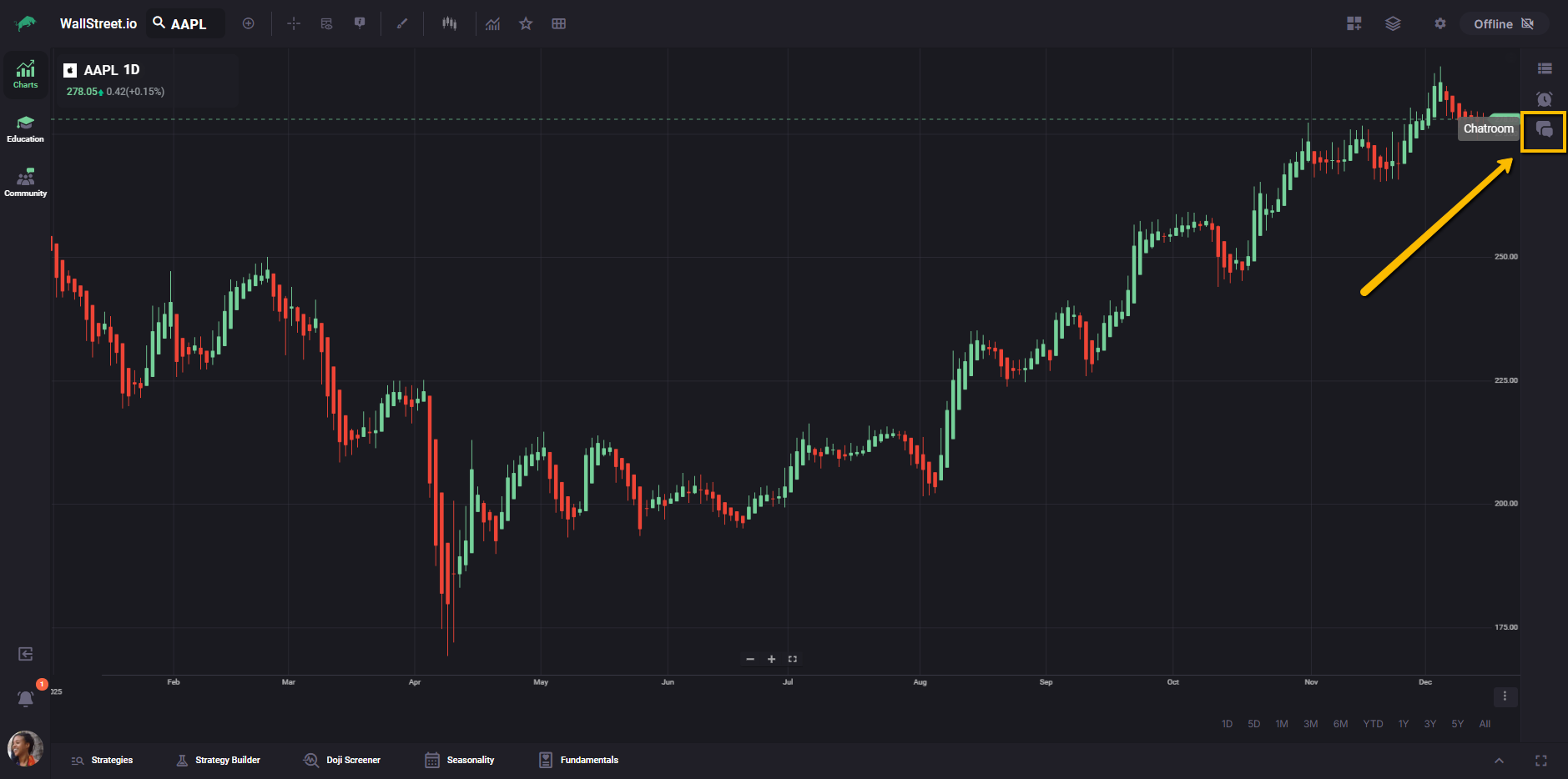
If the widget area is closed, click the Chatroom icon on the right-side navigation bar.
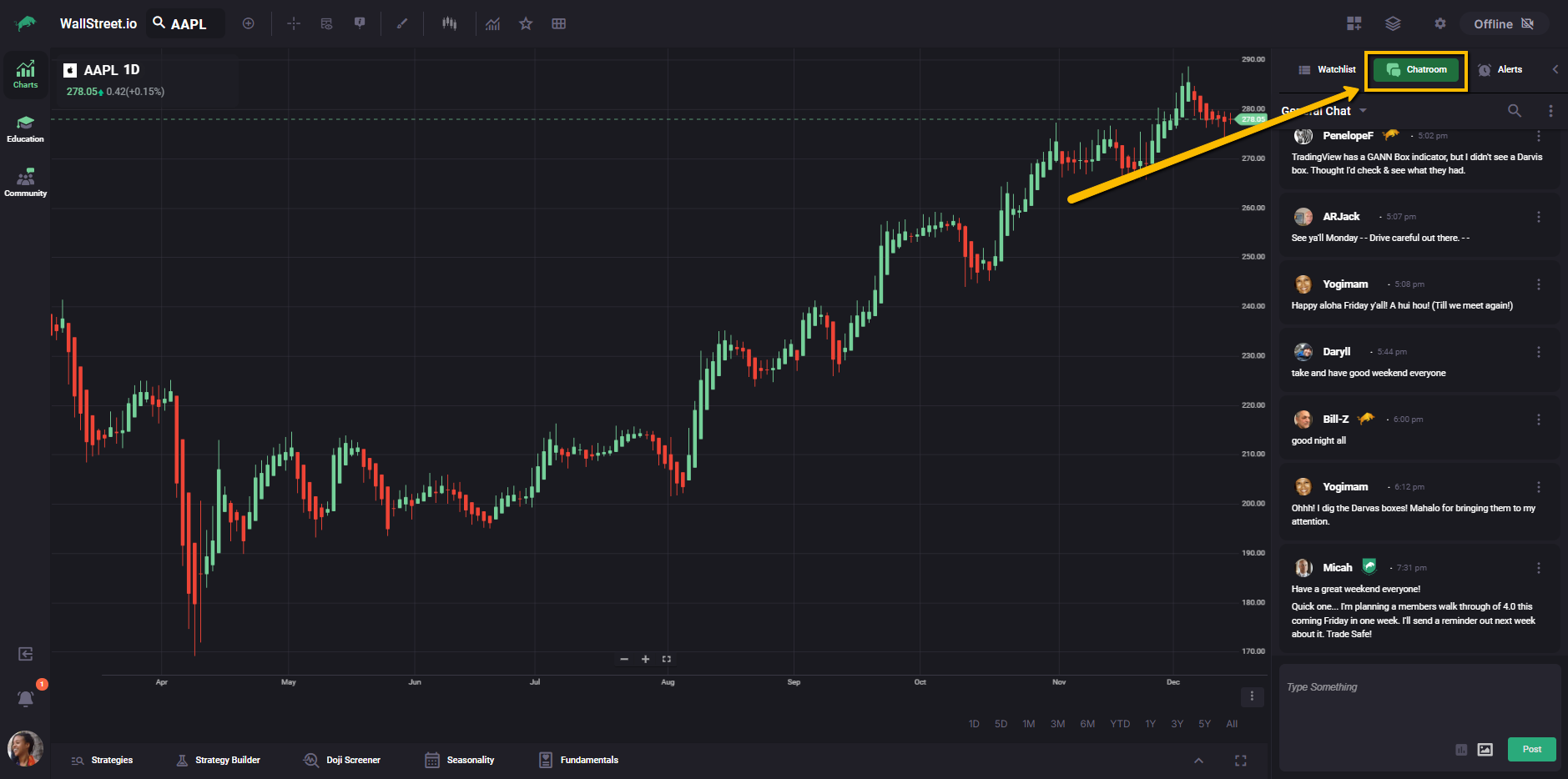
If the widget area is already open (for example, Watchlist or Alerts), click Chatroom at the top of the widget panel to switch over.
Chatrooms layout
The Chatrooms widget is made up of:
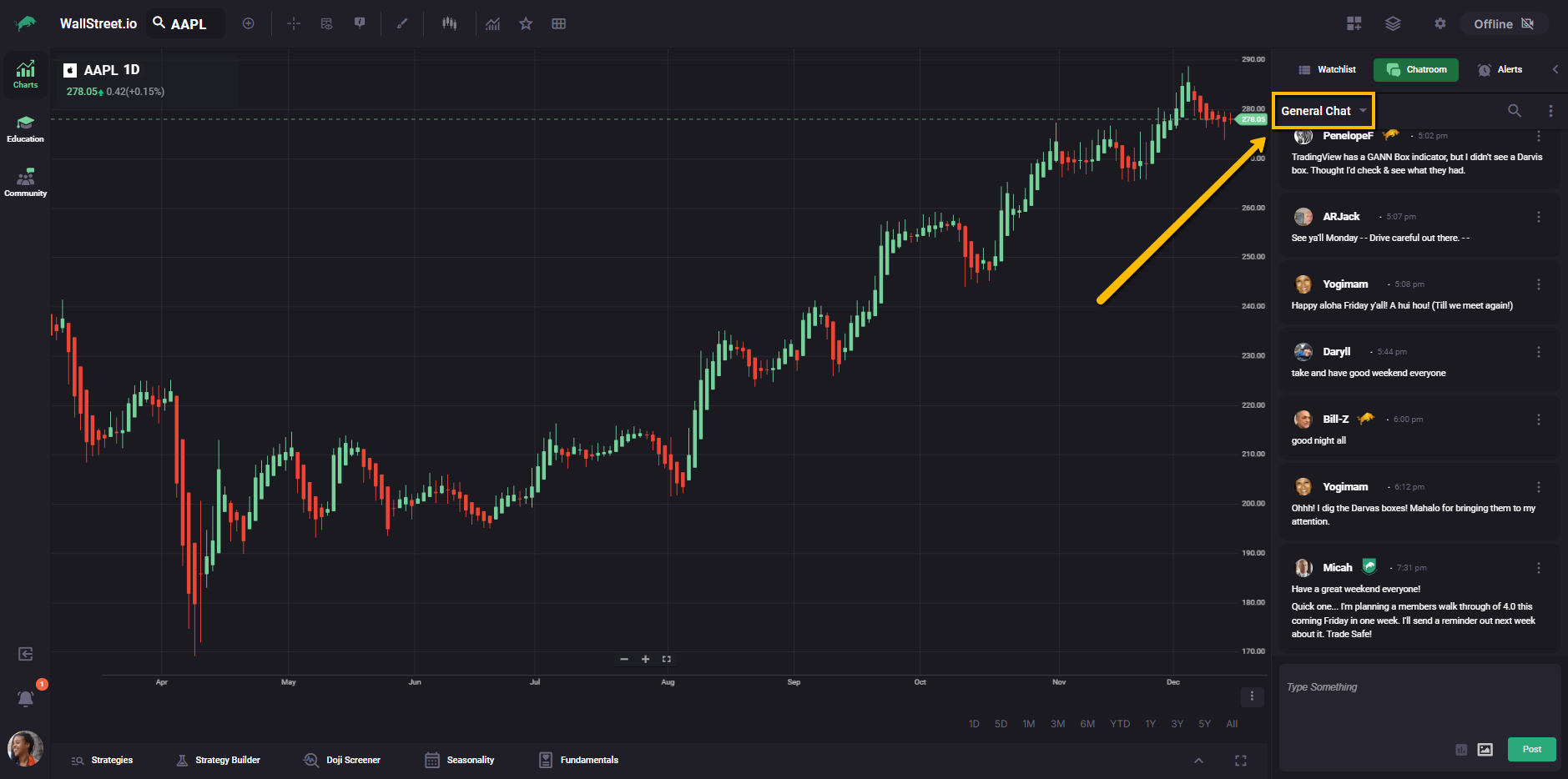
The chatroom selector at the top, which shows the room you’re currently viewing.
A message feed in the middle, where posts appear in time order.
A message box at the bottom where you type your message, plus a Post button to send it.
Switch to a different chatroom
To change rooms, click the chatroom selector at the top of the widget (it shows the current room name, like “General Chat”). Then select the chatroom you want to open.
Chatroom settings menu
Click the three-dot menu at the top-right of the Chatrooms widget to customize your experience.
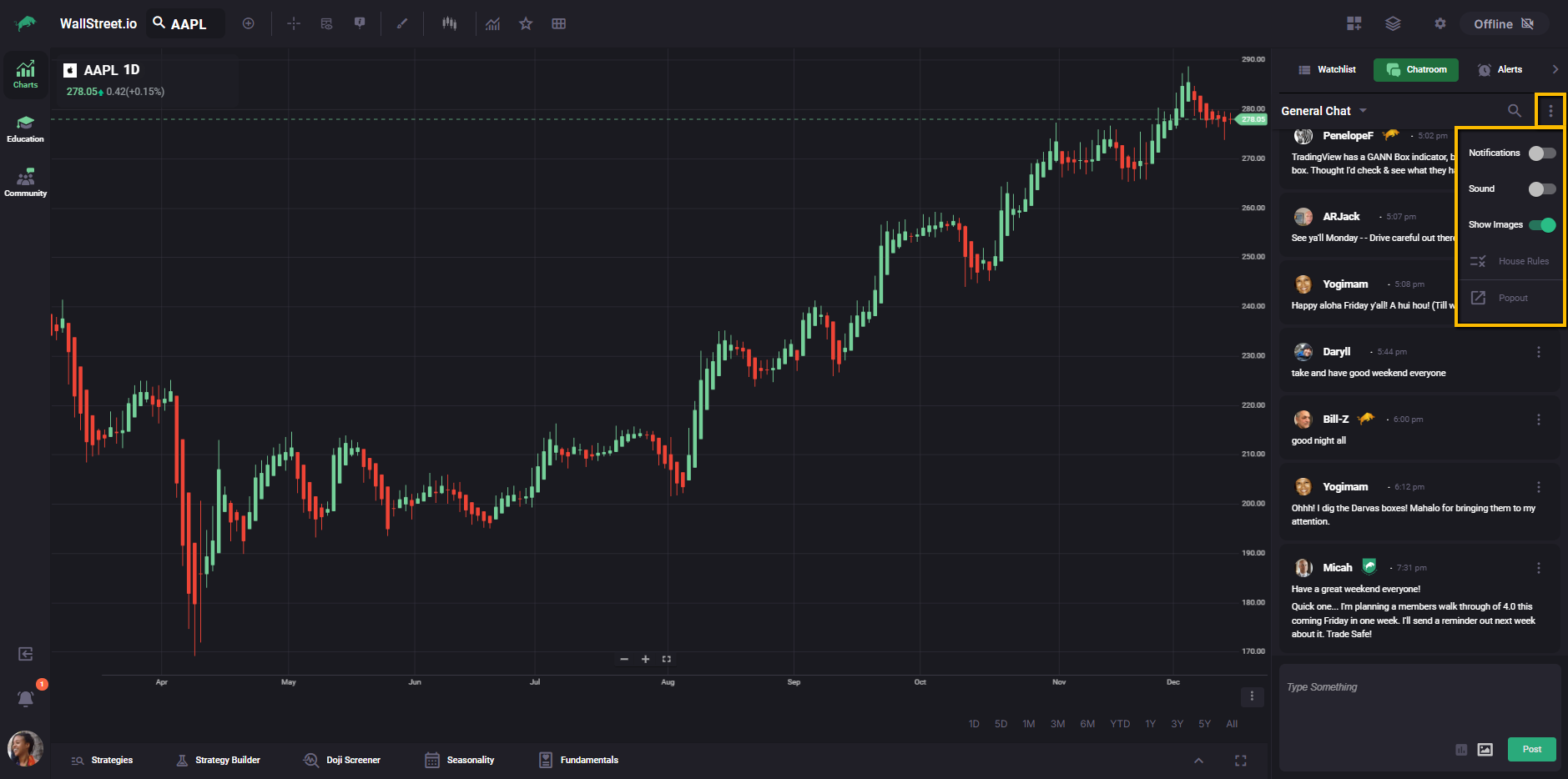
Here’s what you can control from that menu:
| Setting | What it does |
| Notifications | Turns chat notifications on or off. |
| Sound | Turns chat sounds on or off. |
| Show Images | Shows or hides images posted in chat. |
| House Rules | [Unverified] Opens the community guidelines. This option may be unavailable in some cases. |
| Popout | Opens Chatrooms in a separate window. |
Message and user options
Each message has its own three-dot menu. Use it to manage a specific post or user.
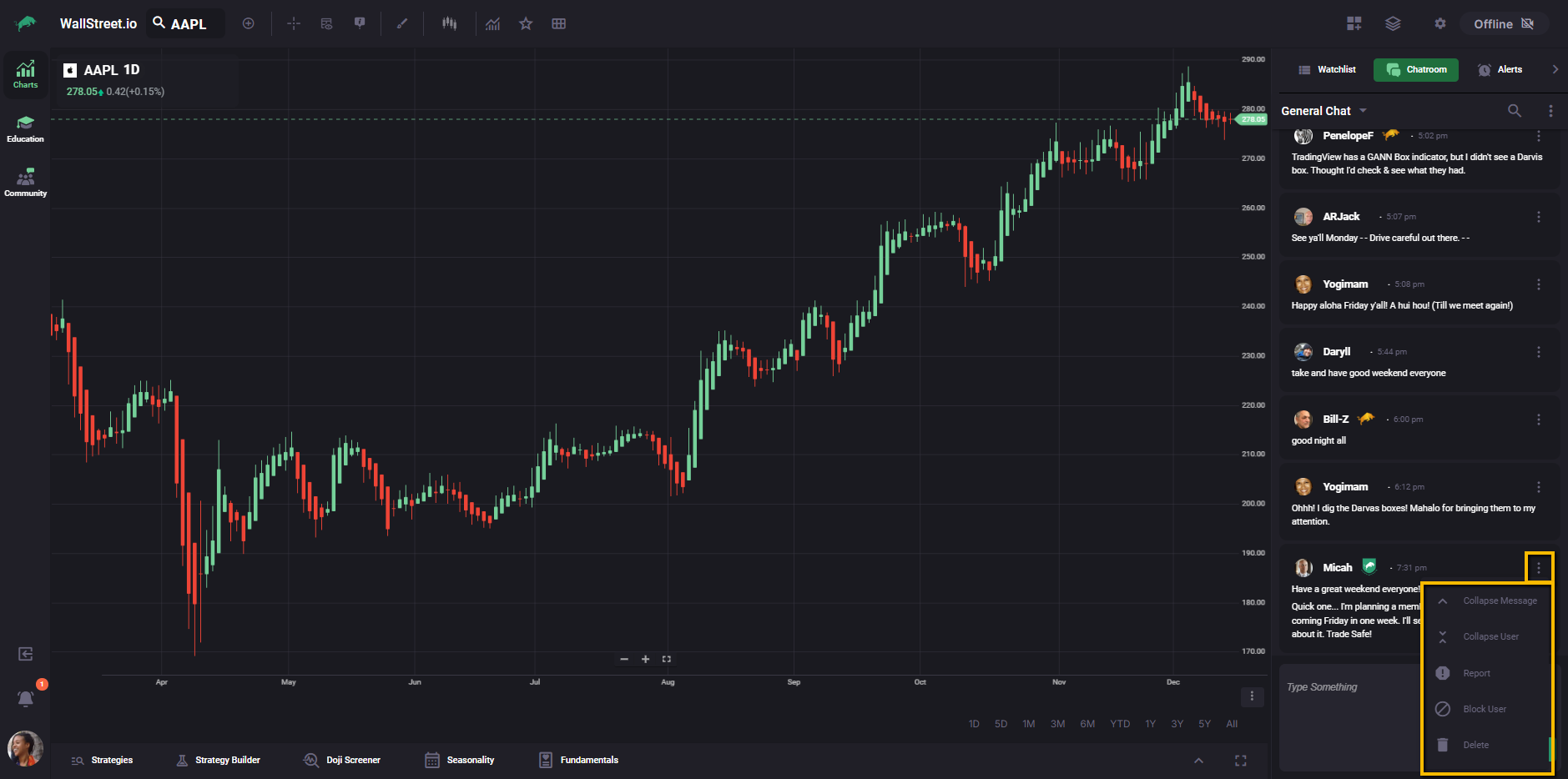
| Option | What it does |
| Collapse Message | Minimizes a single message in your feed. |
| Collapse User | Minimizes messages from a specific user in your feed. |
| Report | Flags a message for review. |
| Block User | Hides a user’s messages from your chat view. |
| Delete | [Unverified] Removes a message. Availability may depend on whether it’s your post or your account permissions. |
Search and filter chatrooms
Click the magnifying glass at the top-right of the Chatrooms widget to open the search panel.
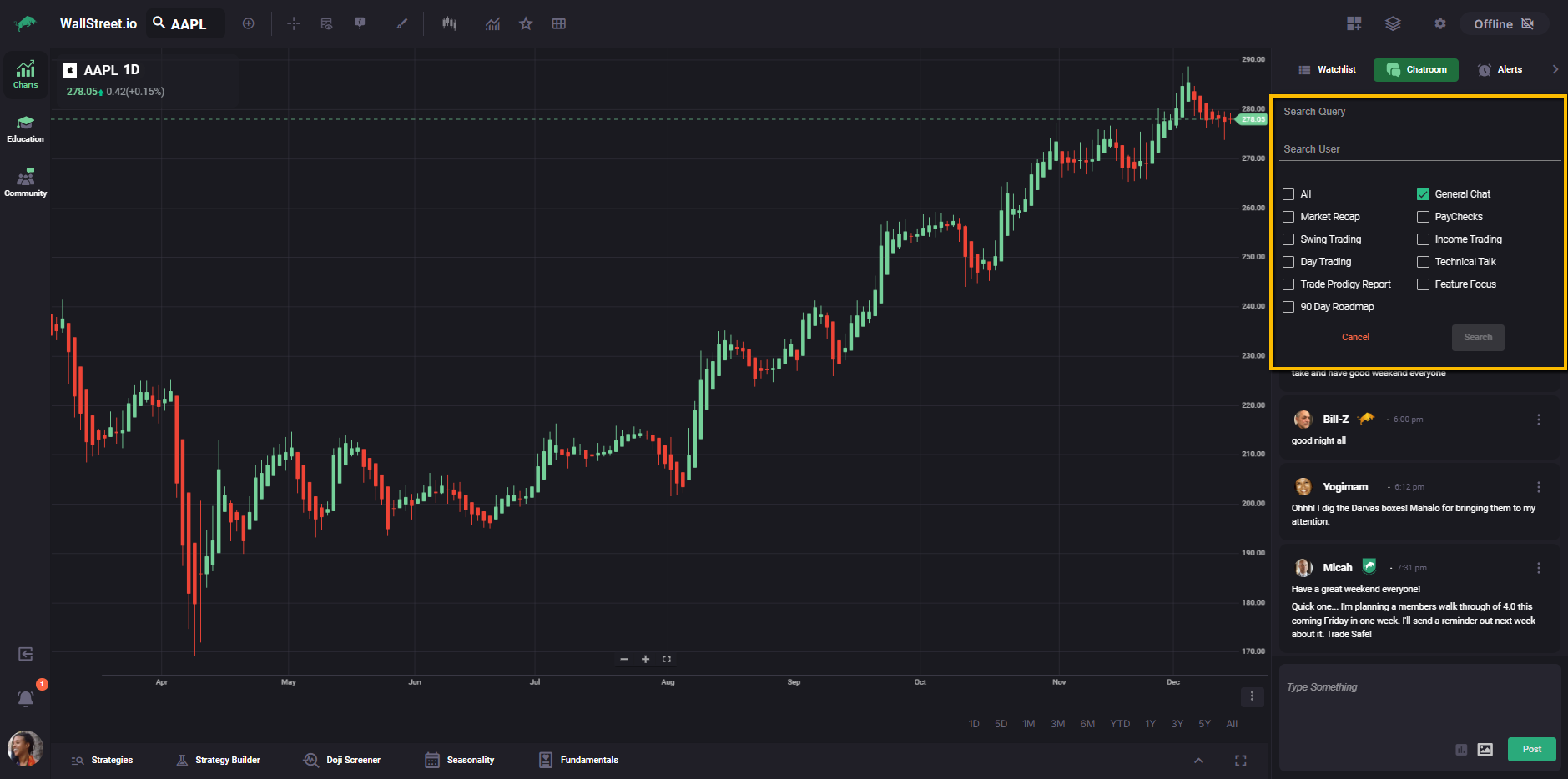
From there you can:
Search for a keyword using Search Query
Search for posts by a specific person using Search User
Choose which chatrooms to search by checking the rooms you want (or select All)
Click Search to run the search, or Cancel to exit