Strategies Filters Complete Guide
What this helps you do
The Strategies Filters panel helps you turn a long list of backtested strategies into a short list of candidates that actually fit your trading criteria. You can screen by lifecycle status, direction, indicator logic, and performance stats in a single place, then save those rules as reusable filters. This keeps the Strategies tab focused on ideas that match your style instead of forcing you to scan every result by hand.
Strategies Filters Overview
The Filters panel under the Strategies tab lets you narrow thousands of backtested strategies down to the ones that match your trading criteria. You can combine status, type, indicator conditions, and performance stats in a single view. Once a filter is applied, the strategies table only shows strategies that meet all of your active rules.
Opening the Filters Panel
In the Strategies tab, you can find the Filter button above the strategies table.
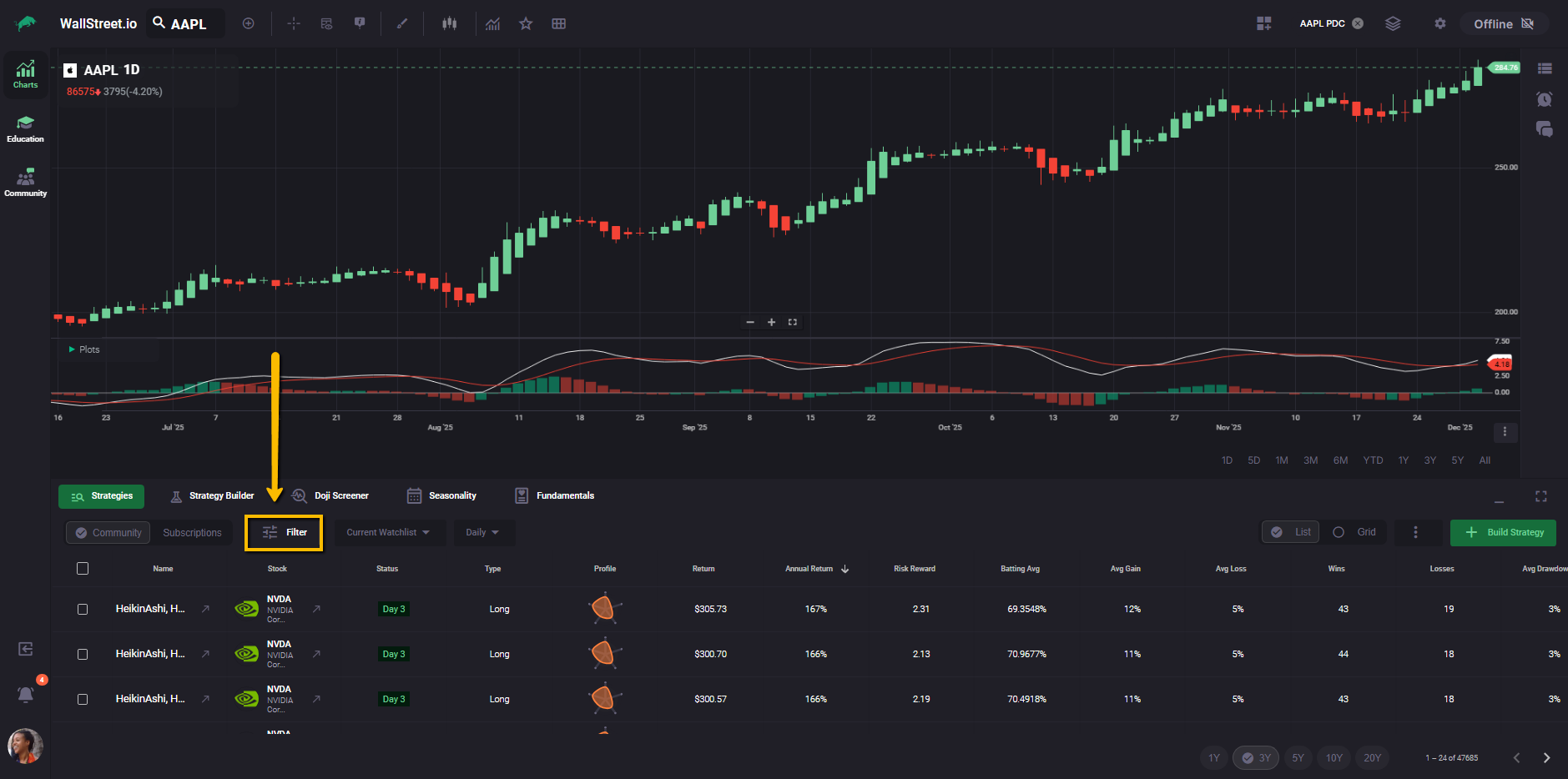
When you click it, a side panel opens on the right, while your chart and strategies list stay visible on the left. You can work with filters without losing sight of the chart or scan results.
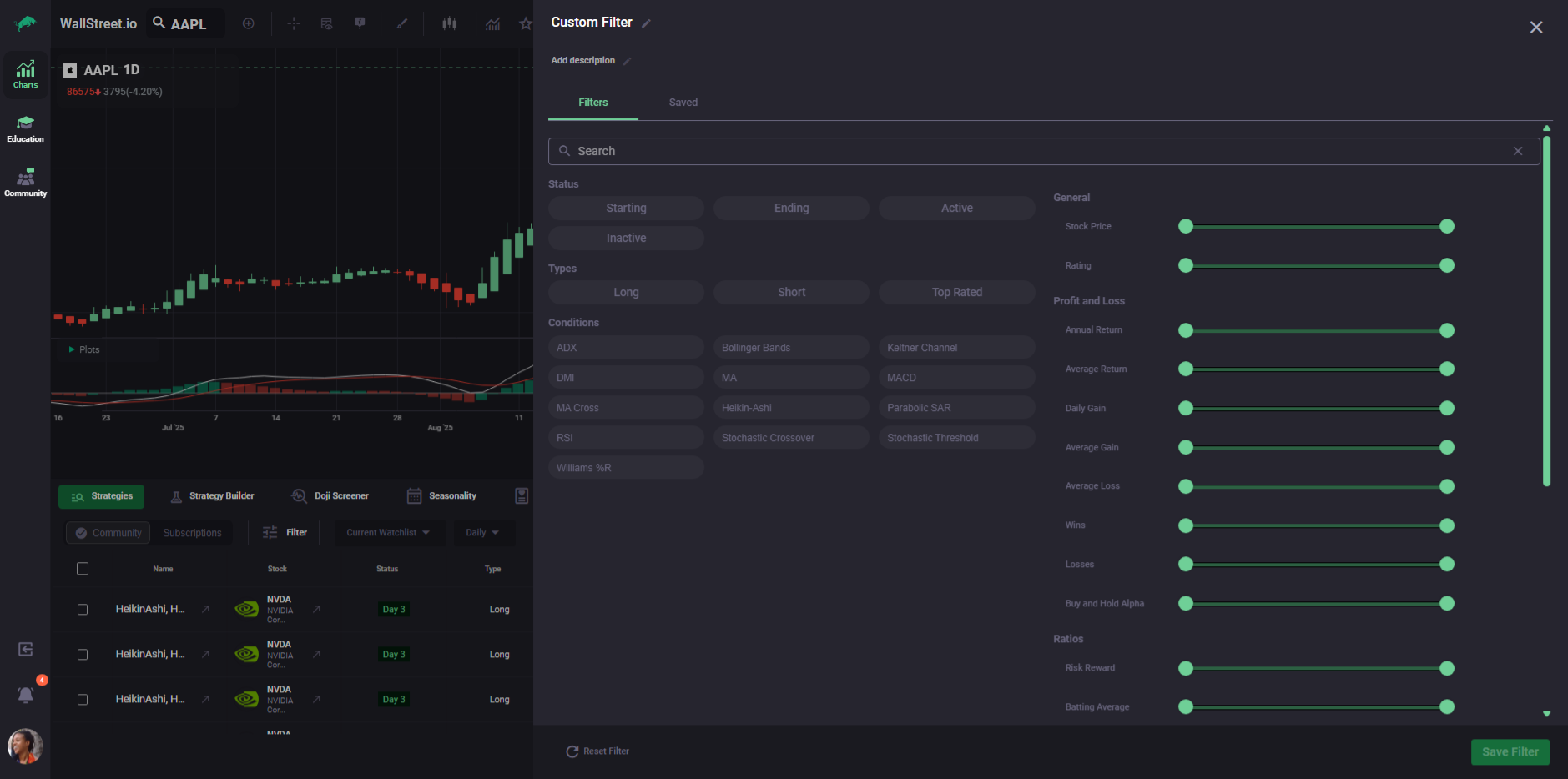
Filter Name and Description
At the top of the panel you see a filter name field and an optional description. Use these when you want to save a setup that you will reuse, such as “High RR MACD longs” or “Conservative swing ideas.” Names and descriptions are only saved when you click Save Filter.
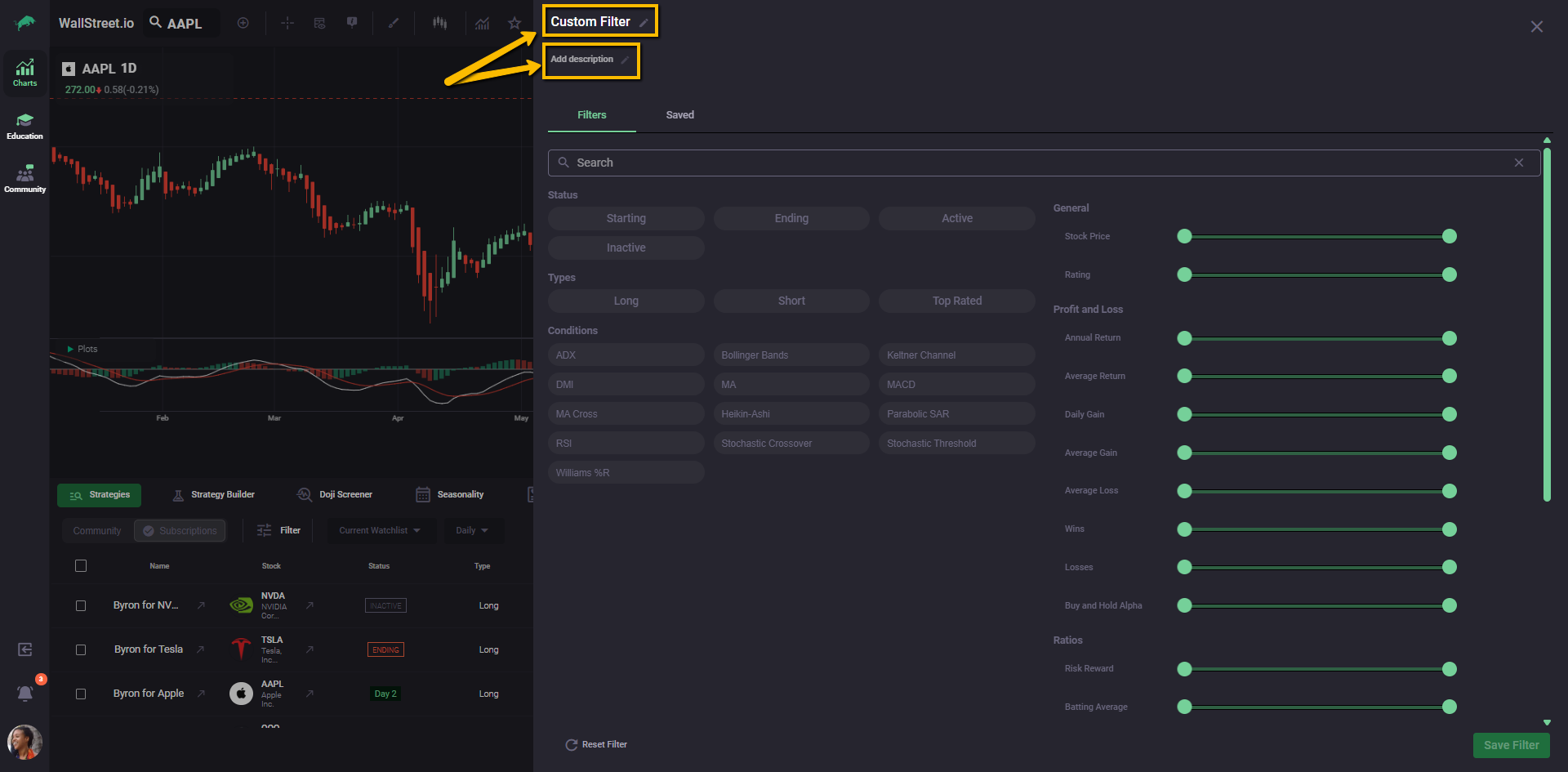
Filters vs Saved Tabs
The Filters tab is where you build and adjust the active rules. Any change here immediately updates the strategies list.
The Saved tab is where you browse and apply existing presets, including your own saved filters and community filters created by WallStreet.io.
Status Filters
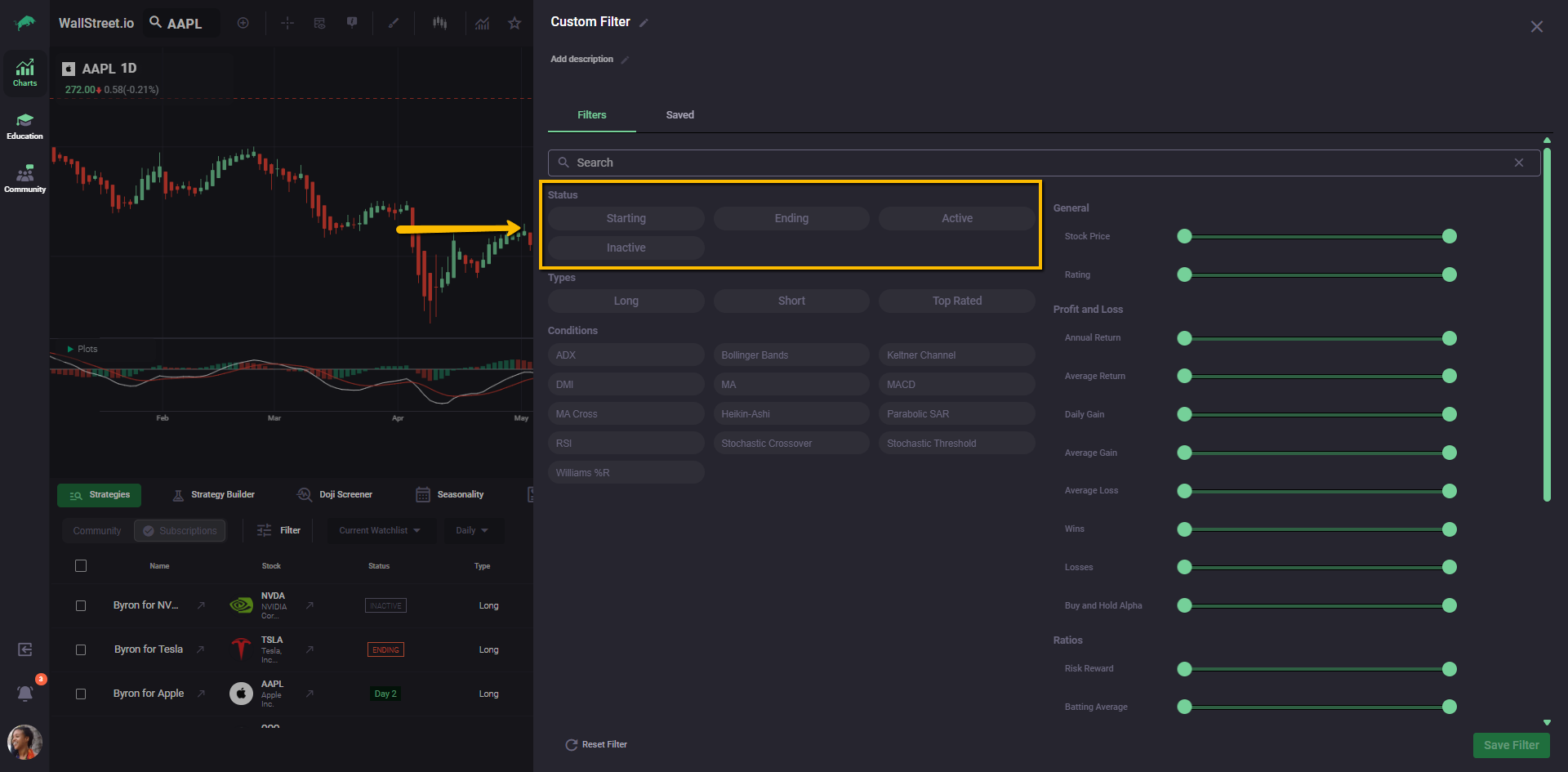
Under Status, you can restrict results to strategies that are Starting, Active, Ending, or Inactive. These options mirror the strategy lifecycle used across the platform so that your scan can focus on new entries, ongoing trades, exits, or parked systems. You can toggle one or several statuses on at the same time.
Type Filters
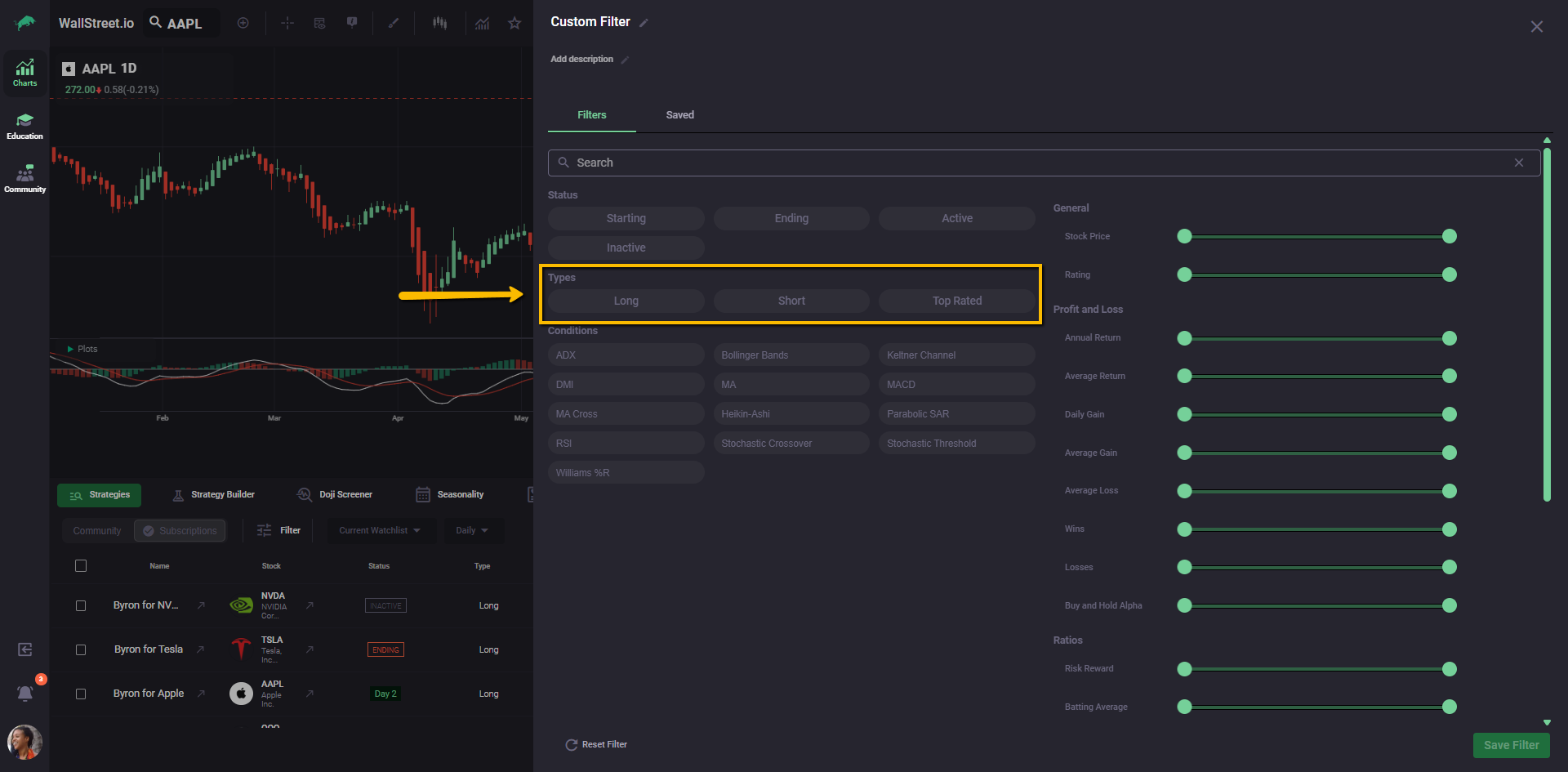
The Types section lets you choose between Long, Short, and sometimes Top Rated groupings. Long and Short control the directional bias of the strategies that appear in your list. Top Rated is a one click filter that highlights strategies with stronger overall scores and replaces what used to be the separate Discover tool.
Condition Filters
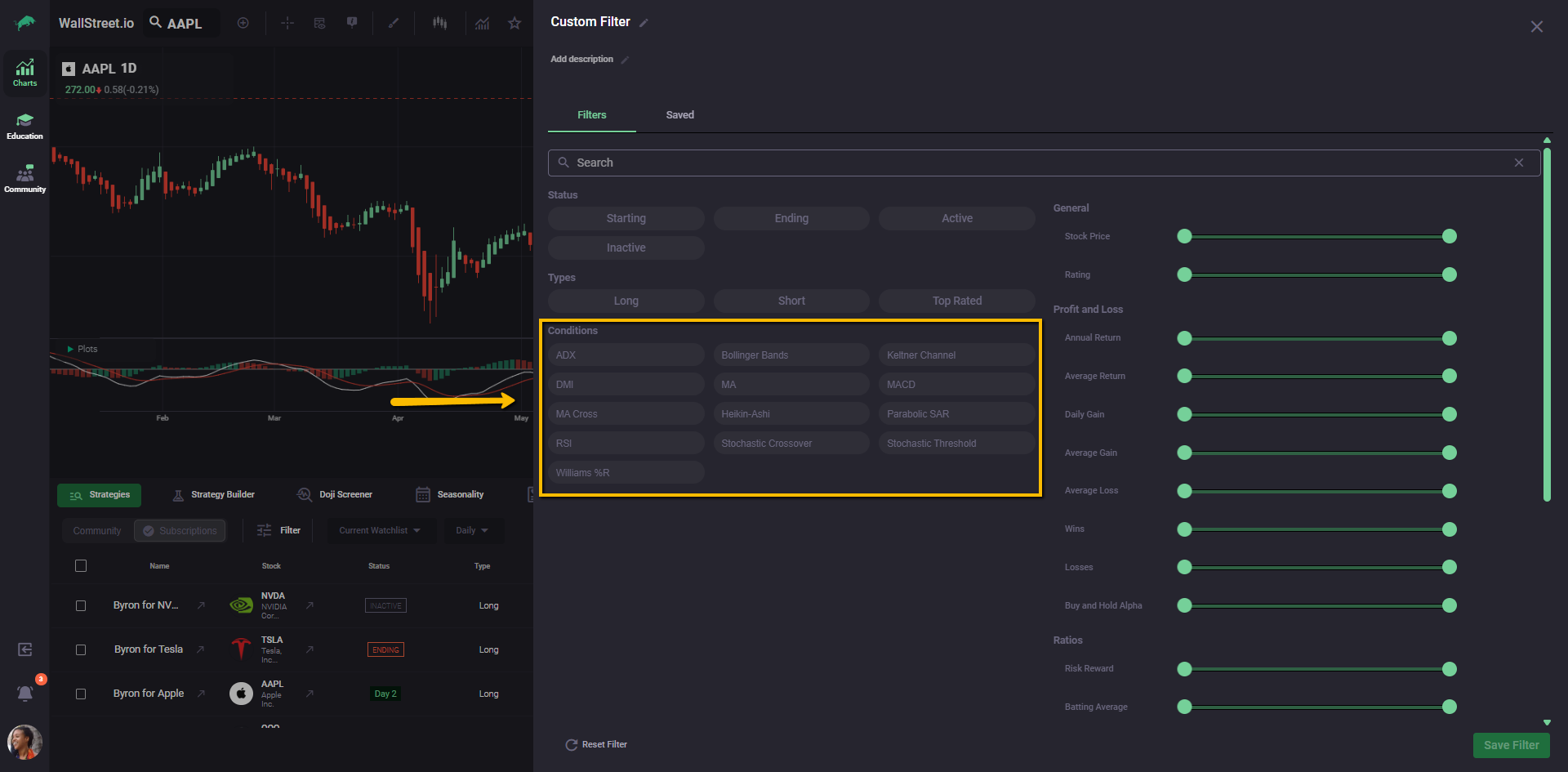
The Conditions section lets you require specific studies or logic in the strategy backtest, such as MACD, Heikin Ashi, RSI, Bollinger Bands, or other indicators. When you turn on a condition, only strategies that use that study in their rules remain in the results. You can combine several conditions to focus on strategies that match your preferred framework.
Slider Filters and Numeric Ranges
On the right side of the panel, sliders control numeric filters such as Stock Price, Rating, Annual Return, Average Gain, Average Loss, Wins, Losses, Buy and Hold Alpha, Risk Reward, and Batting Average.
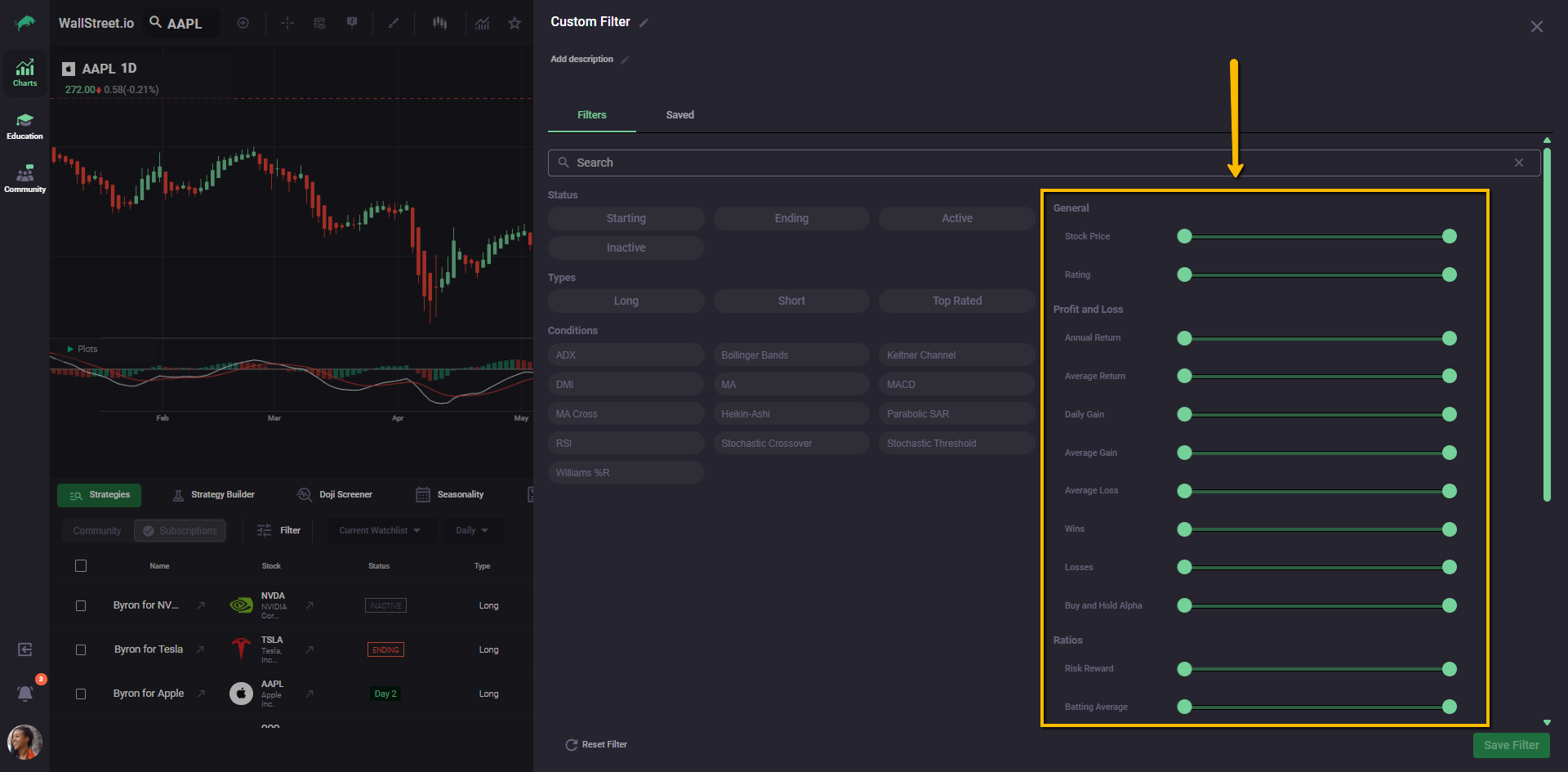
Each slider sets a minimum or range for that metric, so you can, for example, keep only stocks above a certain price or strategies with a target Risk Reward. These sliders use the same definitions as the stats shown in the strategies table and in the View Stats panel.
Tags, Unsaved Changes, and Reset
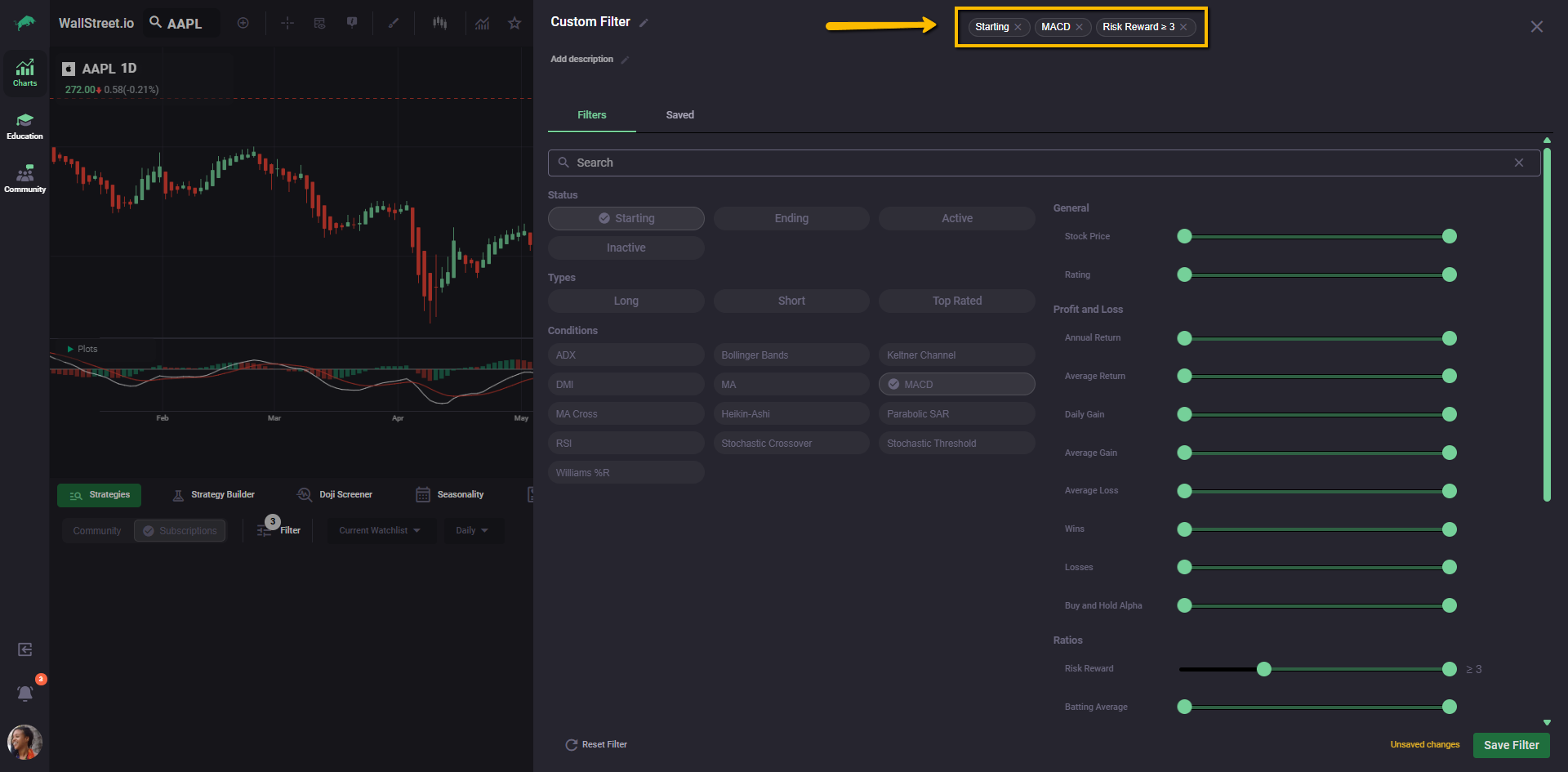
Whenever you turn on a filter, you see a tag for it along the top of the panel. Tags give you a quick summary of what is currently active, such as “Starting,” “MACD,” or “Risk Reward ≥ 3.”
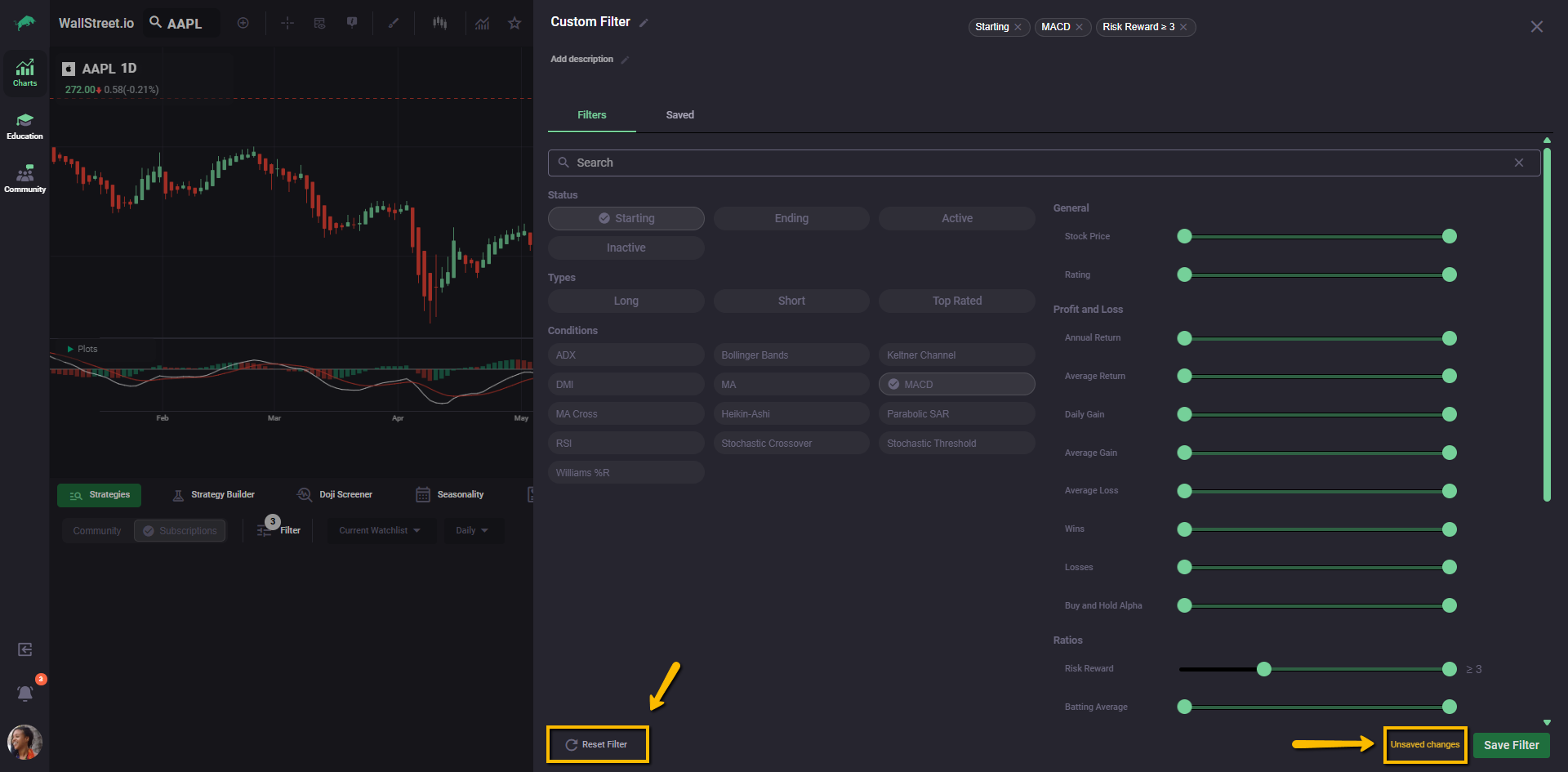
If you adjust any setting, the Unsaved changes notice appears near the bottom along with the Reset Filter option, which clears everything back to a neutral state.
Saving a Filter
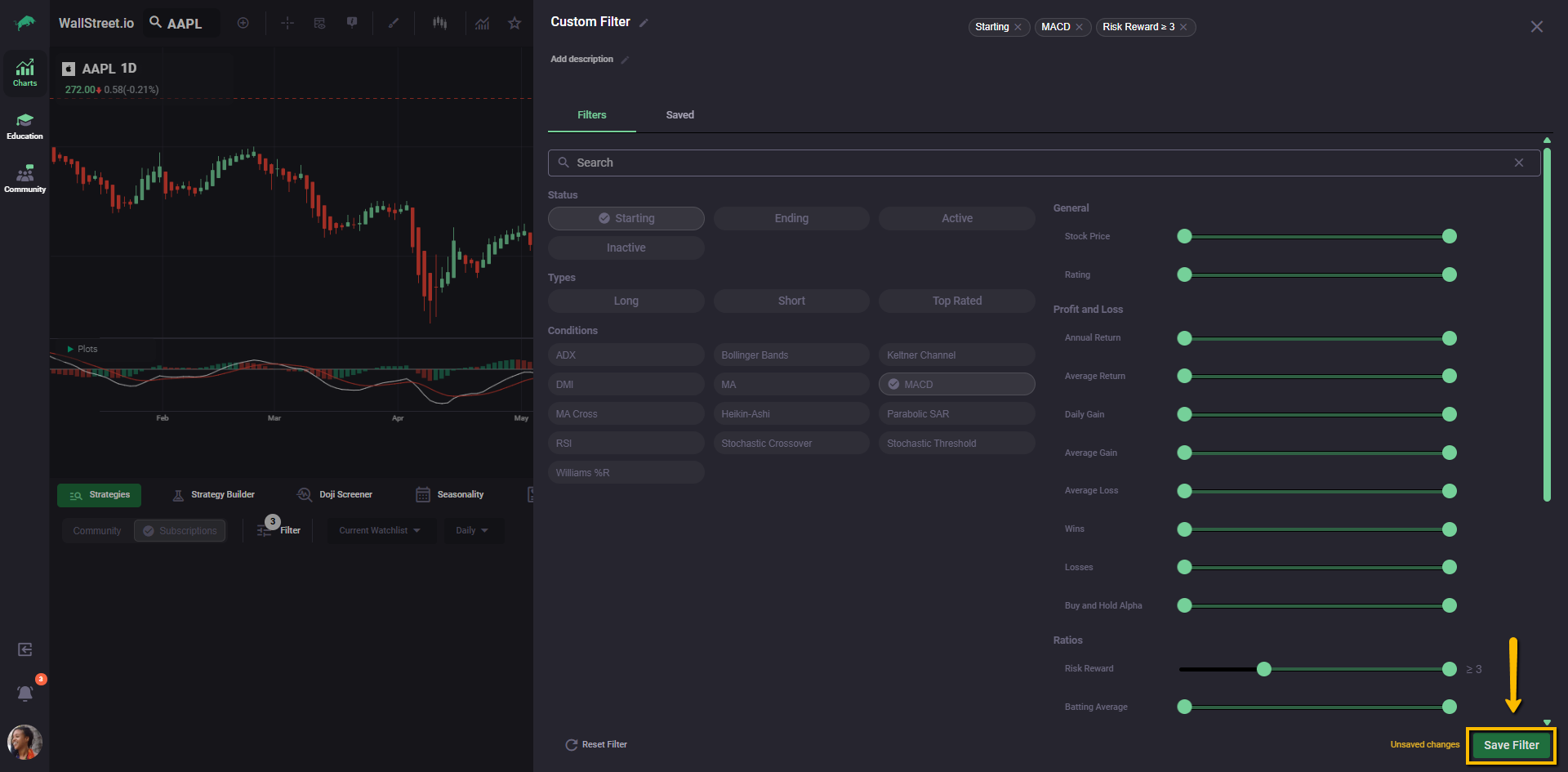
When you are happy with a combination of rules, click Save Filter in the lower right corner. The current name, description, and all active settings are stored as a reusable filter. Saved filters can be recalled from the Saved tab at any time.
Using Saved Filters
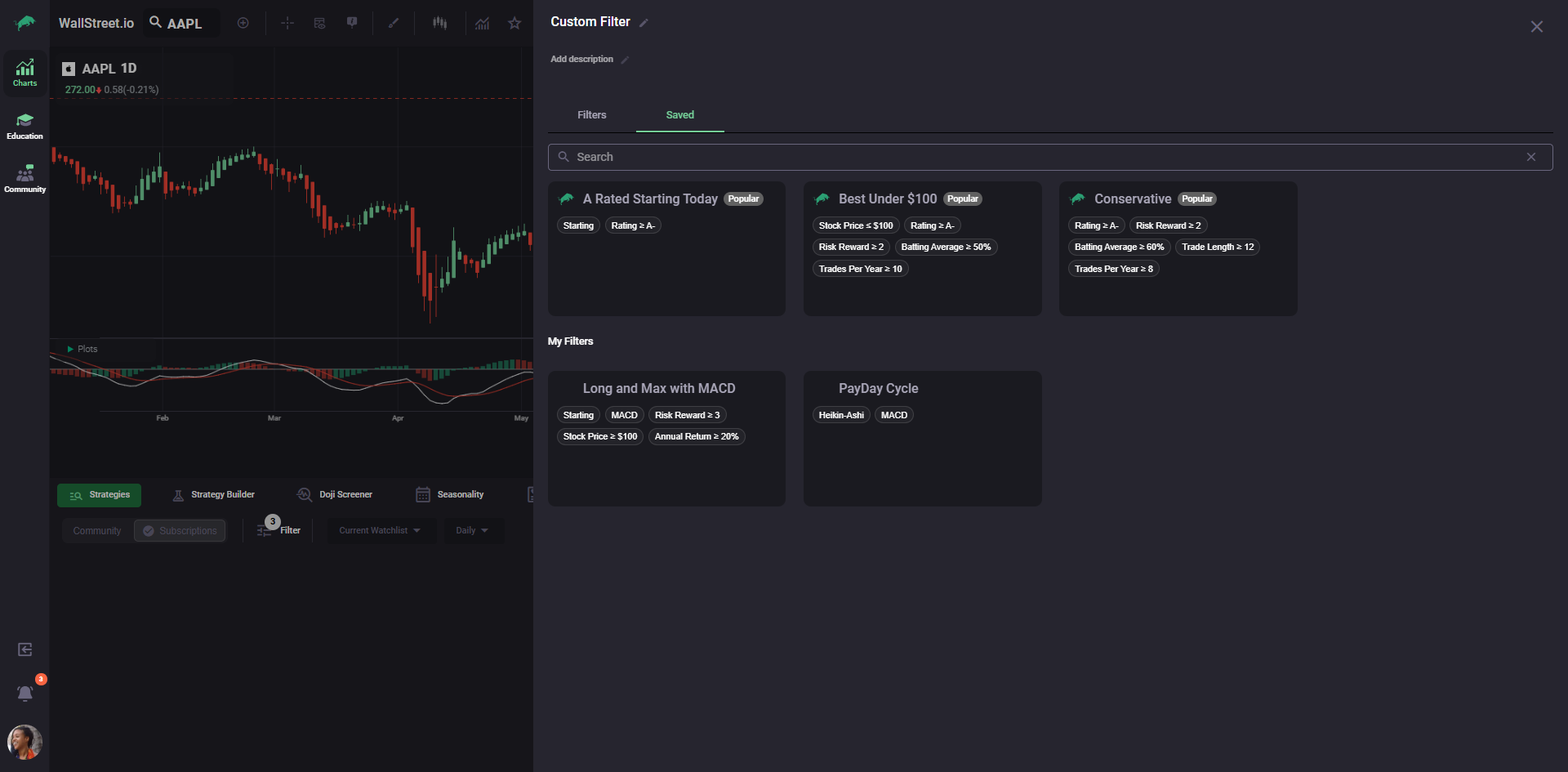
In the Saved tab, community presets appear at the top and your own filters appear under My Filters. Each card shows the filter name along with its key tags, so you can see at a glance what it does before applying it. Clicking a card loads that filter into the Filters tab and immediately applies it to the strategies list.
Managing Filters
You can return to a saved filter, adjust its settings in the Filters tab, and save it again with the same name to update it or with a new name to create a variant. Management options for renaming or deleting a filter are available in the Saved view for each card, and may vary slightly as the feature evolves. If you see a saved filter that cannot be deleted, contact Support so the team can confirm whether it is a bug or an update to reserved presets.
How Filters Fit Into Strategy Research
Filters give you a way to turn the Strategies tab into a focused strategy lab. By combining lifecycle status, strategy type, indicator logic, and performance stats, you can quickly surface only the opportunities that fit your risk and style, instead of scanning through every backtest result manually.