Platform and Support FAQ
Getting started
Log in to WallStreet.io
You can log into WallStreet.io from your computer by going to:
Enter the email address associated with your account, or your username, then click Next.
From there, enter your password and click Login.
If you forgot your password, click Forgot password? and we’ll send a one-time code to your email address.
If you have not created a password yet, we’ll also send a one-time six-digit code to your email address. Enter that code on the login page as soon as you receive it, then click Verify.
Once you’re inside the platform, we recommend creating a password from your Account page so logging in is easier next time.
First steps after joining
Start by creating a password for your account so you can log in more easily going forward.
After that, head to the Education Workspace and watch Gino’s Getting Started video series. It’s one of the easiest ways to get familiar with the platform without feeling like you have to figure everything out alone.
Then, review the Web Platform Quick-Start Guide in this Knowledge Base. That guide will help you understand the main areas of the platform, where things are located, and how to begin exploring.
The fastest way to get comfortable is to start with the basics, follow one simple workflow at a time, and come back to the guides whenever you need a refresher.
From there, you can use the menu on the left side of the Knowledge Base to keep learning at your own pace.
Feeling overwhelmed? Start here
Start small.
WallStreet.io has a lot inside it, so you do not need to learn everything on day one. The best first step is to get comfortable with the basics: logging in, opening the Charts Workspace, finding a symbol, using a watchlist, and understanding where the main tools live.
After that, focus on one simple workflow. For example, you might start by opening a chart, choosing a stock you recognize, reviewing the watchlist area, and then looking at one related strategy or screener result.
You can save the more advanced tools, like Strategy Builder, Fundamentals, and deeper strategy stats, for later.
The goal is not to master the whole platform in one sitting. The goal is to build a simple routine you understand, then add more tools as they start to make sense.
Using the Platform
Best device and browser
For the best experience, we recommend using WallStreet.io on a desktop or laptop with Google Chrome, Brave, or Mozilla Firefox.
The platform includes charts, panels, tabs, screeners, and other tools that need more screen space than a phone or tablet can comfortably provide. Some areas may look different or may not work as smoothly on smartphones, tablets, Safari, Edge, or other unsupported browsers.
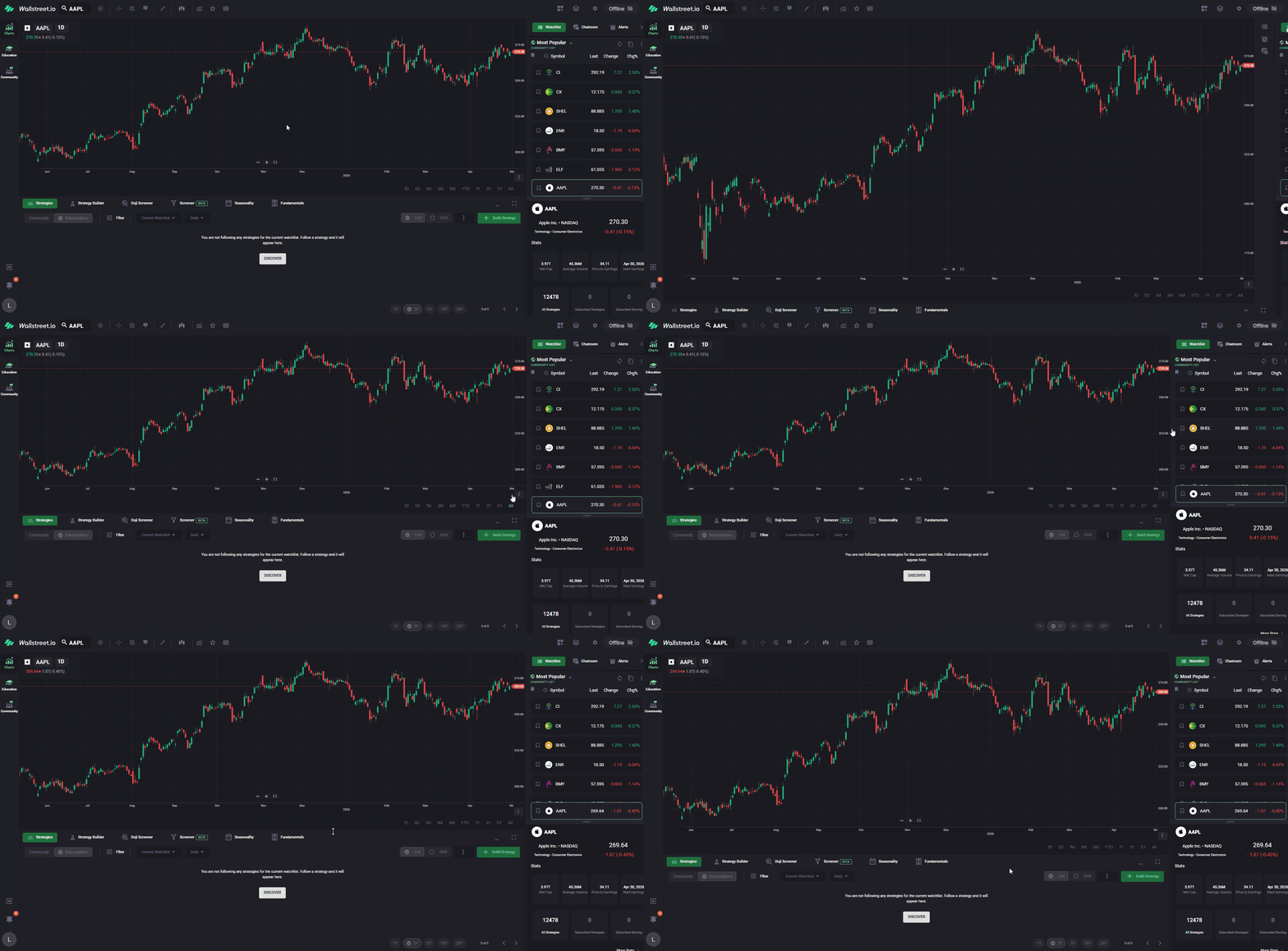
What you see on your screen can also depend on your monitor size, laptop screen size, browser zoom, and platform font size. If your browser is zoomed in, your screen is smaller, or your platform font is set to Large, some labels, buttons, or shortcuts may appear shortened, compressed, or pushed out of view. Nothing may be broken. The platform may simply be adjusting to the space available.
If something looks off, the first thing we recommend is opening WallStreet.io on a desktop or laptop using Chrome, Brave, or Firefox.
Make more room on your screen
You can make more room by collapsing or resizing areas you are not actively using.
In the Charts Workspace, the right-side panel area contains tools like Watchlists, Chatrooms, and Alerts. You can collapse this area by clicking the Minimize Sidebar arrow near the top-right of that panel.
You can also collapse the strategy area at the bottom of the Charts Workspace by clicking the Minimize line icon near the top-right of that area.
This is helpful when you want more space for the chart itself, especially on smaller screens.
Find account settings
Click your Profile Avatar at the bottom-left of the platform, then select Account.
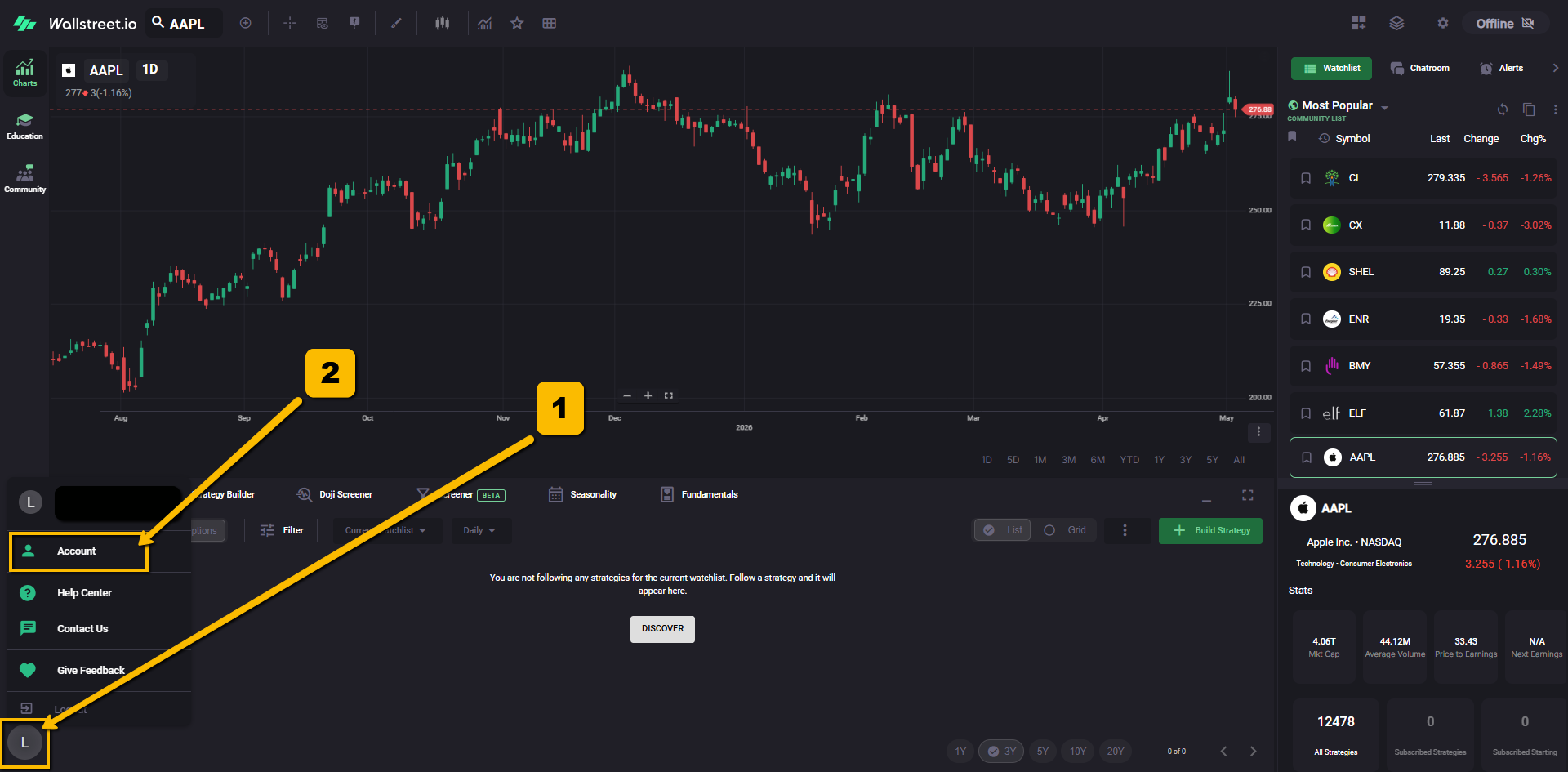
From the Account page, you can manage areas like your profile, appearance settings, billing information, password, and other account-related options.
Switch between light and dark mode
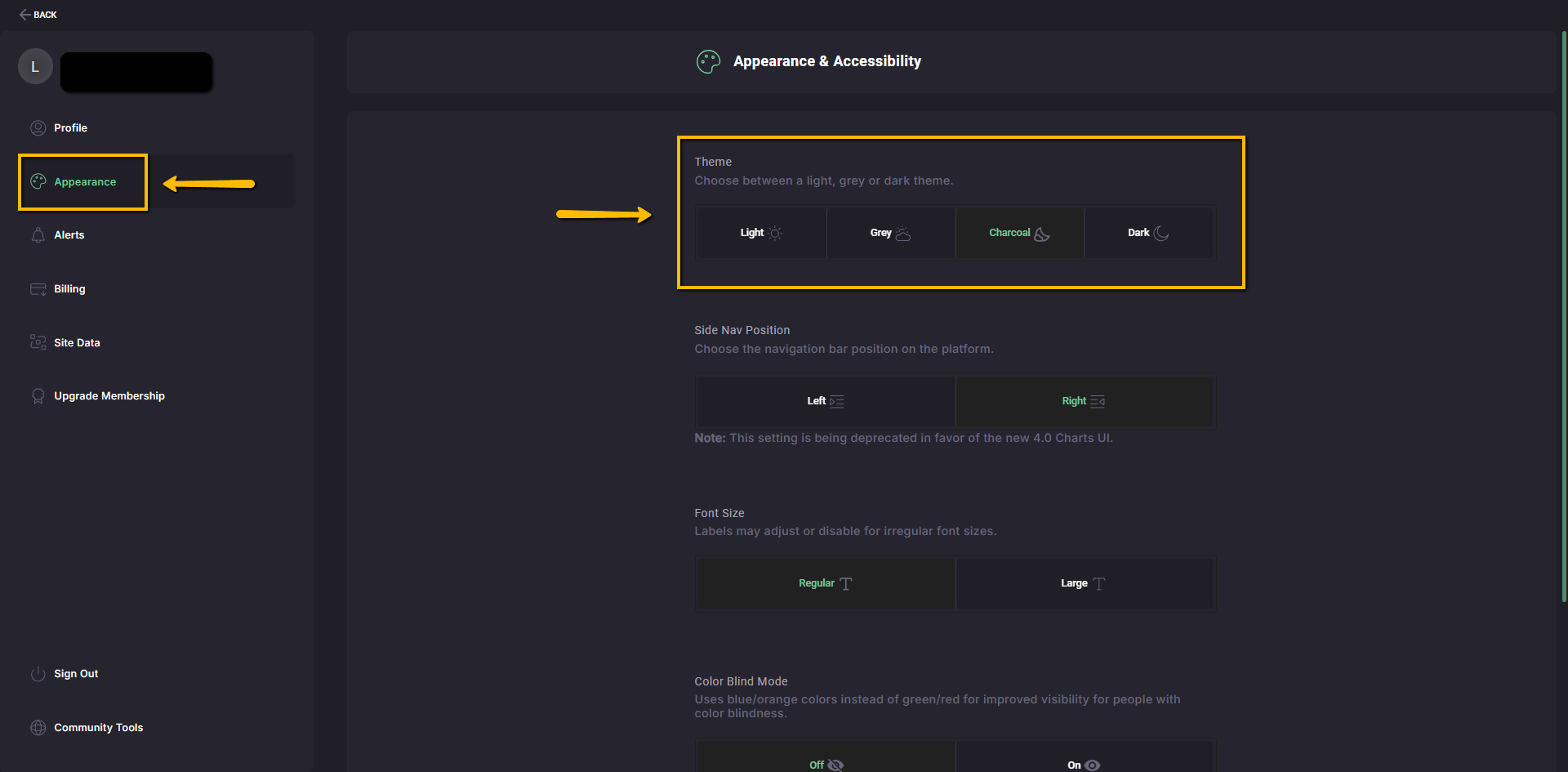
You can change your platform theme from your Account settings.
Click your Profile Avatar at the bottom-left of the platform, then select Account. From there, open Appearance from the options near the upper-left side of the Account page.
You can choose between Light, Gray, or Dark theme options.
Change platform font size
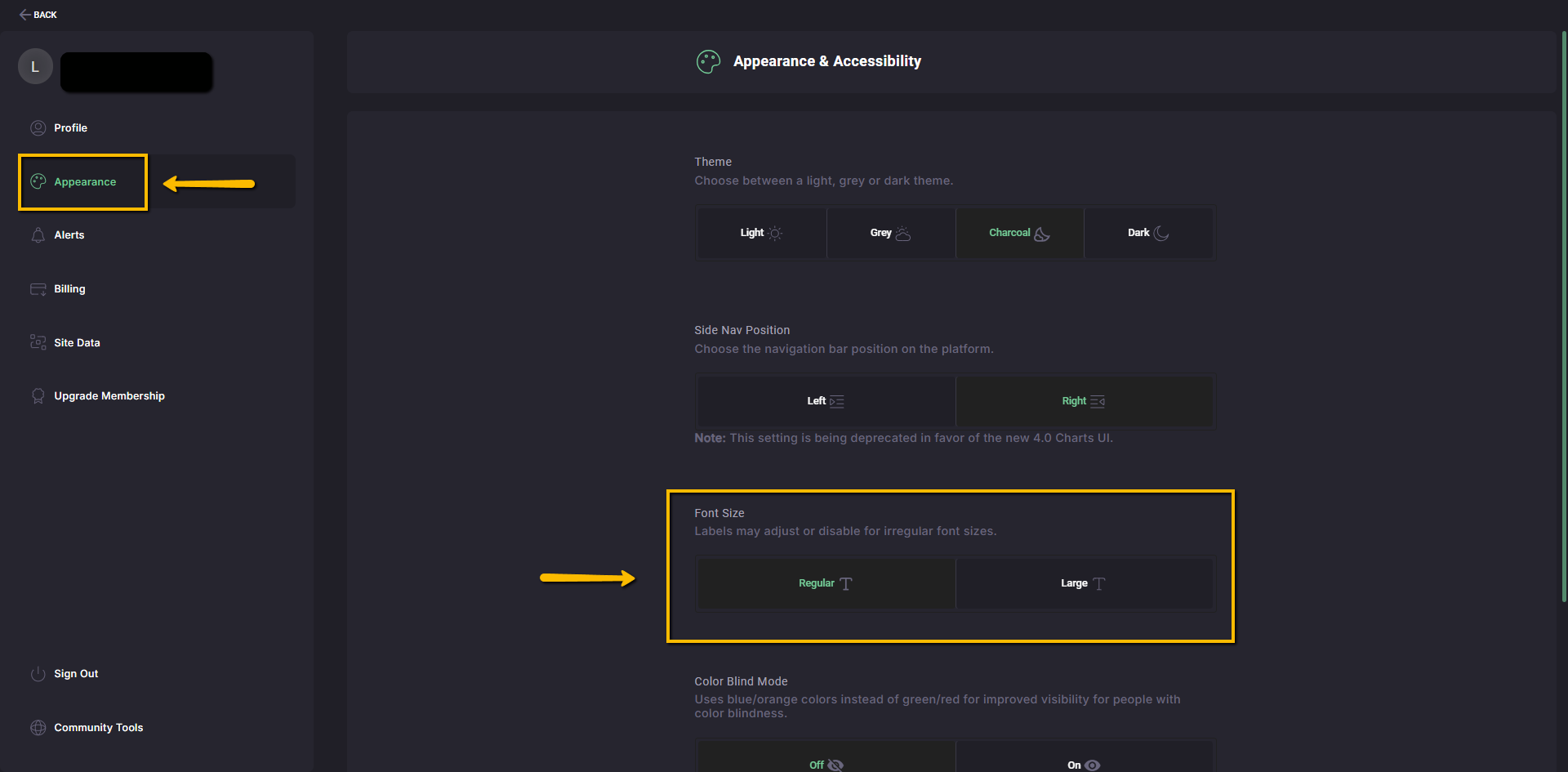
You can adjust the platform font size from your Account settings.
Click your Profile Avatar at the bottom-left of the platform, then select Account. From there, open Appearance from the options near the upper-left side of the Account page.
Under Font Size, you can choose between Regular and Large.
Save your screen setup
You can save and reuse your workspace setup by using Custom Layouts and Favorites.
Custom Layouts let you save chart setups so you can return to them later without rebuilding everything from scratch. Favorites help you create quick-access shortcuts for the tools and settings you use most often, such as chart types, indicators, drawings, layouts, watchlists, and more.
This is a great way to make the platform feel more like your own workspace instead of starting from a blank screen each time.
Why your platform looks different from Gino’s or Micah’s
Gino and Micah have customized their workspaces over time with specific layouts, chart settings, studies, watchlists, and visual preferences.
Your screen may also look different because of your device size, monitor setup, browser zoom, and platform font size. For example, if you are using a smaller laptop screen or a higher browser zoom, some workspace labels, shortcuts, or panels may appear more compressed than what you see during a live session.
You can customize your workspace too. A good place to start is the Get Set Up Like Gino article, which walks you through how to set up your Charts Workspace so it more closely matches the way Gino uses his during live sessions.
Your setup does not have to look exactly like anyone else’s. The goal is to build a workspace that helps you see what matters most to you.
Something isn’t working or looks off
If something is stuck, missing, not loading correctly, or looks different than expected, start with our Troubleshooting Guide.
That guide walks you through the most common fixes, including refreshing the platform, checking your browser, trying a private or incognito window, and clearing site data when needed.
Contact and Support
Private mentorships and coaching
At this time, private mentorship or personal coaching sessions are not included with a standard WallStreet.io membership.
WallStreet.io provides platform tools, educational resources, live sessions, community access, and Knowledge Base guides to help you learn and use the platform at your own pace.
From time to time, we may offer special coaching, mentorship, or training opportunities through seasonal add-on programs or promotions. If those become available, we’ll share the details through our official emails and platform announcements.
Phone support
At the moment, we do not offer phone support or have a direct support phone number.
Our support team is fully remote, and we handle support through chat and email so each request can be properly tracked, reviewed, and resolved.
For account-related requests, such as cancellations, billing updates, or technical issues, please contact Support through the platform chat or by emailing support@wallstreet.io. .
Contact Support
You can contact our Support team by emailing:
You can also reach us through the Support chat inside the platform.
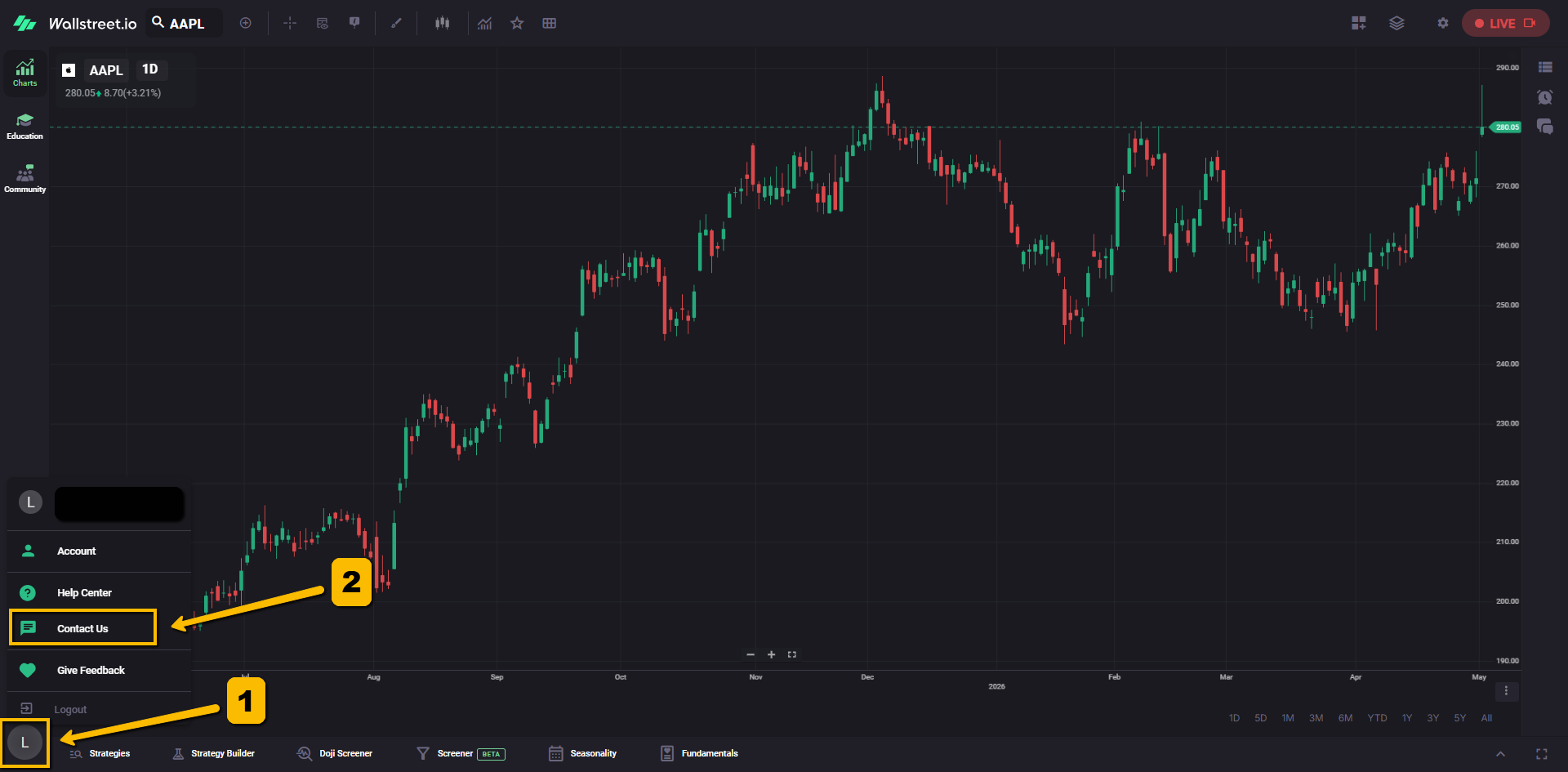
For the fastest help, include the email address connected to your WallStreet.io account and a detailed description of what you need.
If you are reporting a technical issue, it also helps to include the browser and device you are using.