Education Workspace
What this helps you do
The Education Workspace is where you watch program replays, join live sessions, take skills self-assessments, and complete certification exams. It keeps everything organized so you can pick up where you left off without hunting around the platform.
This matters because when learning content is spread across replays, live sessions, downloads, and exams, it is easy to lose your place. The Education Workspace keeps your progress and materials in one spot so you can stay consistent and finish the program.
Where to find the Education Workspace
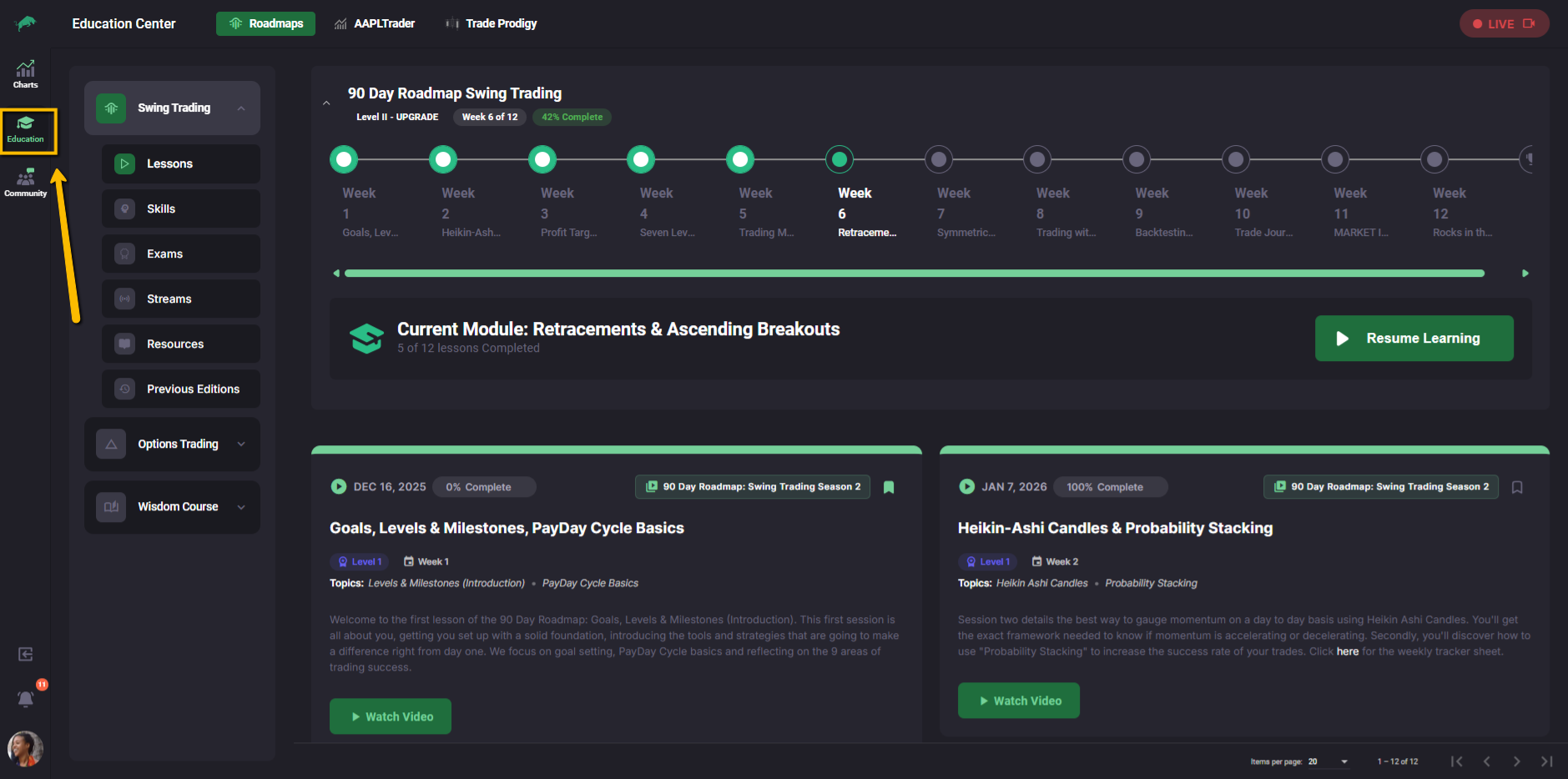
You can open Education anytime from the Primary navigation on the far left side of the platform.
How the Education Workspace is laid out
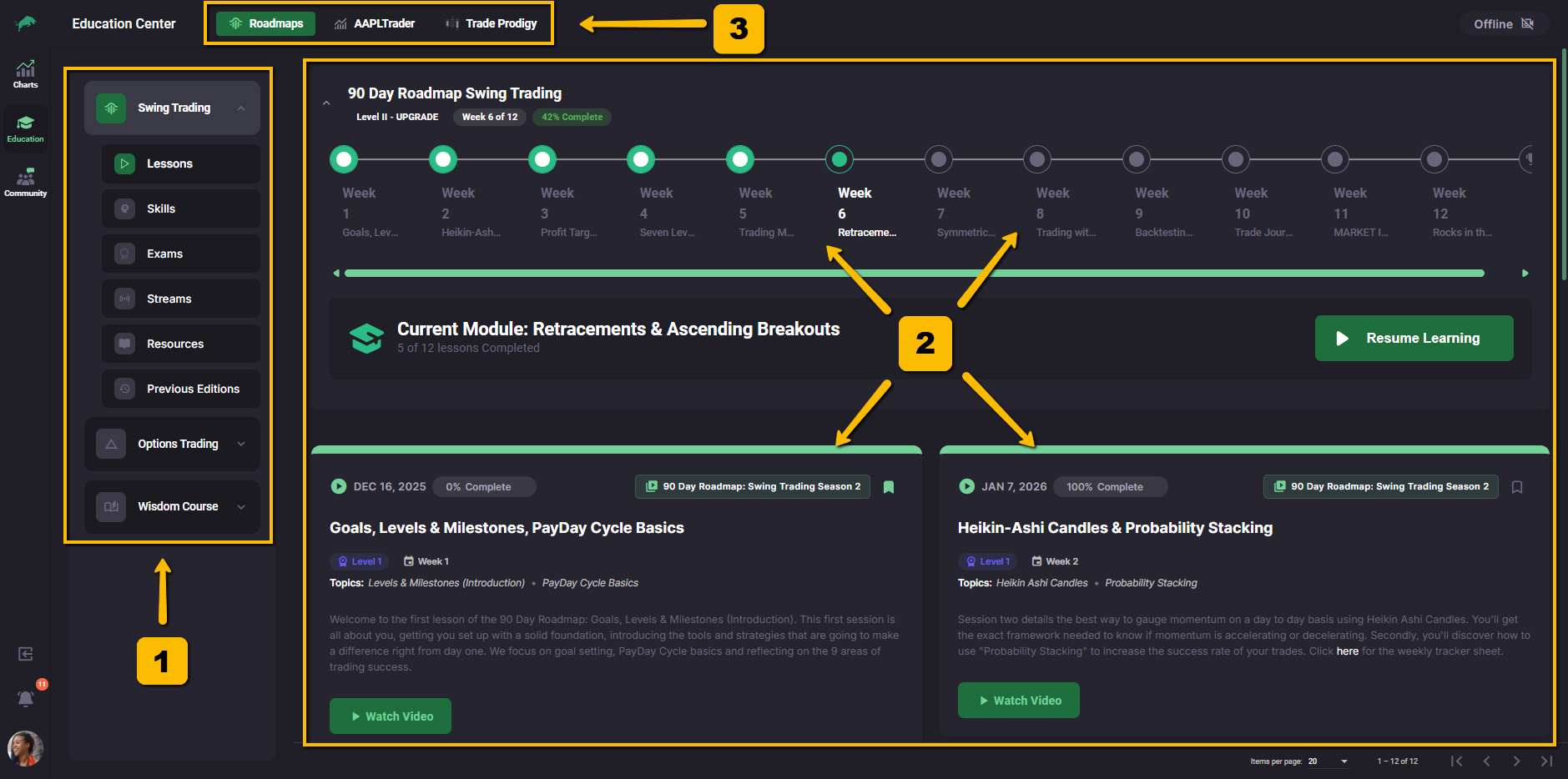
When you open Education Center, you will usually see three areas:
This is the larger menu inside Education where you choose your program (like Swing Trading) and switch between sections like Lessons, Skills, Exams, Streams, Resources, and Previous Editions.
This is the center of the screen where the selected page loads.
This bar runs across the top of the Education Workspace and lets you switch between different Education add-ons like Roadmaps, AAPLTrader (Archives), and Trade Prodigy. Each add-on can have its own subsections and content.
Understanding the program sidebar
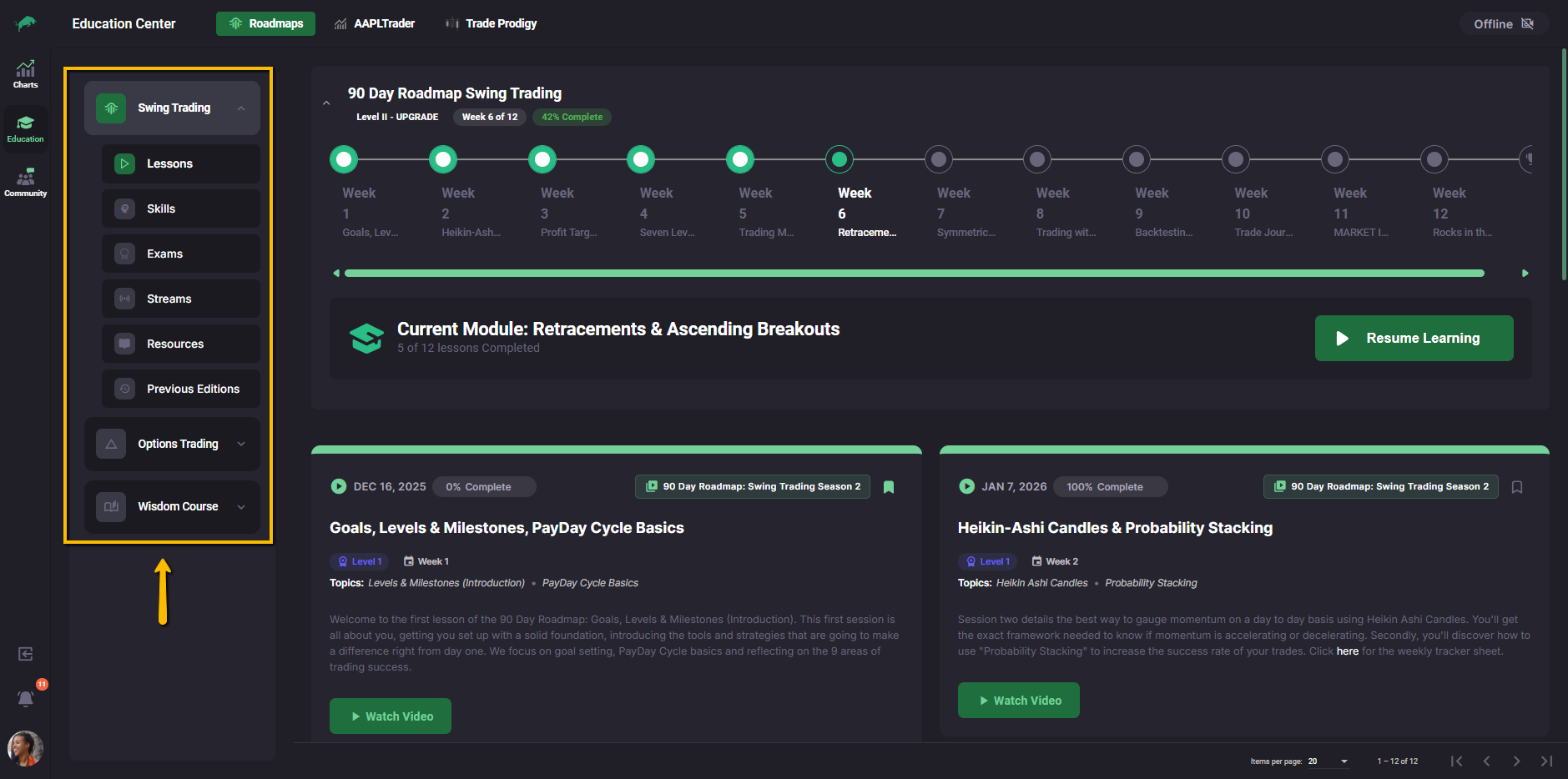
At the top of the Program sidebar, you will see the name of the program you are currently viewing, such as Swing Trading. Under that, you will see the sections for that program:
Clicking a section takes you to a different page within the same Education Workspace.
Important note: The Education Workspace can include multiple programs and add-ons. The sections you see may change depending on what you have access to, what is currently selected, and what the team is actively running.
Roadmaps section overview
Roadmaps is a structured learning path, usually organized by week and level. Inside a Roadmaps program like Swing Trading, you will use the sidebar sections to move between replays, assessments, exams, live sessions, and downloads.
Lessons
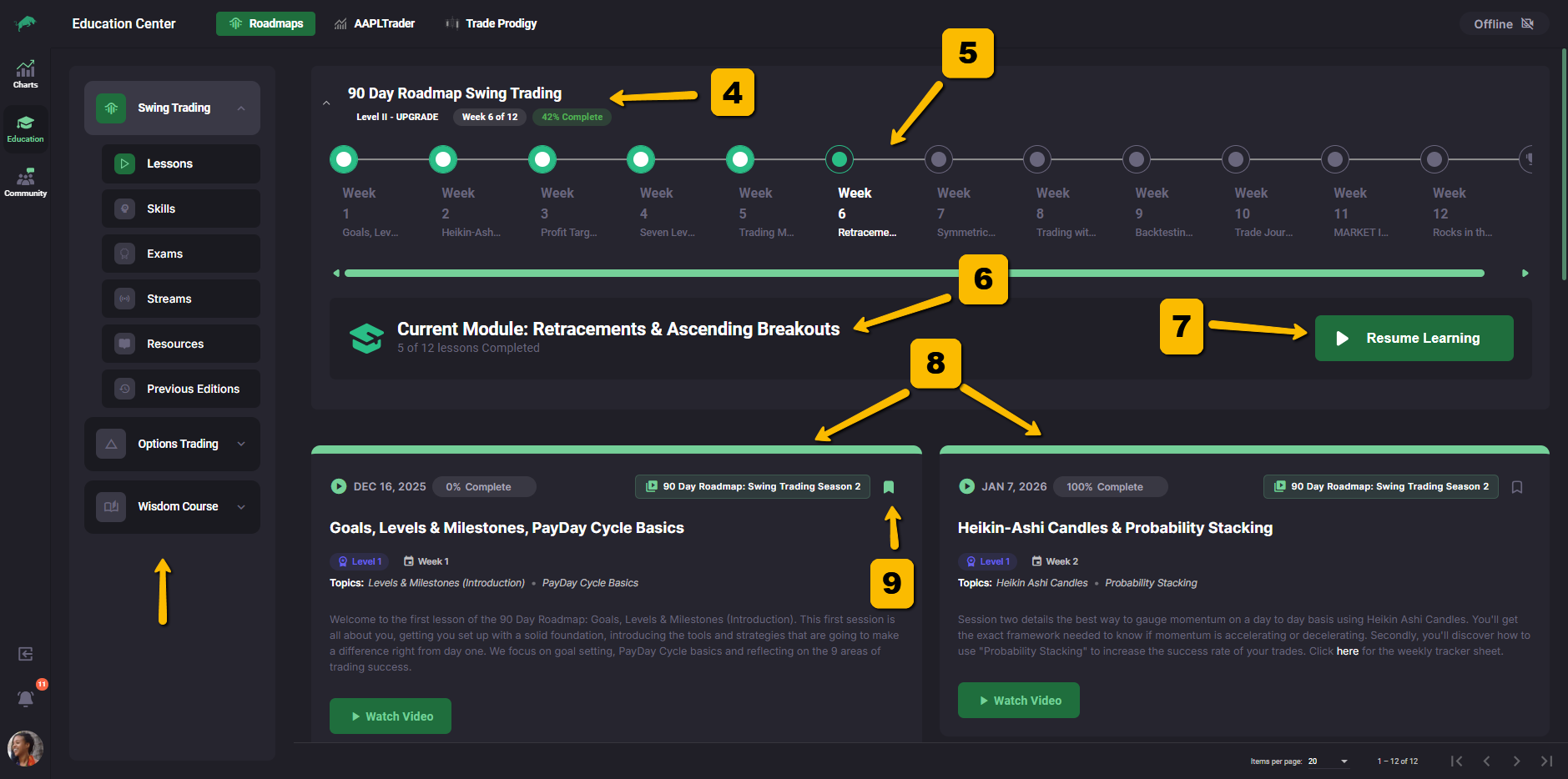
Lessons is the replay library for the program you are currently viewing. This is where you will typically watch the recorded sessions and track your progress through the roadmap.
What you will see on the Lessons page
Near the top of the main content area, you will see the roadmap name and progress details such as the current week and completion percentage.
You will see a row of weeks displayed as a timeline. This helps you understand where you are in the full program and what weeks are coming next.
This section shows the module you are currently in, how many lessons you have completed, and a Resume Learning button.
Resume Learning returns you to the last replay video you were watching, picking up from your last watched spot.
Below the module area, you will see lesson cards. A lesson card usually includes a date, a completion indicator, a title, and a Watch Video button.
Some lesson cards include a bookmark icon. You can toggle it on or off.
Skills
Skills is where you complete the Trading Skills Assessment and track your progress over time.
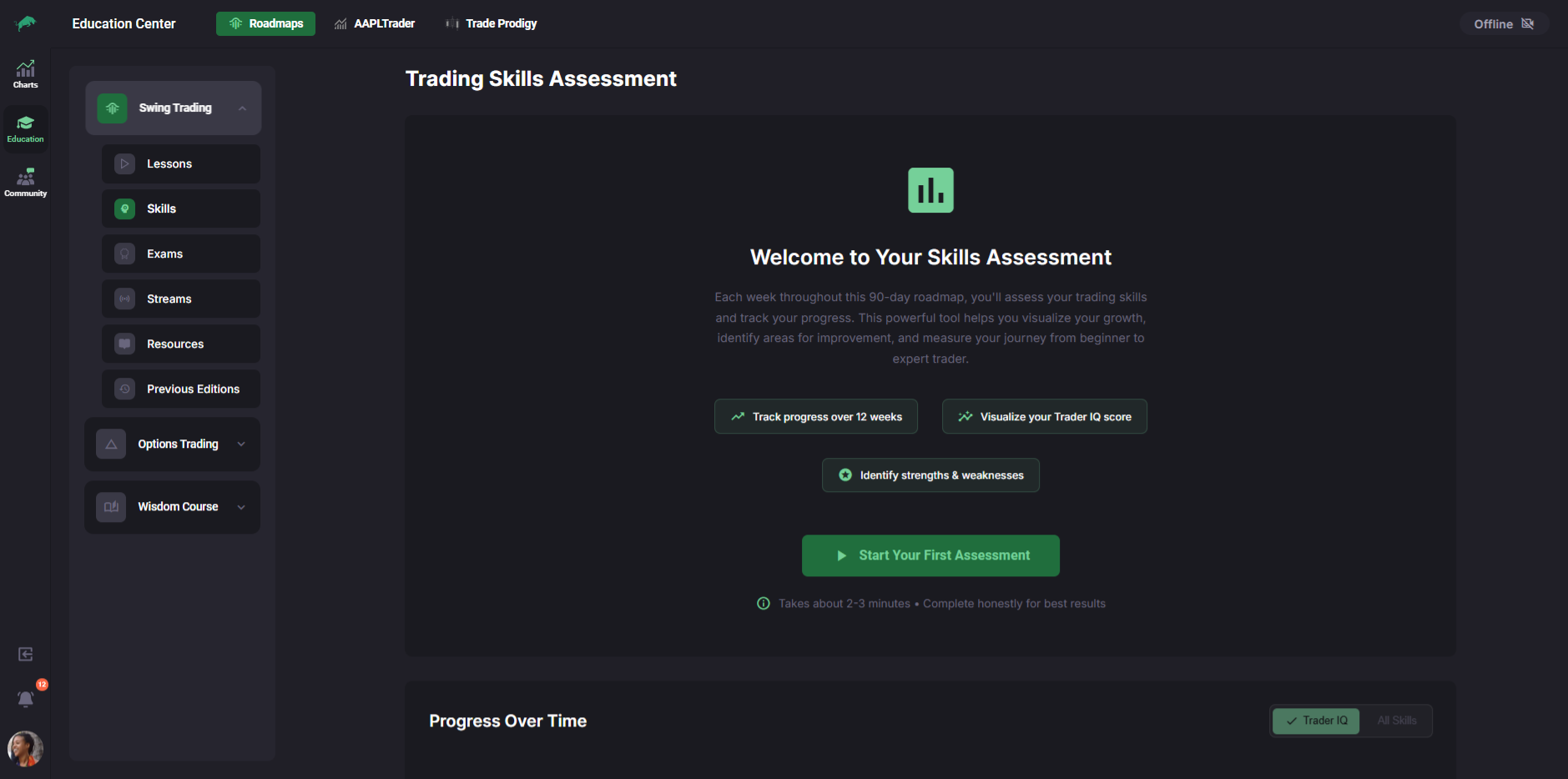
If you have not taken an assessment yet
You will see a welcome screen explaining the assessment and a button to start.
Taking the assessment
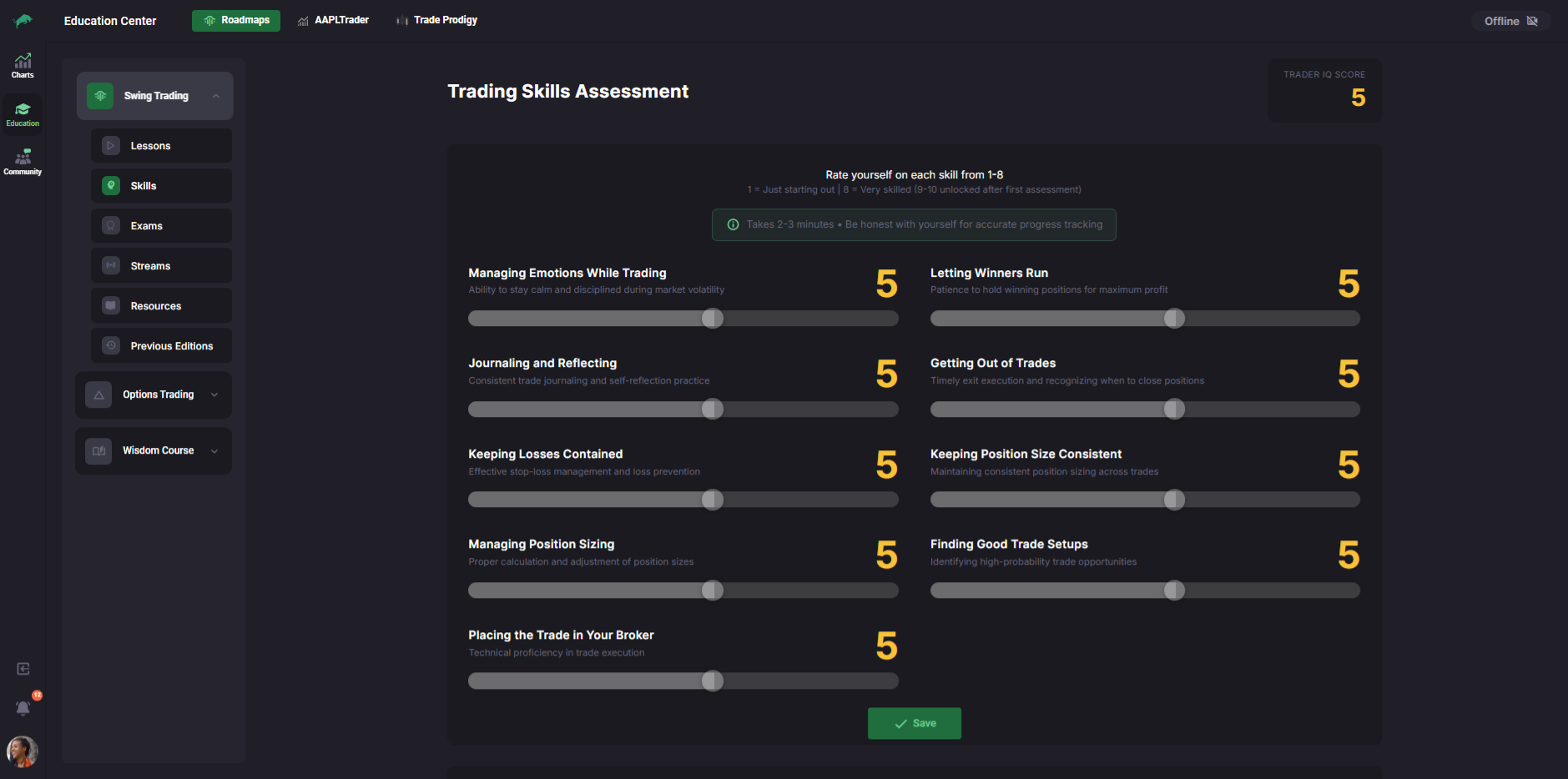
The assessment asks you to rate yourself using sliders across multiple trading skills.
After you submit
After you complete an assessment, the page becomes your tracking dashboard.
You may see:
Trader IQ score
A score summary displayed near the top-right area of the main content.
New Assessment button
If you want to update your self-assessment later, you can start a new one.
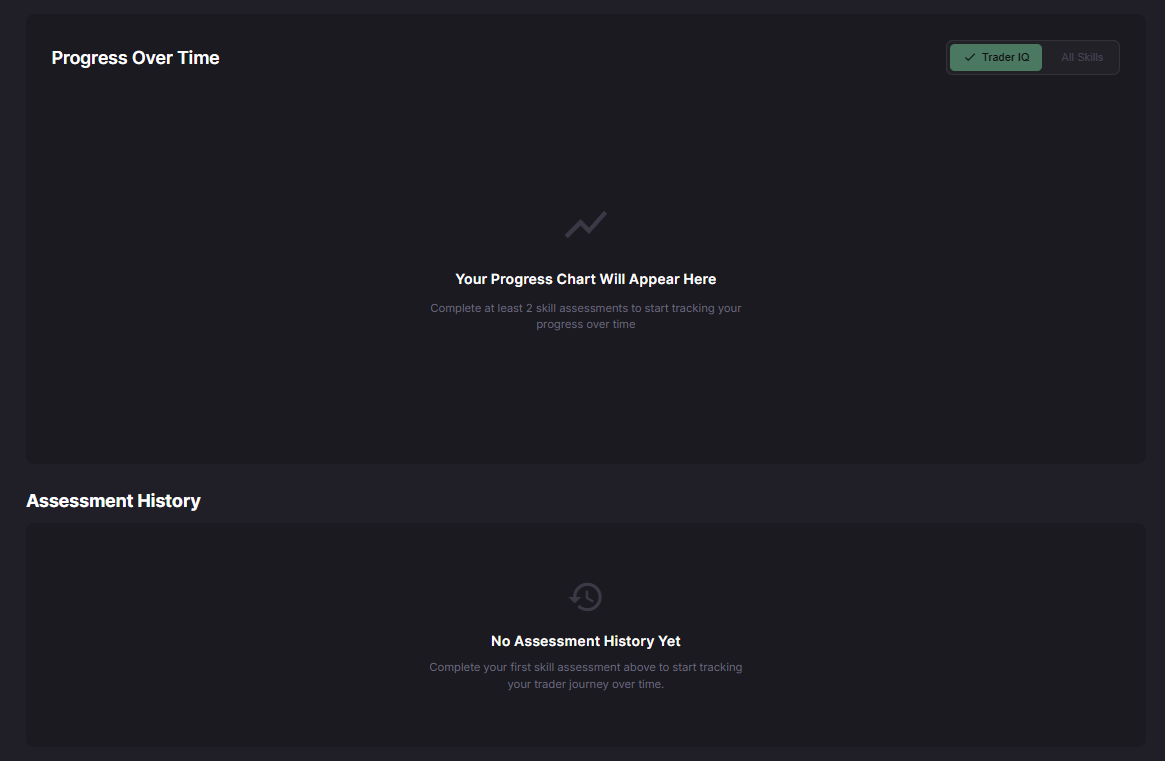
Progress Over Time
A progress panel that will populate after you have completed enough assessments.
Assessment History
A table showing prior assessments and your scores across each skill.
Exams
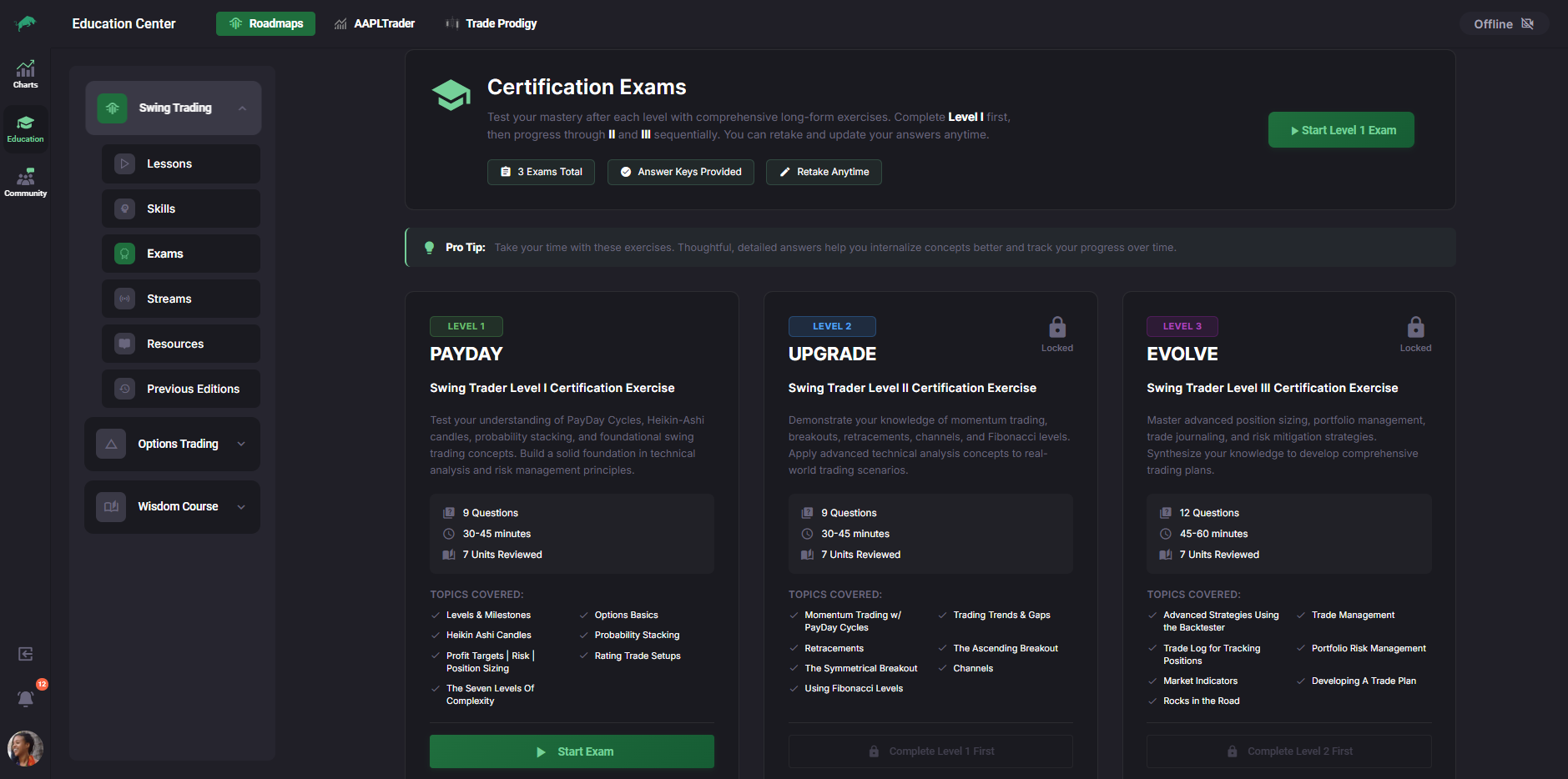
Exams is your Certification Exams hub for the program. This page is organized by level and shows what is available, completed, or locked.
What you will see on the Exams page
Header and exam summary
At the top, you will see a summary of how many exams are included and other guidance.
Level cards
Each exam is shown as a card, often grouped by Level 1, Level 2, and Level 3.
A card may show:
Streams
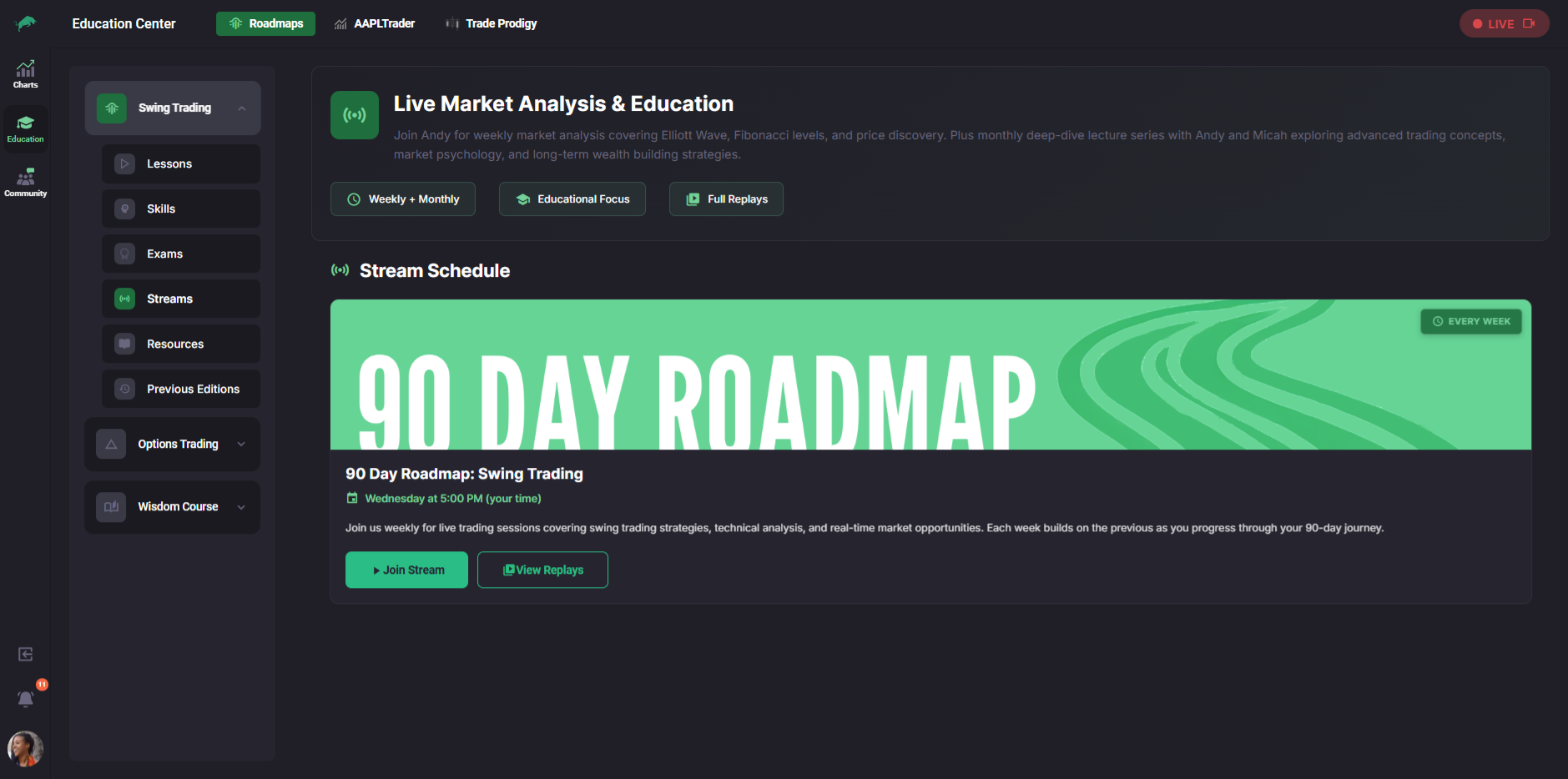
Streams is where you join the weekly Live Masterclasses for a program and access replay links.
What you will see on the Streams page
Stream description and schedule
This area explains what the sessions are, how often they occur, and when the next one is scheduled.
Join Stream button
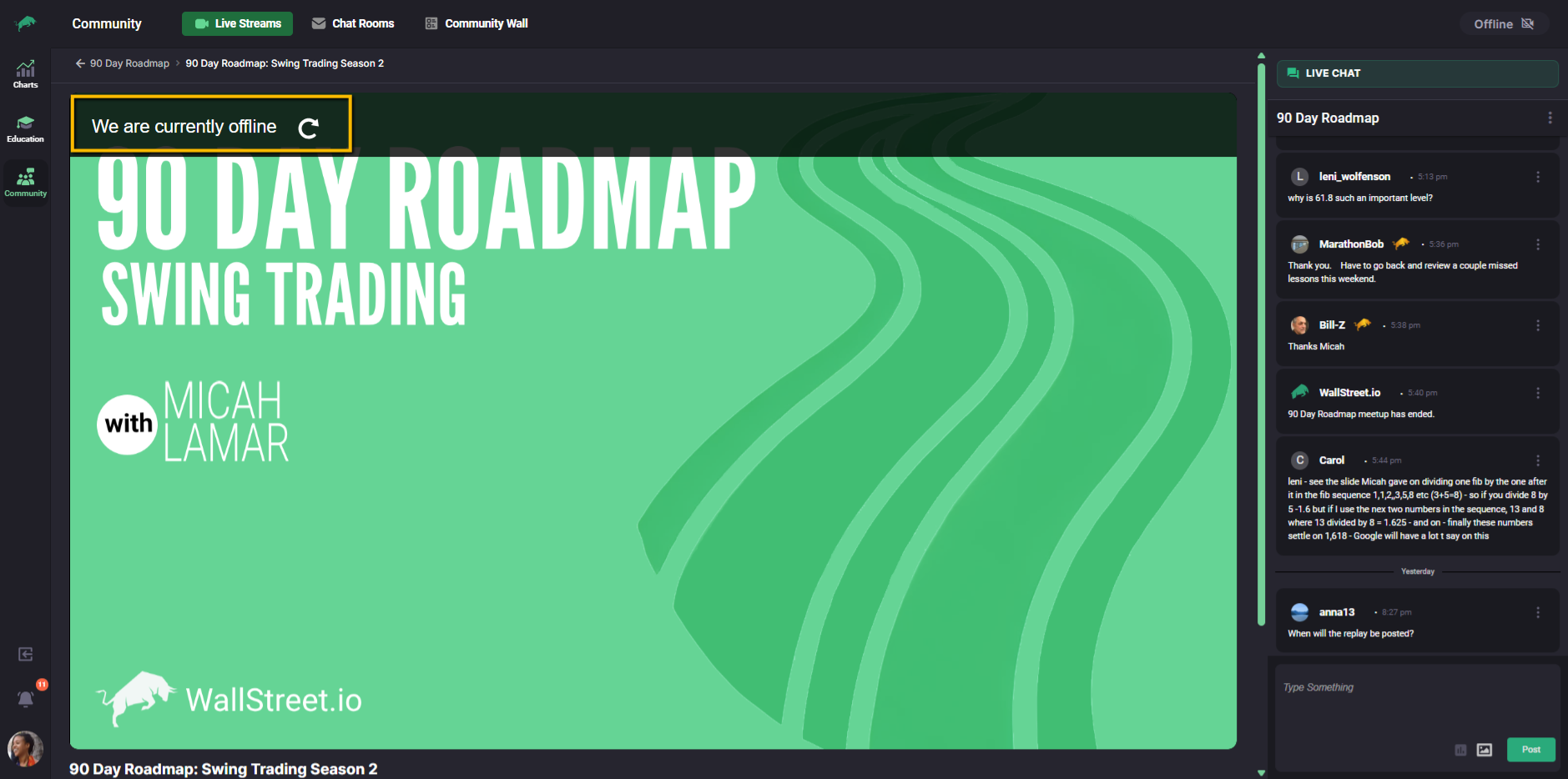
Use Join Stream to enter the live session when it is happening. If you click Join Stream outside of the scheduled session time, the video player will show a message that the stream is currently offline.
View Replays button
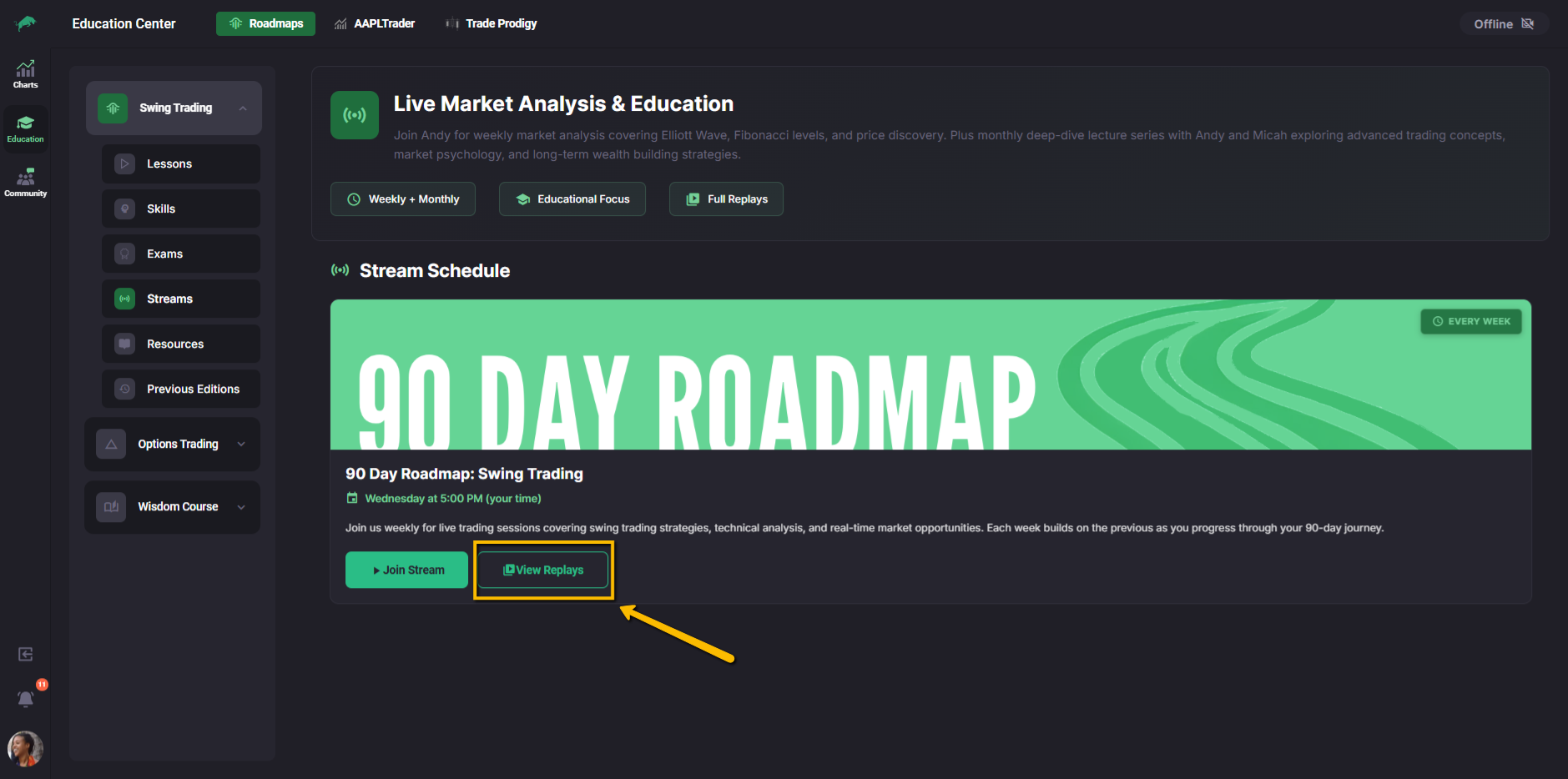
Use View Replays to access recorded sessions.
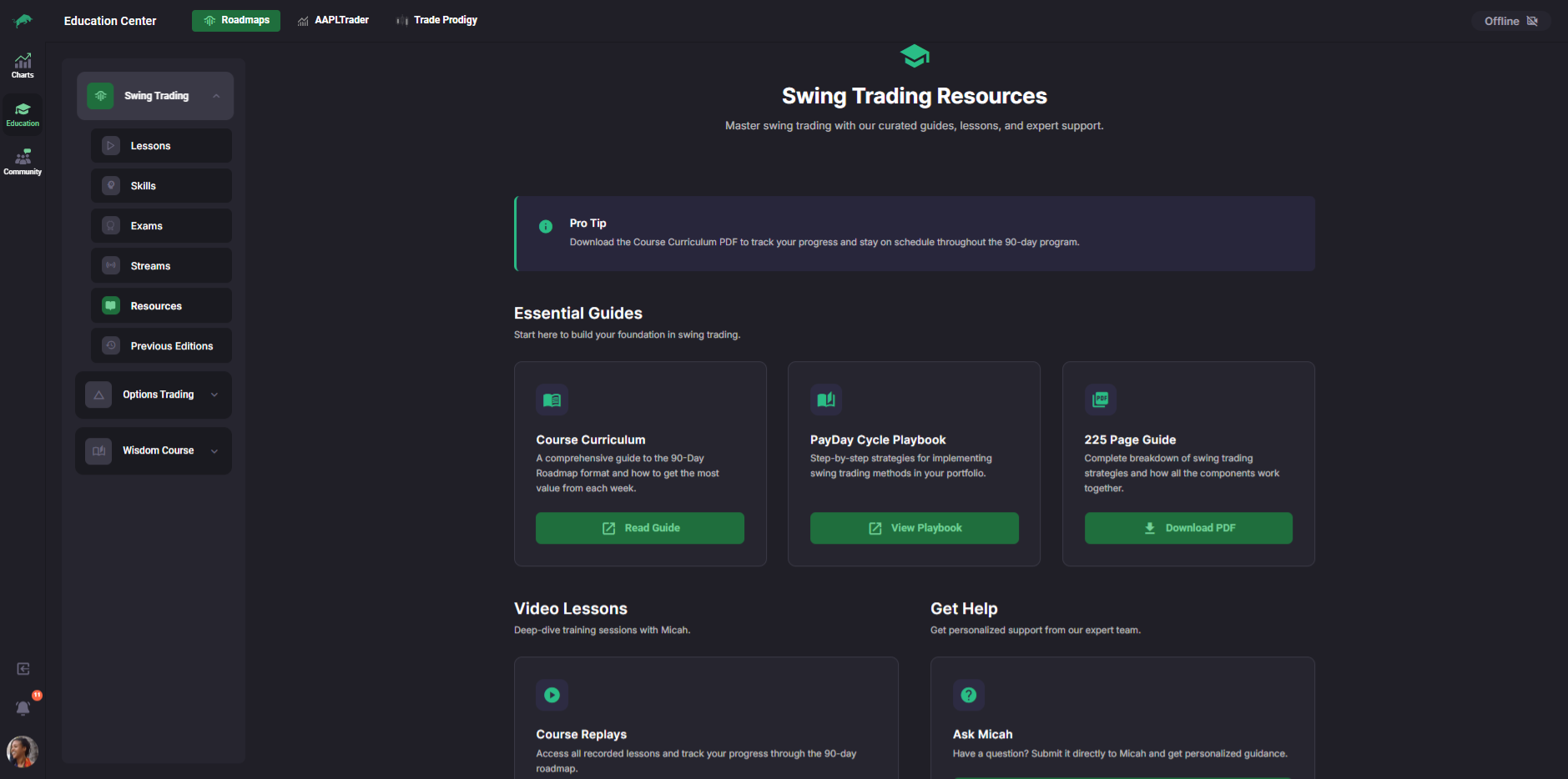
Resources
Resources is where you download guides and materials for the program.
Use this section anytime a lesson references a worksheet, PDF guide, tracker, or supplemental material.
Previous Editions
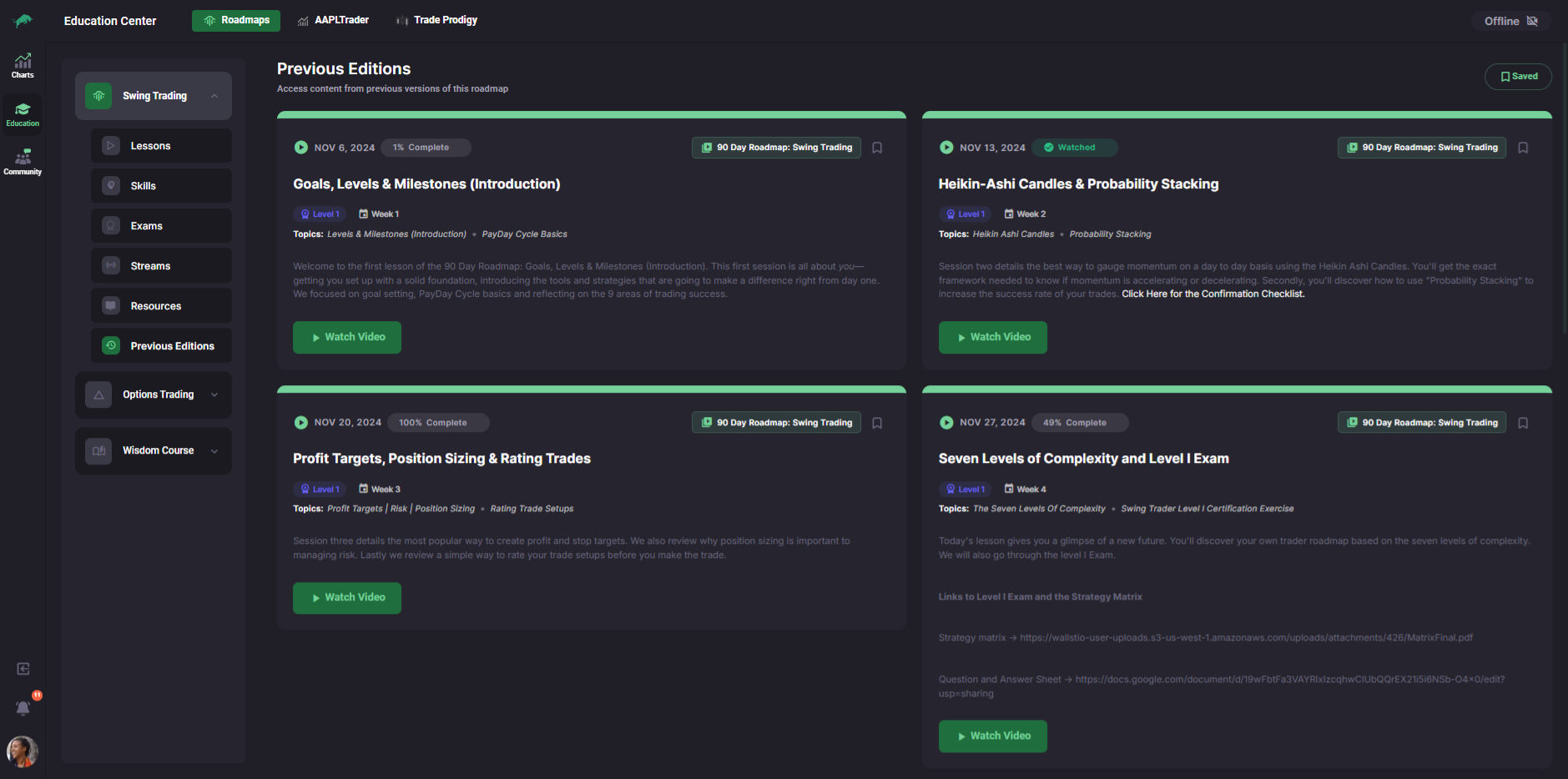
Previous Editions looks similar to Lessons, but it is focused on earlier runs of the program. This is useful if you want to revisit older sessions without mixing them into your current roadmap path.
Switching between other Education add-ons
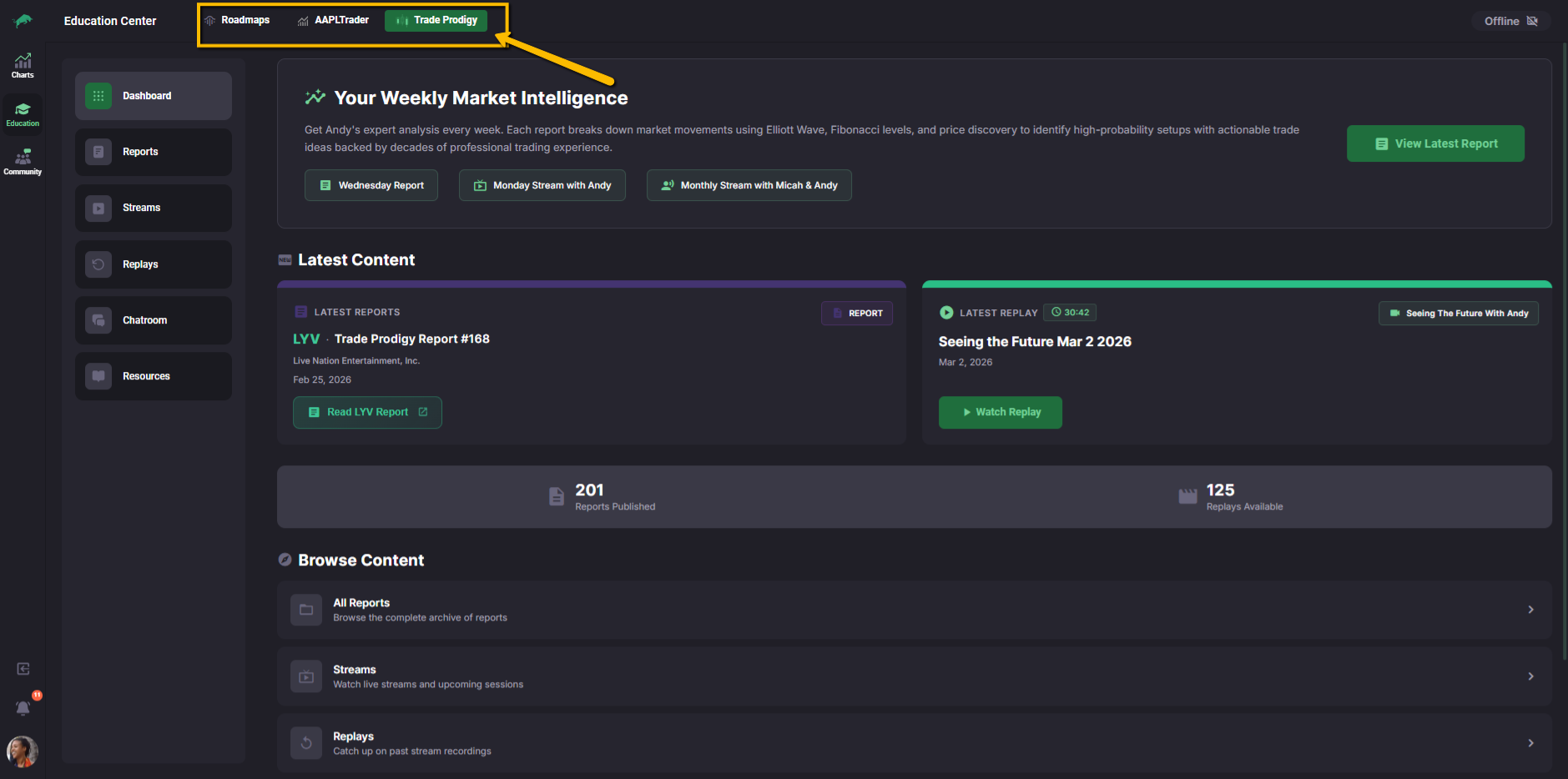
The Education Workspace can include multiple add-ons, such as Roadmaps, Trade Prodigy, and AAPLTrader Newsletter Archives. You can switch between them using the workspace header at the top.
Each add-on can have its own structure and sections. Even when the layout looks familiar, the content and navigation options may differ.