Load, View, and Edit a Strategy
What this helps you do
This guide helps you open a Pre-Built Strategy inside the Strategy Builder so you can review its exact entry and exit rules, then switch to Edit mode to test adjustments. It matters because even small rule changes can create a different strategy outcome, and the Builder lets you confirm what a strategy is doing before you rely on it in your workflow.
When you would use this
Use this when you want to understand why a strategy is triggering, check its logic, or explore variations of a strategy without building from scratch.
Step 1: Open a strategy in the Strategy Builder (View mode)
In the Strategies tab, locate the strategy you want to inspect.
Next to the strategy name, click the arrow icon that points up-left. This opens the strategy inside the Strategy Builder.
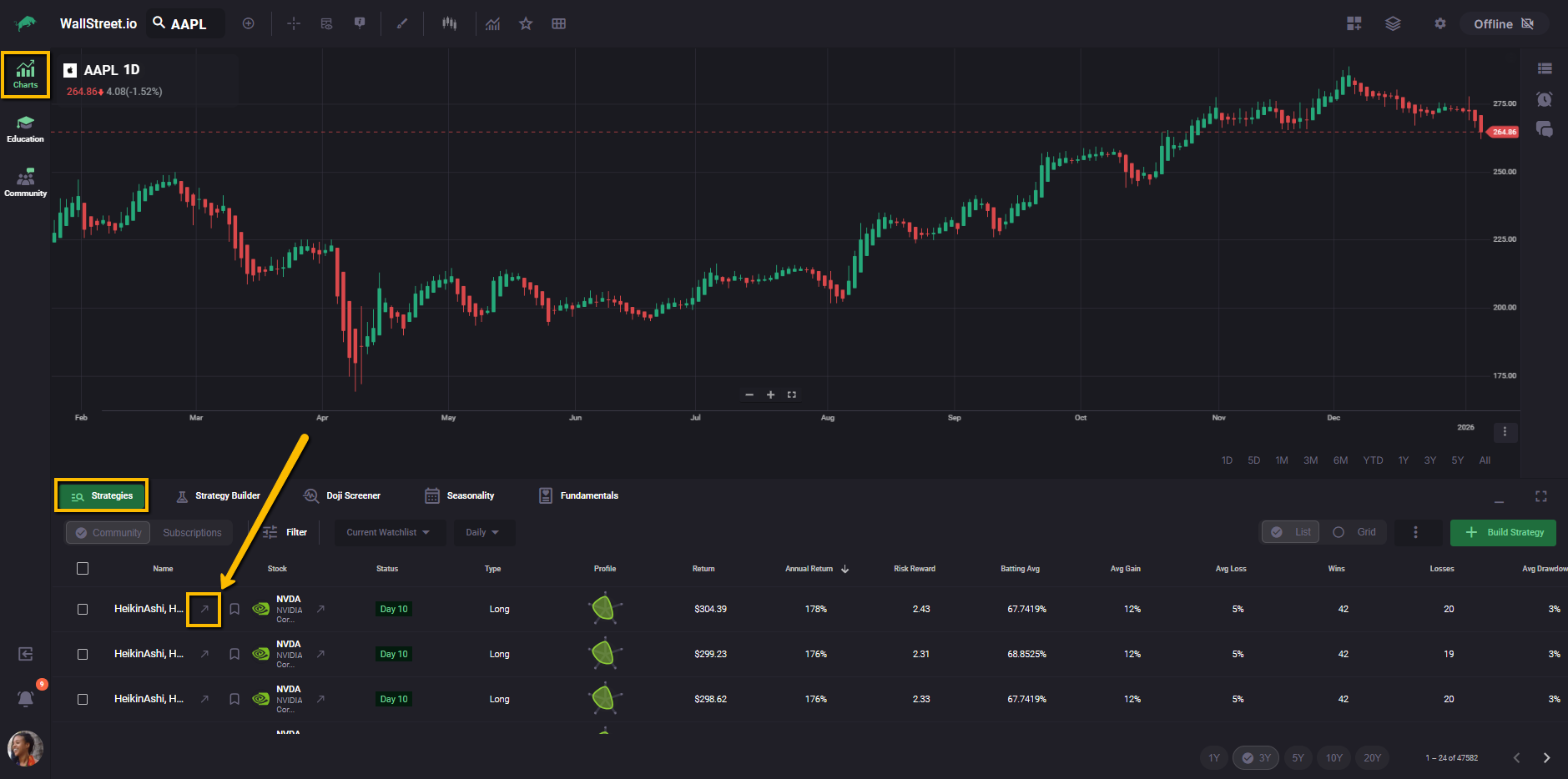
When the strategy loads, the Builder starts in View mode by default. View mode is read-only, so you can examine the strategy without changing it.
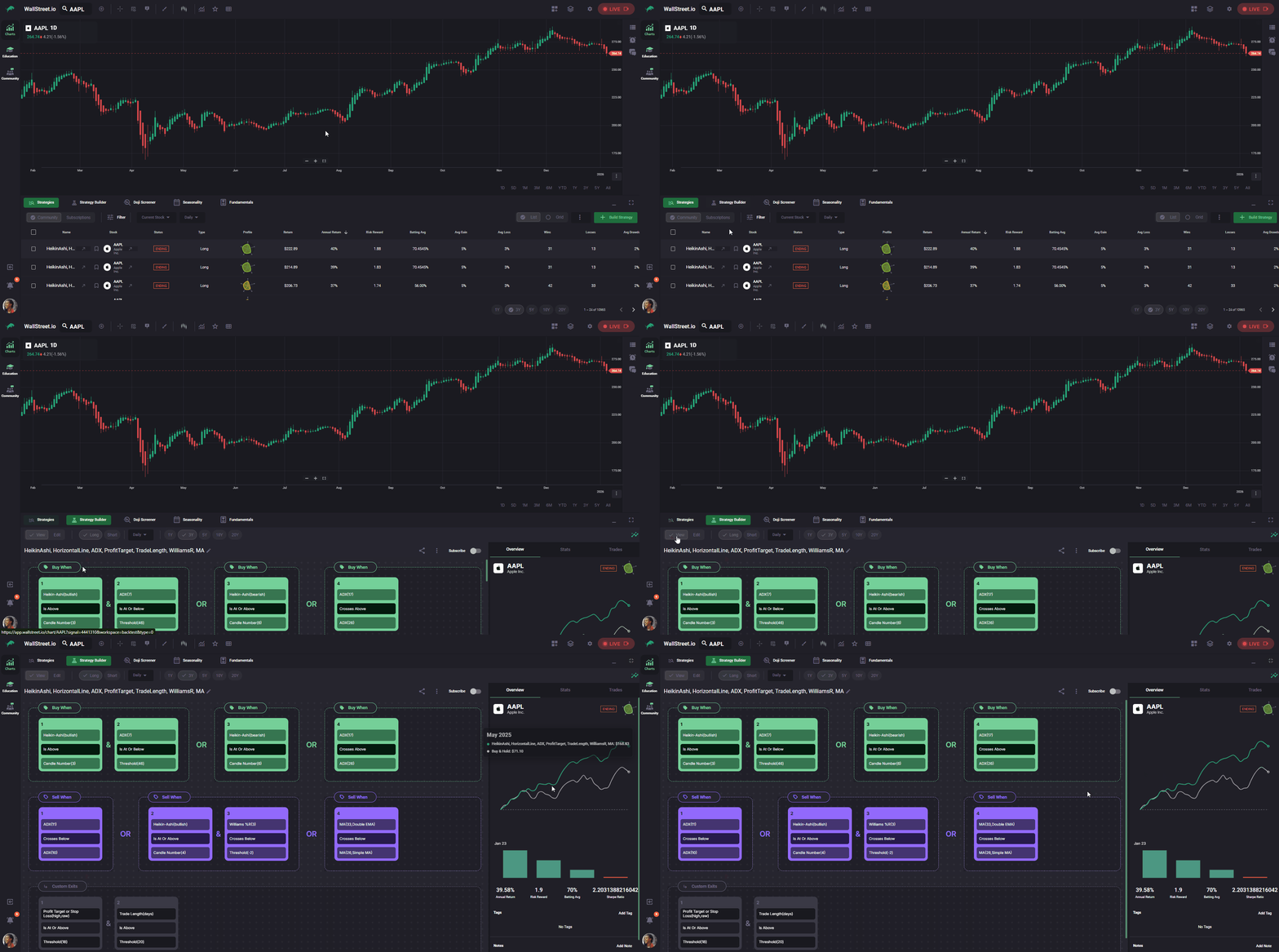
Step 2: Review the strategy rules
In the Strategy Builder, review the logic that defines the strategy:
If you want a deeper explanation of how conditions evaluate and how interactions and groups work together, see the Strategy Logic Guide.
Step 3: Switch to Edit mode
At the top of the Strategy Builder, use the View / Edit toggle to switch into Edit mode.
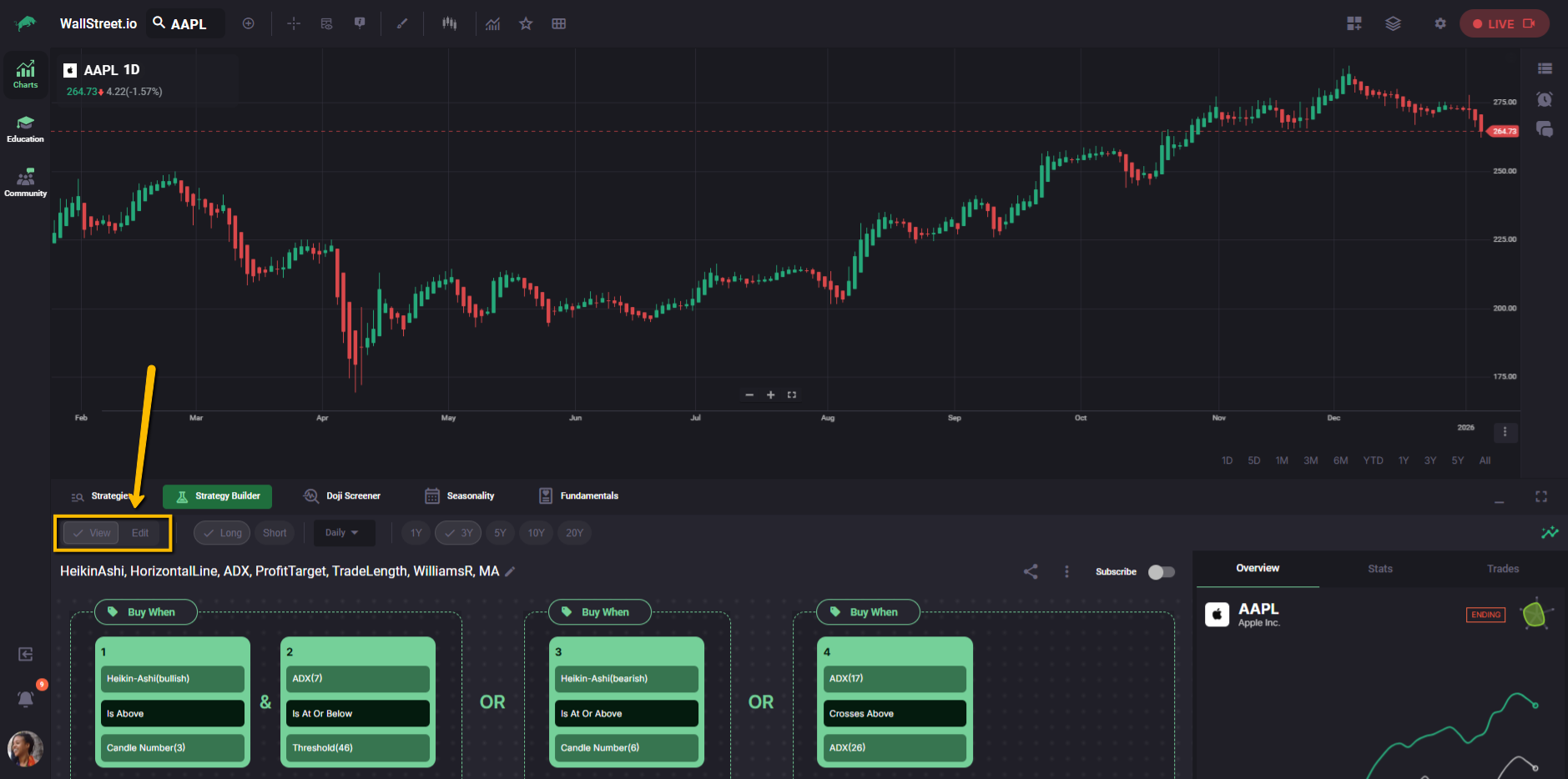
Edit mode is where you can change variables like:
Step 4: Make your changes and understand what happens
Here’s the key detail: simply switching to Edit mode does not change anything by itself.
A strategy only becomes a new strategy when you actually change a variable.
Once you adjust any part of the logic, Wallstreet.io treats that edited version as a new strategy with a new strategy ID in our database. That means:
Step 5: Subscribe if you want to keep tracking it
At the moment, strategies are not treated as files you “save” or “copy.” The way you keep a strategy in your personal workflow is by subscribing to it.
If you want your edited strategy to show up in your Subscriptions list and generate Strategy Alerts, make sure you subscribe to it after you’ve made your changes.
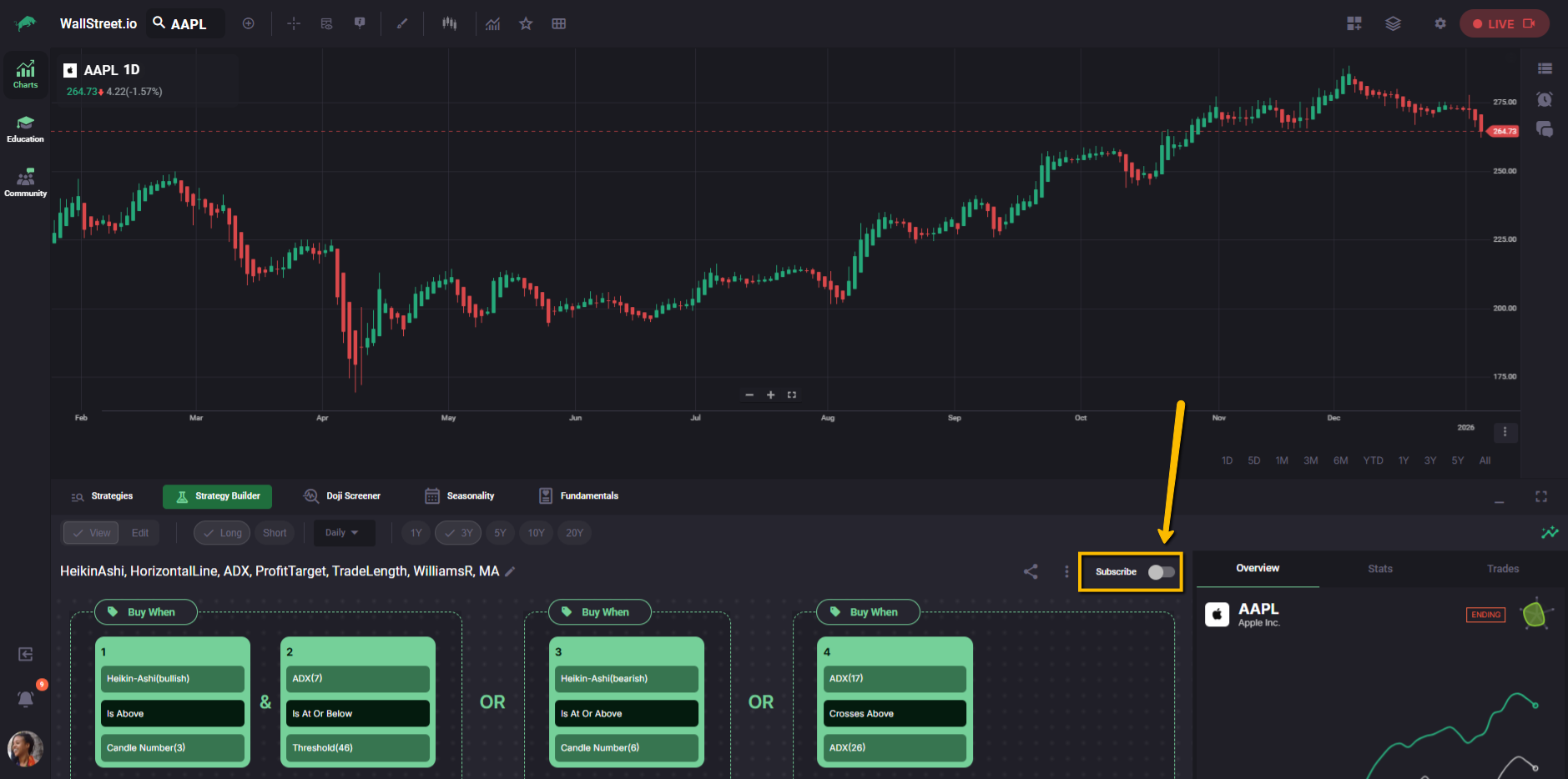
Unsubscribing removes it from your list and stops future alerts.
Common gotchas
If you switch to Edit mode and nothing appears different, that’s expected. The strategy only becomes a new strategy once you change a study, parameter, interaction, or condition.
If you do not subscribe to the edited version, it will not appear in your Subscriptions list and it will not generate alerts for you.