Troubleshooting Guide
What this helps you do
This guide helps you fix common issues that can happen when Wallstreet.io does not load, update, display, or respond the way you expect.
You can use these steps when something looks stuck, a feature does not open, a chart or video does not load correctly, or the platform seems different from what you saw before.
Why it matters
Most platform issues are caused by browser cache, stored site data, extensions, device settings, or temporary connection problems. A few simple checks can usually get you back into the platform without losing time or changing your setup.
For the best experience, we recommend using a desktop or laptop with Google Chrome, Brave, or Mozilla Firefox.
Before you start
If possible, use a desktop or laptop computer. Wallstreet.io is a full web platform, and some features are easier to use on a larger screen.
If you are using Safari, Microsoft Edge, a mobile browser, or the Mobile Companion App and something is not working correctly, try opening Wallstreet.io in Google Chrome, Brave, or Firefox on a desktop or laptop before moving further.
1. Refresh the page
Start with a normal refresh. On most browsers, click the refresh icon near the top-left of your browser window.
If the platform still looks stuck, move to a hard refresh.
On Windows
Hold Ctrl and press F5.
On Mac
Hold Command + Shift and press R.
A hard refresh tells your browser to reload the latest version of the page instead of relying on stored files.
2. Log out and log back in
If refreshing does not solve the issue, log out of your Wallstreet.io account and sign back in.
To log out, click your Profile Avatar menu at the bottom-left of the platform, then choose the logout option.
After logging back in, return to the area where you noticed the issue and check whether it is working normally.
3. Make sure you are using the 4.0 platform
Some guides and training sessions are based on the newer 4.0 platform experience.
If you see a green rocket near the bottom-right of the platform, click it to move into the newer 4.0 version.
If you do not see the green rocket, you are already in the correct experience and can move to the next step.
4. Clear Wallstreet.io site data
Site data is saved information your browser keeps for a website. It helps the site load faster, but it can also cause problems if the saved information becomes outdated.
Before you reset anything, we recommend quickly saving your current setup just in case you have any unsaved changes. You can do that by clicking the Layouts icon at the top right, the one that looks like a stack of papers, then selecting “Save Layout” from the bottom of the dropdown menu.
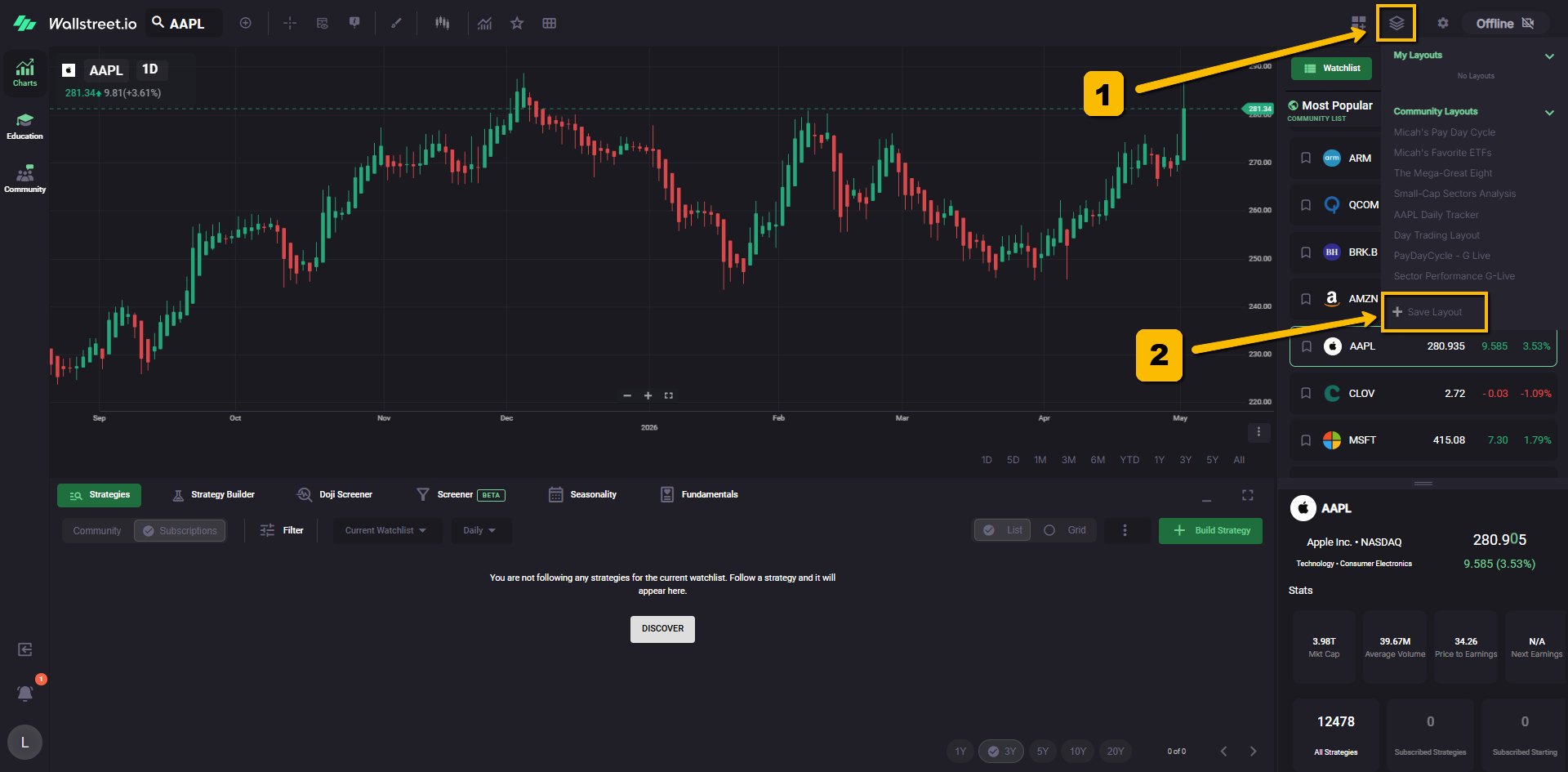
To clear Wallstreet.io site data inside the platform after you’ve saved your setup, please try this:
1. Click your Profile Avatar menu at the bottom-left of the platform.
2. Click Account.
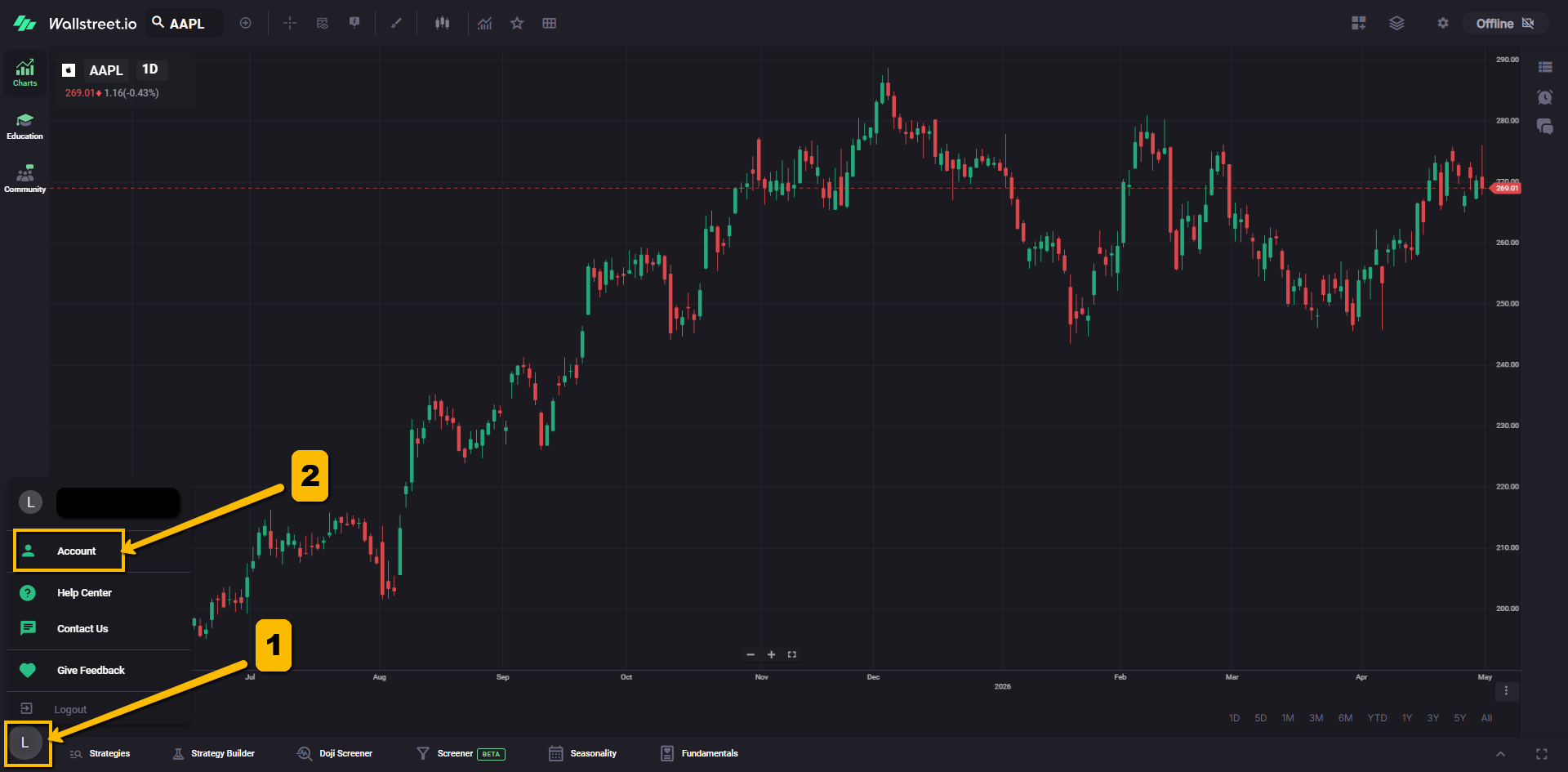
3. Click Site Data.
4. Click Clear Site Data.
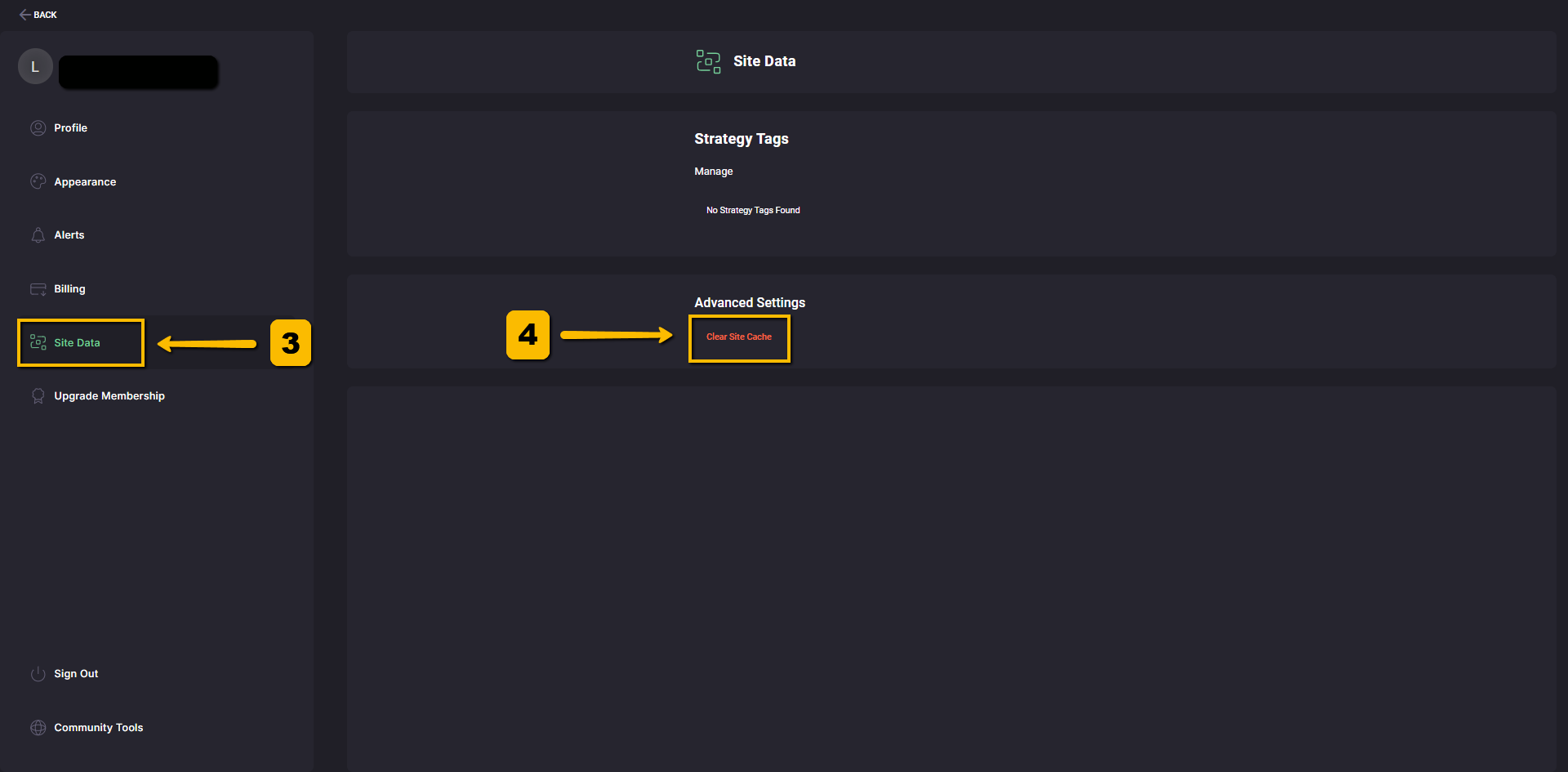
This only clears Wallstreet.io’s stored site data. It should not clear saved information for every website you use.


5. Try a private or incognito window
A private or incognito window opens the platform without using some of your usual browser settings, stored sessions, or extensions.
This is one of the fastest ways to check whether the issue is coming from your browser setup.
In Google Chrome
Press Ctrl + Shift + N on Windows, or Command + Shift + N on Mac.
In Firefox or Brave
Press Ctrl + Shift + P on Windows, or Command + Shift + P on Mac.
Then go to https://wallstreet.io/login, sign in, and test the same feature again.
If the issue works correctly in a private window, the problem is likely connected to your browser cache, extensions, cookies, or saved settings. For that, we recommend reviewing the next step: Clear cookies for Wallstreet.io.
6. Clear cookies for Wallstreet.io
If Wallstreet.io works correctly in a private or incognito window, your regular browser may be holding onto outdated cookies or site data.
In that case, try clearing cookies for Wallstreet.io only. This gives your regular browser a cleaner start without removing saved data from other websites.
Cookies are small files your browser saves for websites you visit. They help keep you signed in and remember certain settings, but outdated cookies can sometimes cause login, loading, or display issues.
To clear cookies for Wallstreet.io:
Be careful not to clear cookies for all websites unless you want to. Clearing all cookies may sign you out of other websites and remove saved site preferences.
For browser-specific instructions, use the links below:
7. Turn off browser extensions
Browser extensions can sometimes block videos, charts, login sessions, alerts, or chat features.
This is especially common with ad blockers, privacy blockers, script blockers, password managers, VPN extensions, and security tools.
To test this:
If the issue disappears, turn your extensions back on one at a time to find which one is causing the problem.
8. Turn off your VPN
A VPN can sometimes interfere with login sessions, video playback, live data, or platform loading.
To test this:
If the platform works with the VPN turned off, the VPN connection may be blocking or slowing part of the platform.
9. Try a different browser
If the issue continues, try opening Wallstreet.io in a different supported browser.
We recommend testing with:
If you were using Safari or Microsoft Edge, switching browsers may solve display, video, or chart behavior issues.
10. Check your internet connection
If Wallstreet.io loads slowly, videos buffer, charts lag, or live areas feel delayed, check your internet connection.
You can try:
If only Wallstreet.io is having trouble, continue with the next steps. If other websites are also slow, the issue may be with your connection or device.
11. If videos will not play
If a video will not load, freezes, or shows a privacy-related playback message, try these steps:
If you are using the Mobile Companion App and the video does not play correctly, try opening Wallstreet.io through a mobile browser instead. Chrome, Brave, or Firefox usually work best.
12. If charts look incorrect or do not update as expected
If a chart looks frozen, delayed, or different from another charting platform, start with the troubleshooting steps above.
Then check a few chart-specific details:
Heikin-Ashi candles use averaged price calculations, so they can look different from regular candlesticks. A chart can also appear different if you are comparing different timeframes, sessions, or chart settings.
13. If something looks different from a live session or replay
If your screen does not match what Micah, Gino, or another presenter is showing, check these items first:
Some presenters may have early access to features that are still being tested. If a feature is not available in your account yet, it may still be in development.
If things still do not work
If the issue continues after trying the steps above, contact Support and include as much detail as possible.
Please contact us at support@wallstreet.io and share:
The more specific your report is, the faster our team can narrow down whether the issue is coming from your browser, device, connection, account, or something on our side.
You’re all set to start with the quick fixes above. In most cases, one of these steps gets the platform working normally again.