Evaluate a Strategy before Subscribing
What this helps you do
This guide gives you a simple process for evaluating a Pre-Built Strategy so you can decide whether it belongs in your workflow before you subscribe to it.
It matters because a little focused review helps you filter out noise, avoid strategies that clash with your style, and focus on the ideas that deserve your attention.
Start from a promising strategy
Begin in the Strategies area, after you have used the Community view, Filters, or Top Rated to find a strategy that looks interesting.
Make sure the Community option is selected (or that you are viewing the results you care about).
Use the Stock Filter dropdown to narrow results if needed:
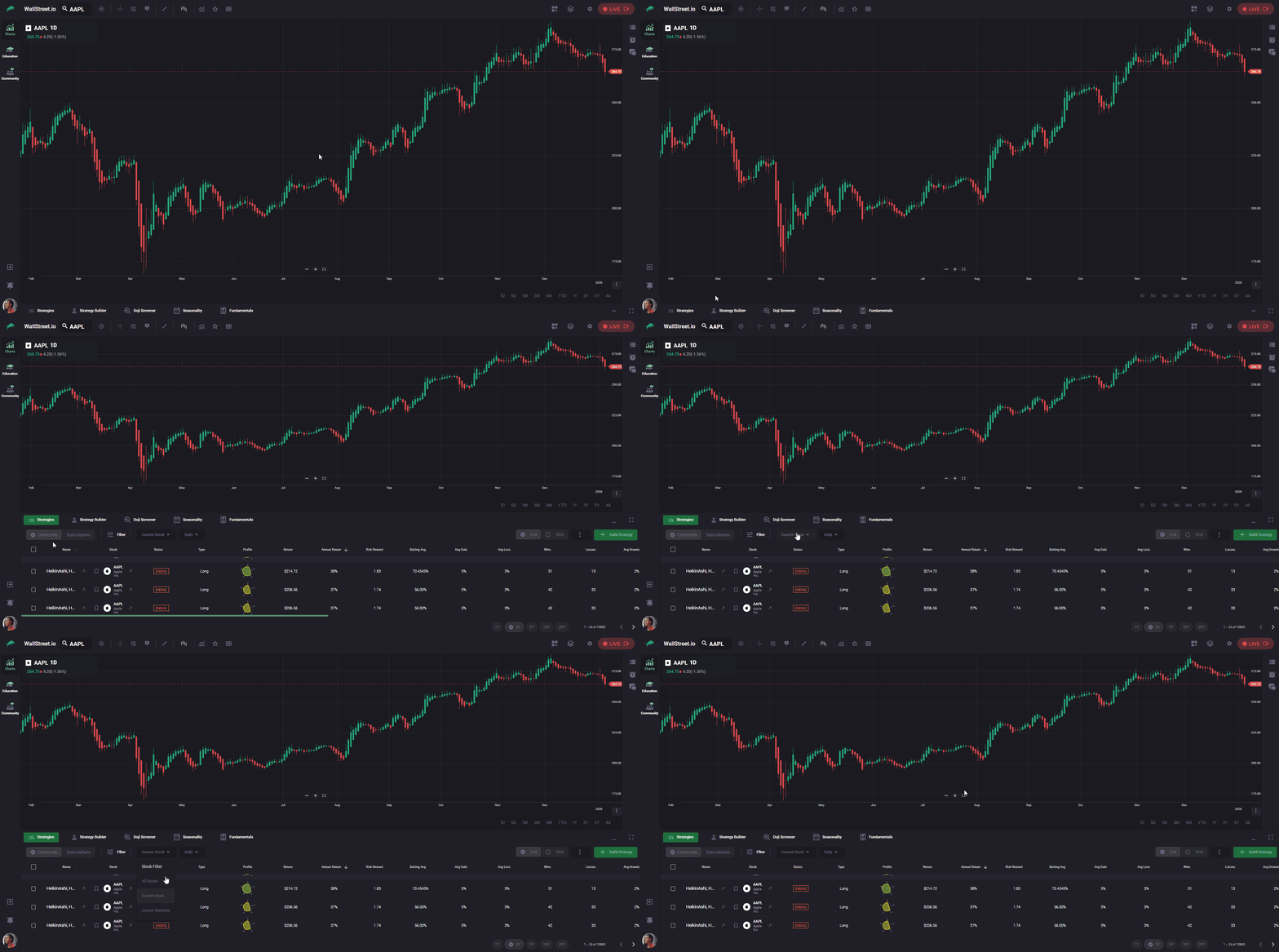
At this stage you are just looking for candidates that match the symbols and timeframes you care about.
If you are not sure how to find strategies yet, see Find Pre-Built Strategies.
Customize the columns to see what matters to you
Before opening a strategy, you can make the table work for the way you think.
In the Strategies area, click the More actions menu (three dots) at the top right of the table.
Choose the option to manage columns.
Add, remove, or reorder columns so the stats that matter most to you are visible at a glance.
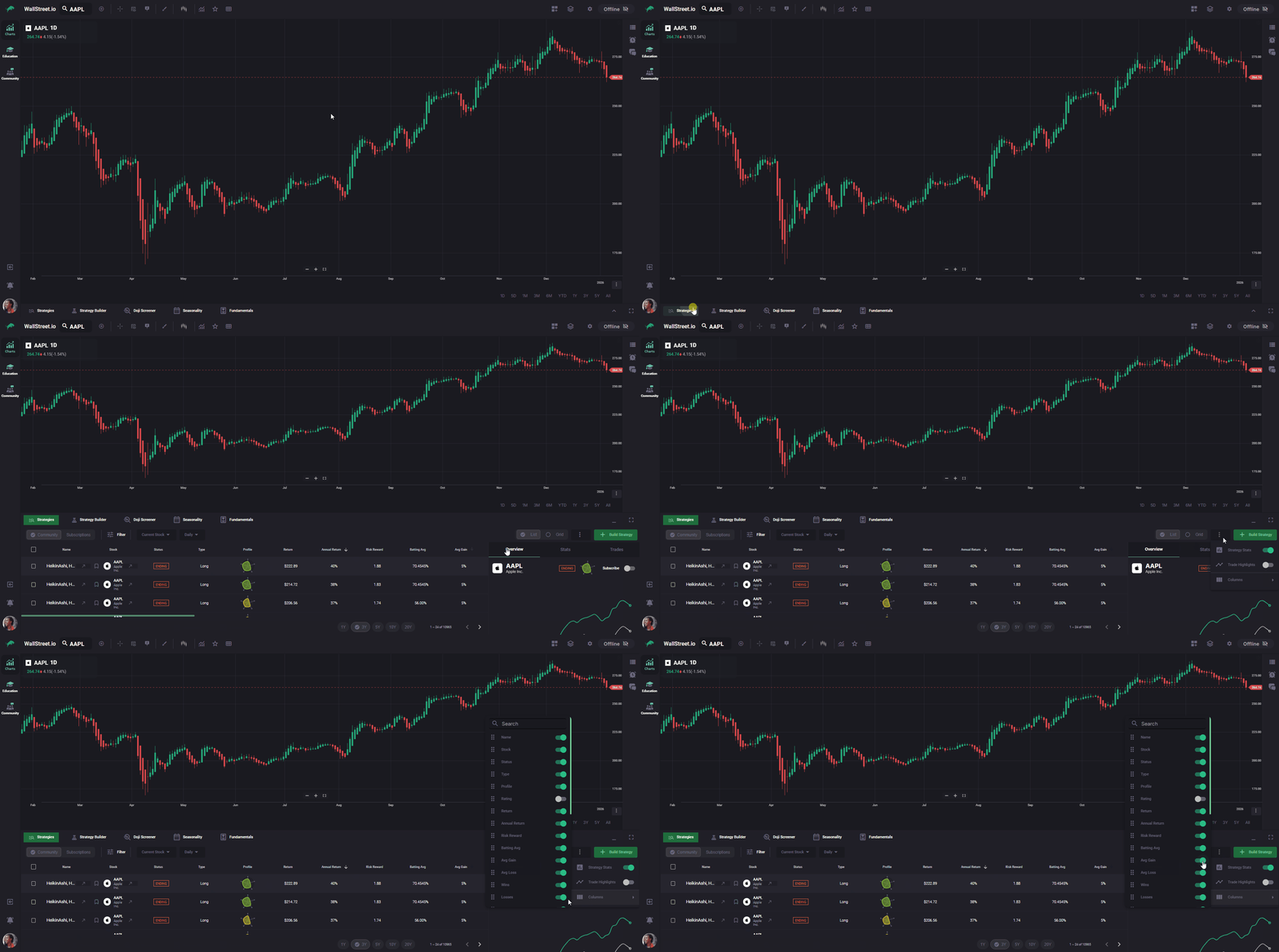
For example, some traders care most about win rate and average gain, while others watch risk-reward, drawdown, or trade count. The idea is not to analyze everything, but to put your preferred “quick scan” stats in front of you so you can compare strategies side by side.
For detailed definitions of each metric, see the View Stats Panel Complete Guide.
Open the strategy and review the overview
Click on a strategy row to select it. Start with a quick read of the overview.
Look for:
You do not need to make a decision yet. The goal here is to answer a simple question:
“Does this strategy roughly match the way I like to trade?”
If you want more detail on reading the profile chart, see How Strategy Profile Chart Works.
Use the View Stats Panel and Trades tab to anchor a trade
Once a strategy looks promising in the overview, the next step is to pick a specific trade to study more closely.
When you select a trade here, Wallstreet.io links that trade to the chart. This selection is what unlocks the trade-related details you will see in the Heads-Up (floating info) tooltip when you hover over the chart.
You can repeat this later with other trades if you want to compare how different periods behaved.
For more detail on everything inside this panel, see the View Stats Panel Complete Guide.
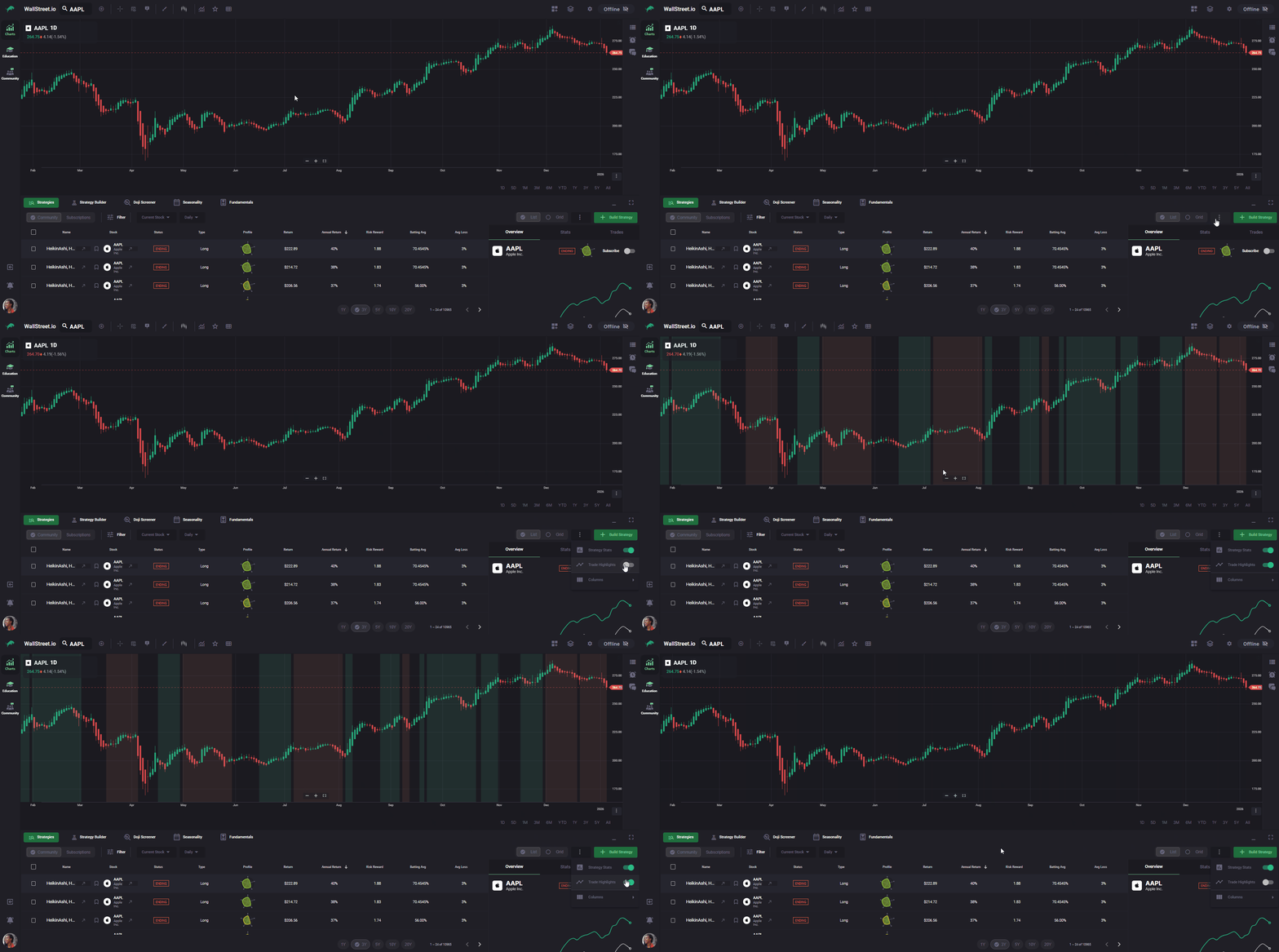
Inspect the selected trade on the chart with Trade Highlights
Now you can study how that trade actually played out on the chart.
Move your cursor across the shaded area that corresponds to the trade you selected in the Trades tab. As you hover, the tooltip will show price information and, for that trade, additional trade-specific stats such as entry price, exit price, and its P/L.
As you review this trade on the chart, ask yourself:
You can repeat this process with other trades by selecting them in the Trades tab and then reviewing their shaded regions on the chart. This helps you connect the numbers in the stats panel with real price action instead of relying on either one alone.
Make a simple decision: Yes, No, or Maybe
After you review the chart and stats, turn your observations into a clear decision. A simple way to think about it:
If you are a data-driven trader and want a deeper look before deciding, you can:
Once you are satisfied that a strategy belongs in your workflow, the next step is to subscribe. Continue with Subscribe to a Pre-Built Strategy to add it to your Subscriptions list and start receiving alerts when its rules become active.