Watchlists Complete Guide
What this helps you do
This guide shows you how to use Watchlists to organize symbols you care about, so you can pull up the right chart fast and keep your focus where it belongs. This matters because clean watchlists reduce menu-hopping when the market is moving.
Where to find Watchlists
You can access Watchlists from the platform’s widget area. You can show or hide the Watchlists widget based on your preference.
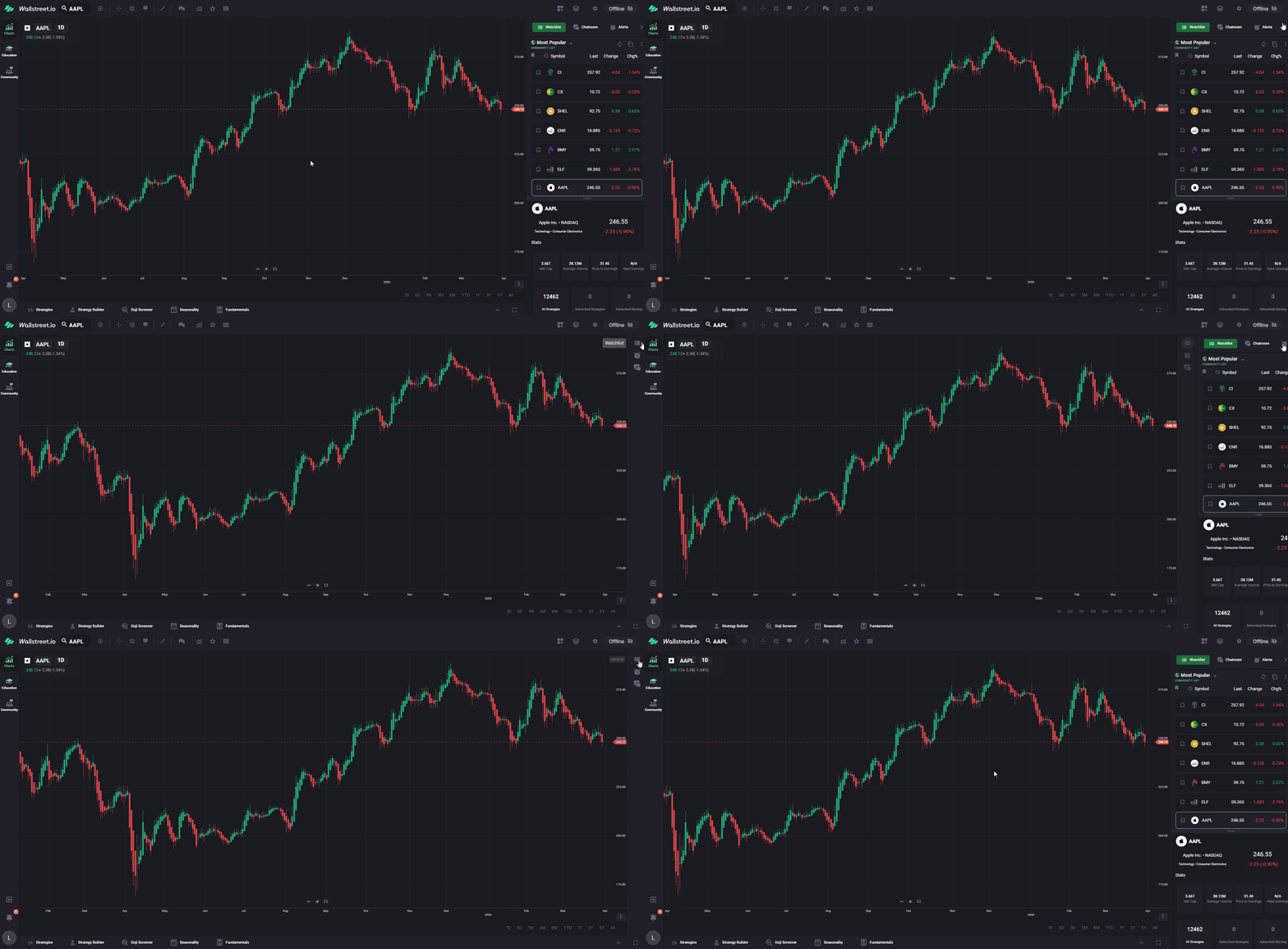
Watchlists location and layout
Watchlists live in the platform’s right-side widget area, alongside other widgets like Chatroom and Alerts. The Watchlists widget shows a scrollable list of symbols with quick price context, including the latest value and session change.
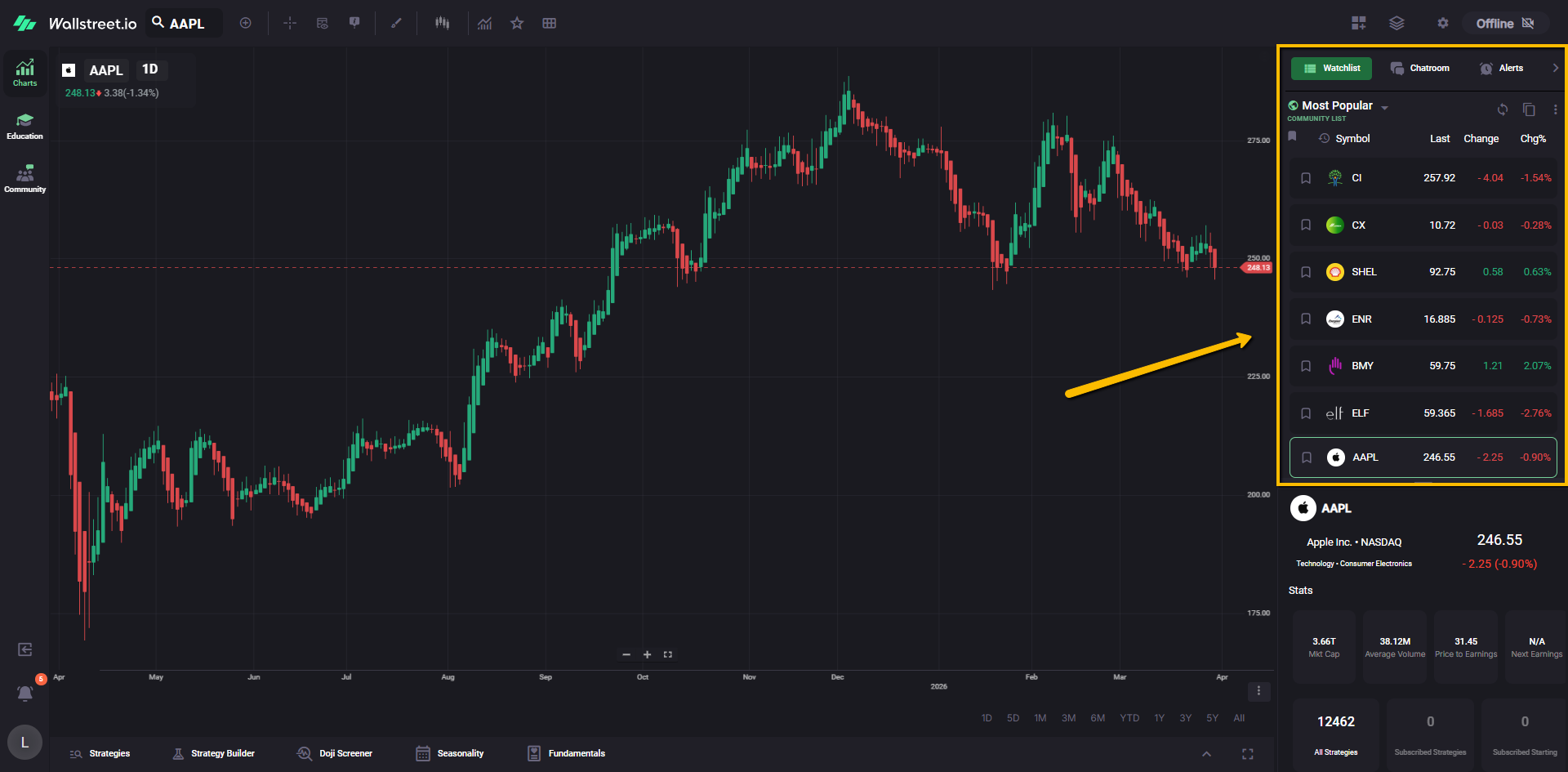
Watchlists widget header
The top of the Watchlists widget includes the controls that determine which list you’re viewing and how it displays.
Watchlist selector (watchlist name + down arrow)
Displays the name of the current watchlist (for example, “Most Popular”). Opening this selector brings up the Watchlists selection window, where lists can be searched and switched.
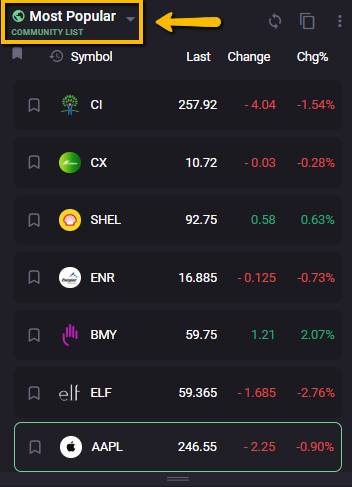
When a community watchlist is selected, a globe icon appears next to its name to show that the active list is community-based rather than private.
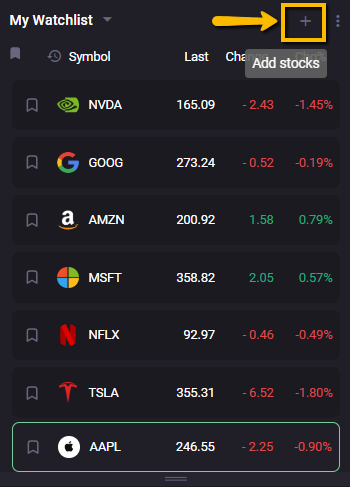
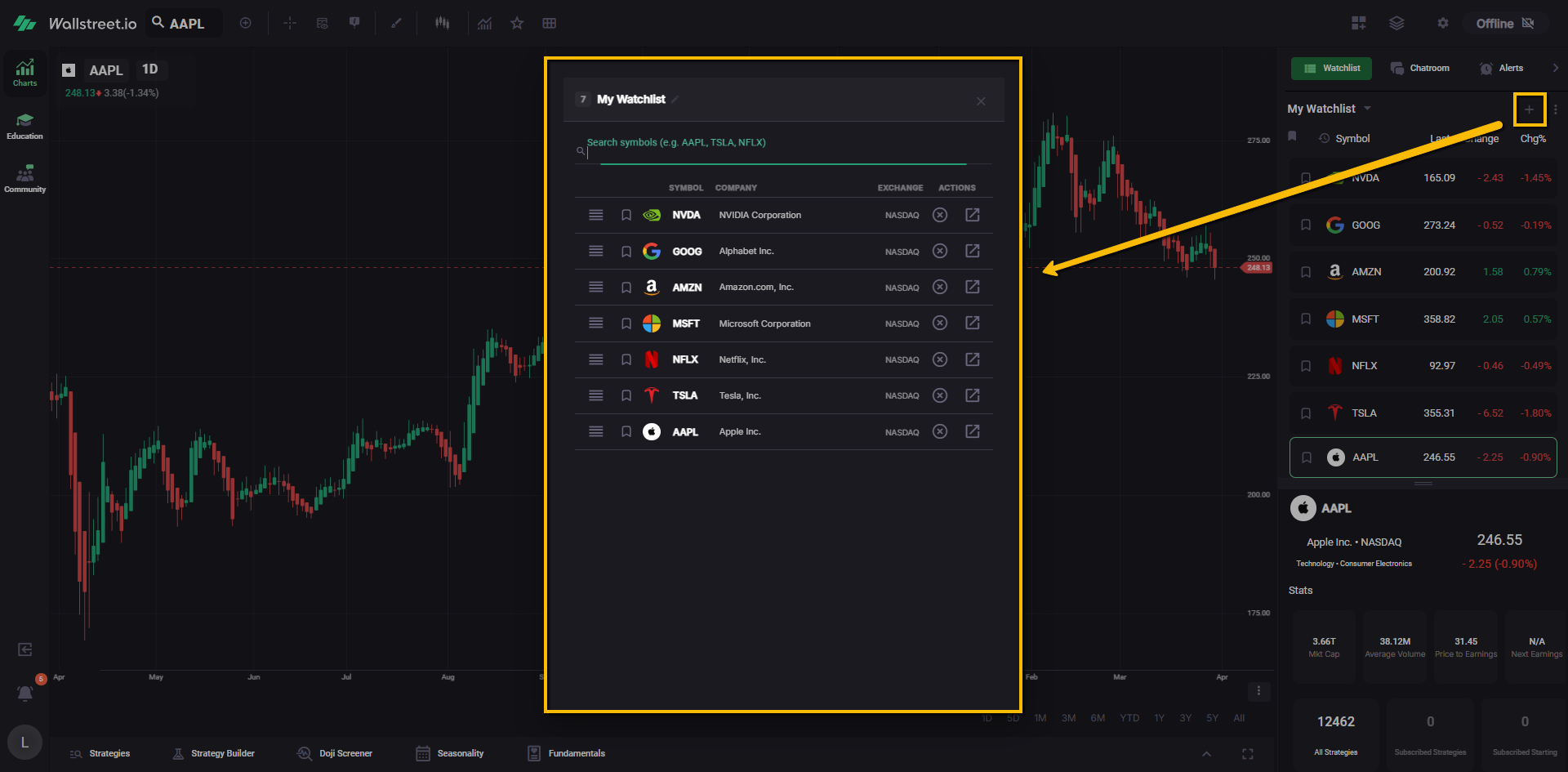
Add or manage icon (plus sign)
For Custom Watchlists, this pens the Manage Watchlist window for the currently selected watchlist.
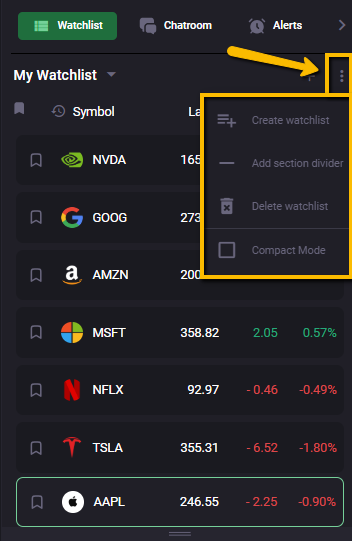
Options menu (three-dot menu)
Opens additional watchlist settings, including Compact mode in 4.0 (a slimmer row layout).
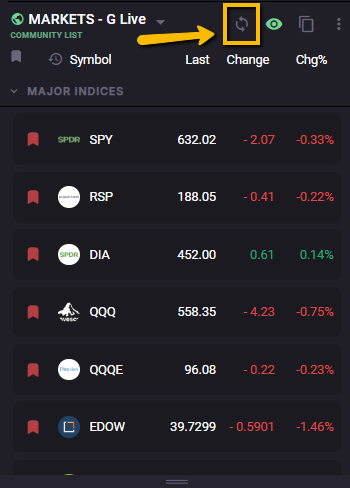
Community watchlists may also include a sync button in the header area. This refreshes the latest shared version of that list, including ticker updates, shared color tags, and other recent changes.
Watchlist rows and columns
Each row represents a symbol inside the selected watchlist. These include:
Symbol
The ticker symbol for the instrument.
Last
The most recently displayed price.
Change
The point change for the session.
Chg%
The percentage change for the session.
Rows may also display a flag icon (empty by default) that can be used to flag symbols for quick grouping and organization.
Watchlist flags and flagged lists
Watchlists’ flagging system helps you group symbols across a watchlist without creating a brand-new list.
In the Watchlist widget, each ticker row includes an empty flag icon. When you select that flag, you can assign one of four colors: green, yellow, purple, or red.
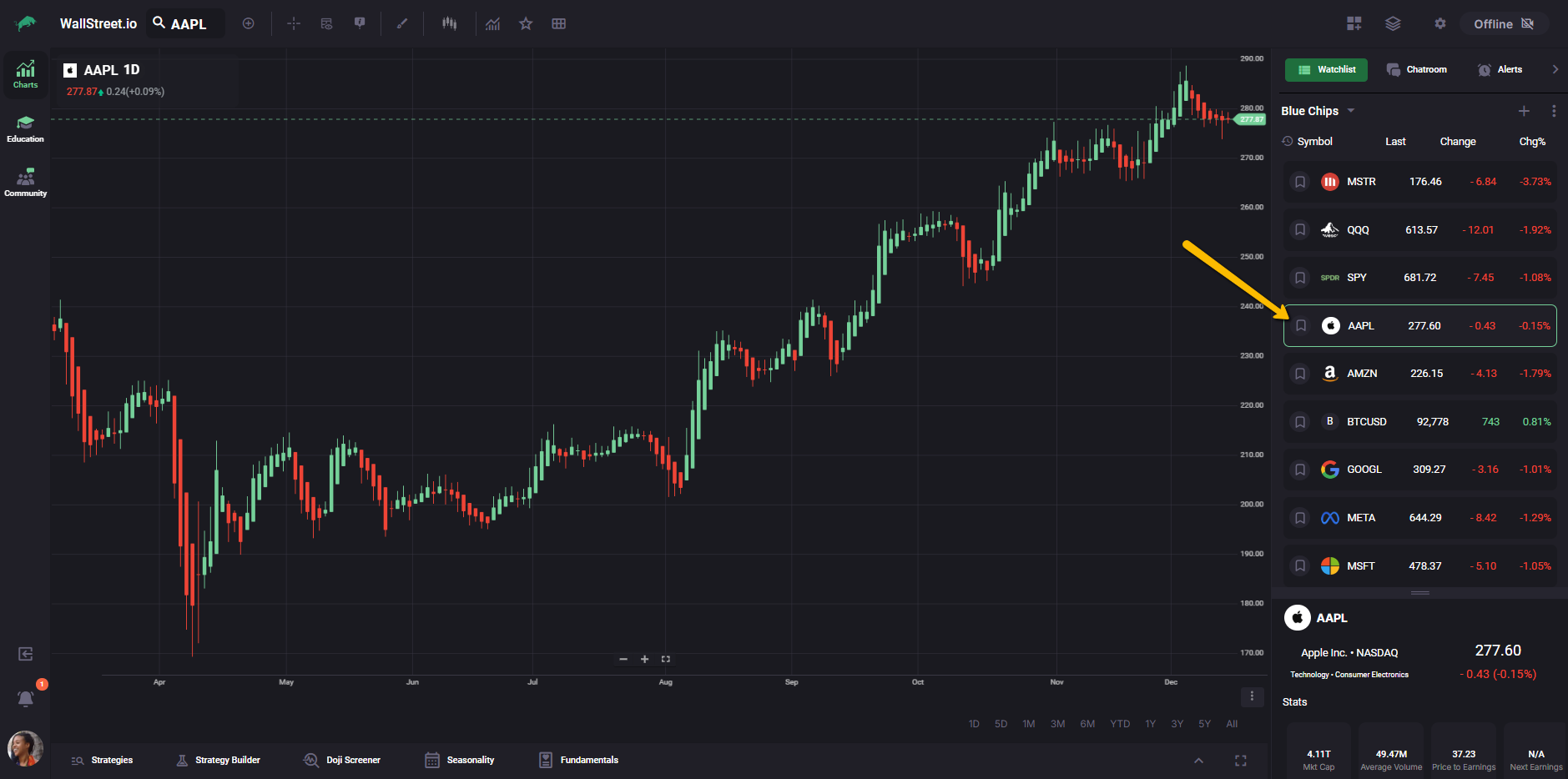
The first time you assign a given color, the Watchlist widget adds a matching colored flag icon below the Watchlist selector. Selecting that colored flag shows a view that contains only the symbols currently flagged with that color, effectively giving you a quick “flagged list” you can return to at any time.
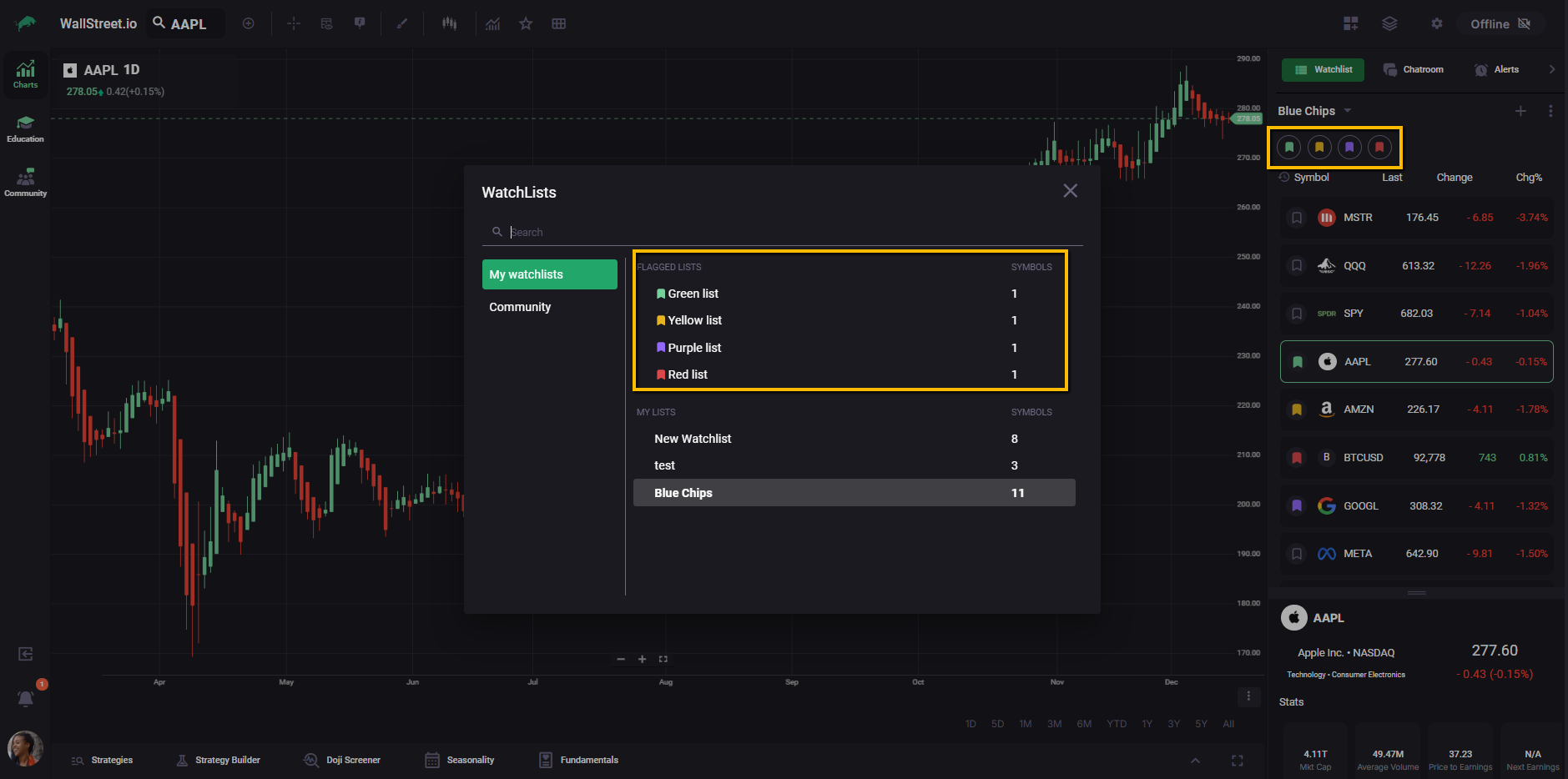
Watchlists selection window
The Watchlists selection window appears when the watchlist selector is opened.
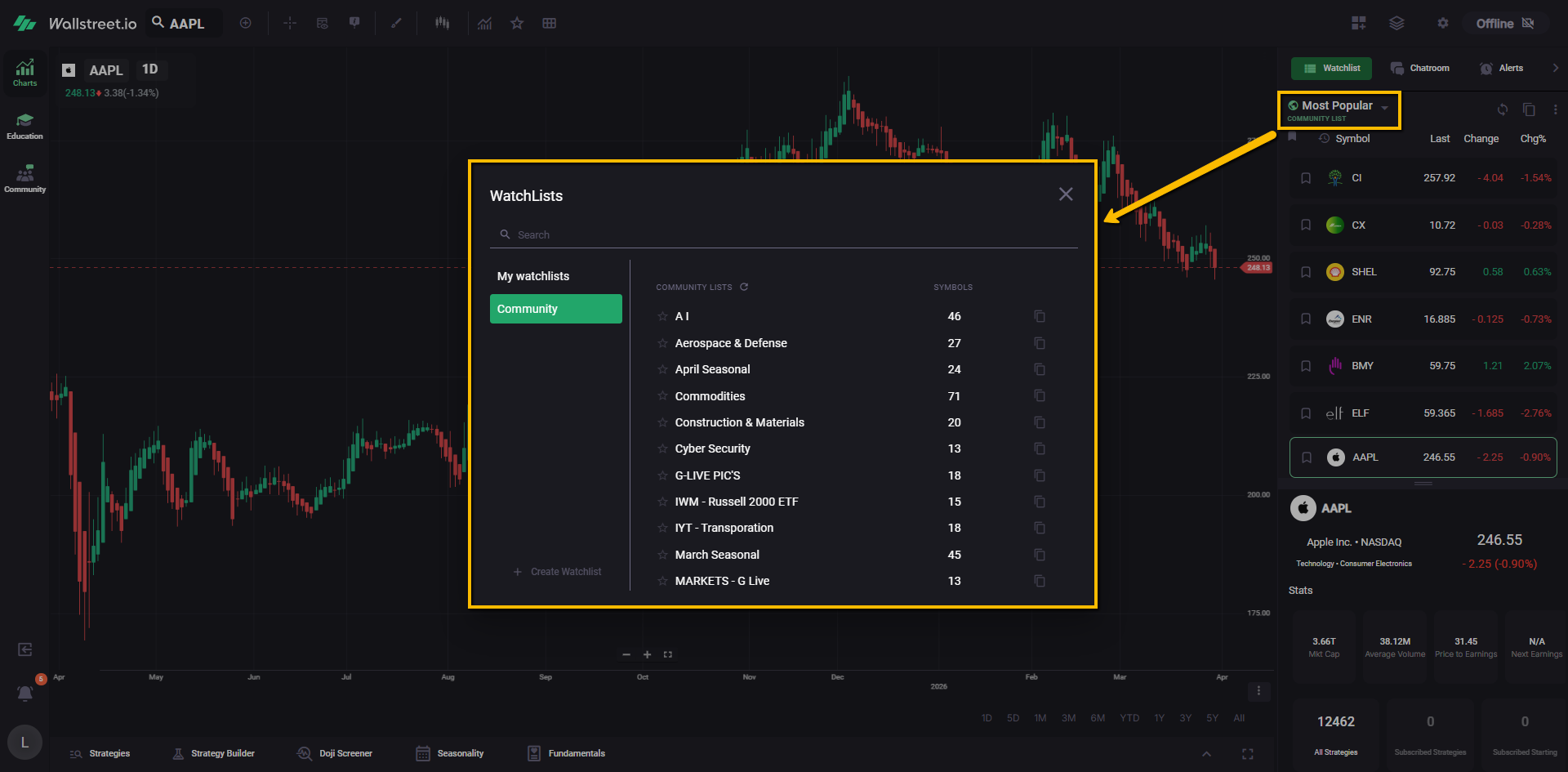
Search field
Filters available watchlists.
My watchlists panel
Shows a list of the custom watchlists you have created, either by copying them or creating them from scratch.
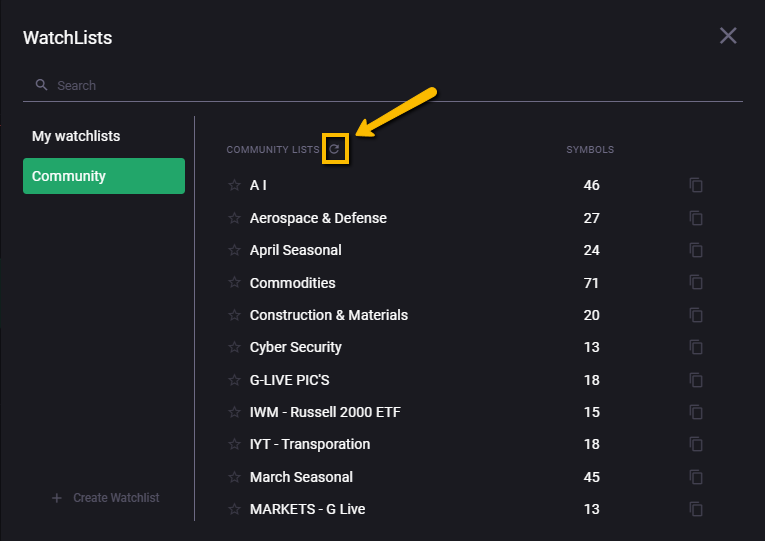
Community lists section
Displays community watchlists (for example, “Most Popular,” “Transportation,” “Commodities”), along with a Symbols count that shows how many tickers are inside each list.
The Community section also includes a refresh button that reloads the latest available community watchlists. This is especially useful in fast-moving situations, such as live sessions where new watchlists may be shared during the event.
Manage Watchlist window
The Manage Watchlist window appears when the plus icon is used from the Watchlists widget. It is used to edit the contents and settings of the currently selected watchlist.
Watchlist name and rename control (pencil icon)
Displays the watchlist title and provides an edit control for renaming.
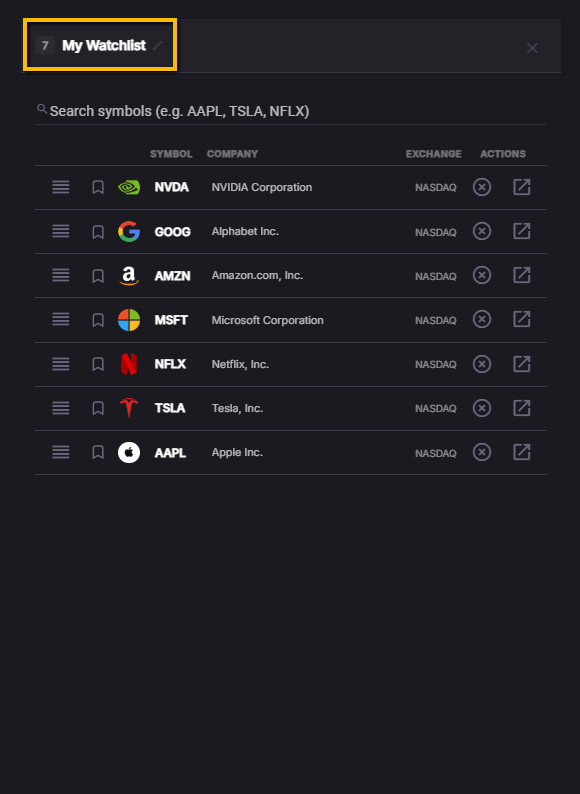
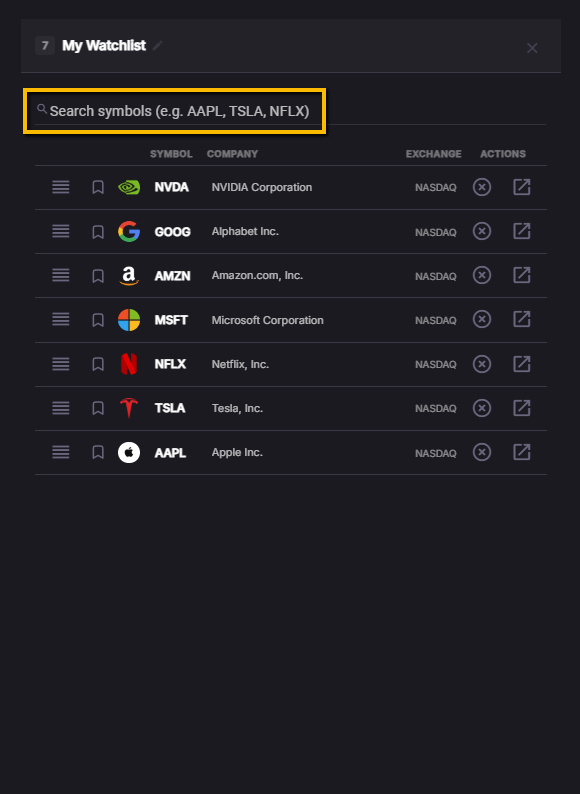
Search field
Used to find symbols while editing a watchlist.
Stock count badge
Displays the number of symbols currently included in the watchlist.
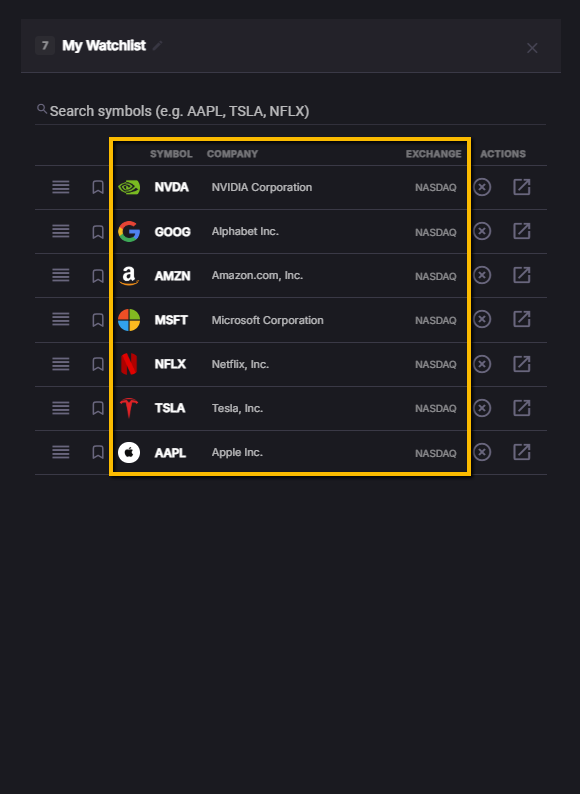
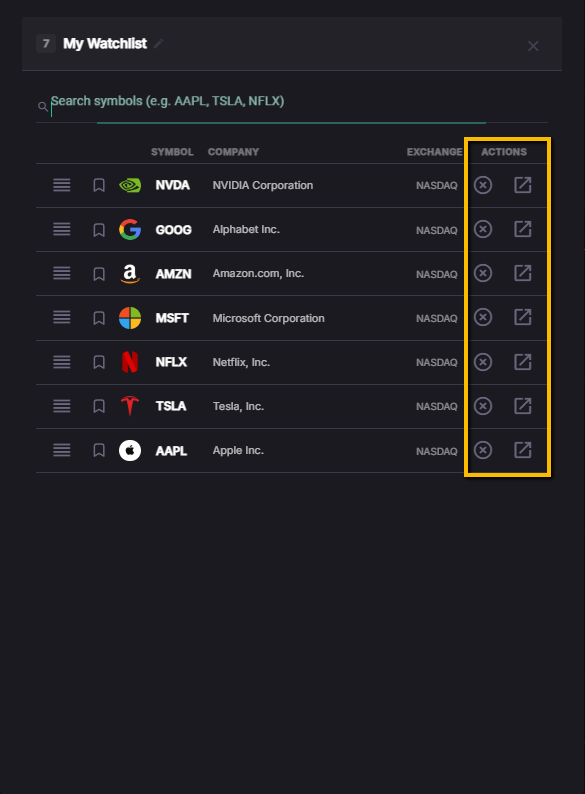
Symbol list table
Displays the symbols inside the watchlist, typically including the ticker, company name, and exchange.
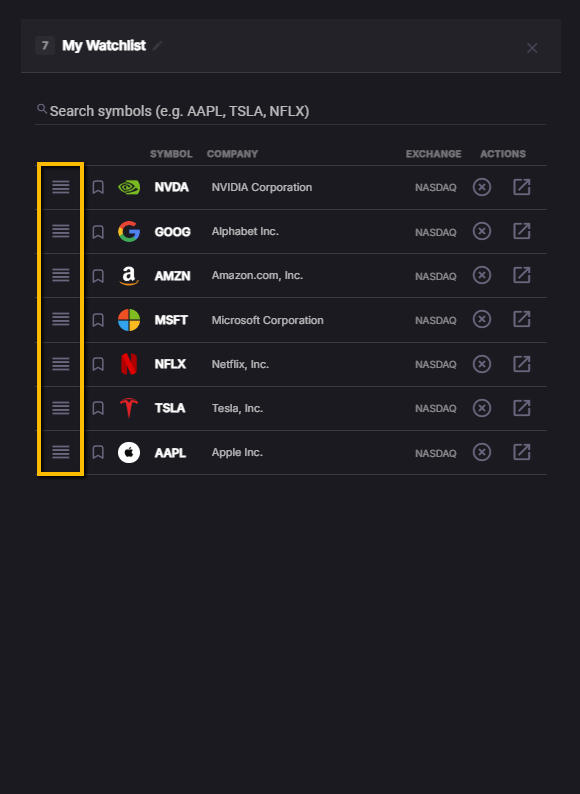
Reorder handle (stacked lines icon on the left of each row)
Indicates that symbols can be reordered within the list.
Row action icons (right side of each row)
Provide quick controls related to that symbol inside the watchlist (for example, removing the symbol or jumping to it).
Watchlist sections
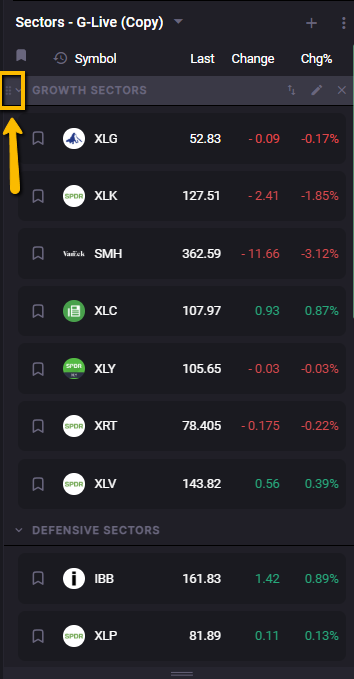
Watchlists can include section dividers that group symbols into separate parts inside the same watchlist.
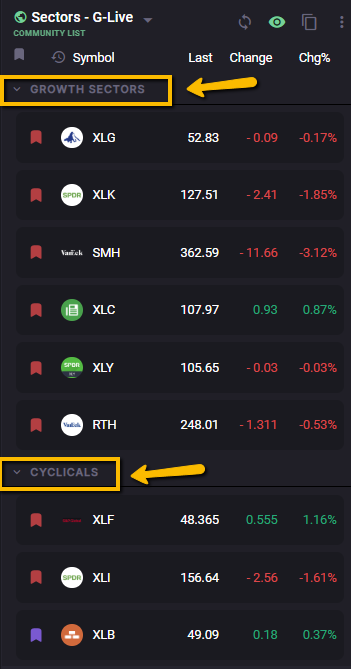
Sections can be used to organize symbols by theme, setup, sector, or any structure you prefer. Each section can display its own stock count, so you can quickly see how many symbols are grouped inside it.
Sections support collapse and expand behavior, which makes it easier to hide groups that are not currently relevant without removing them from the watchlist.
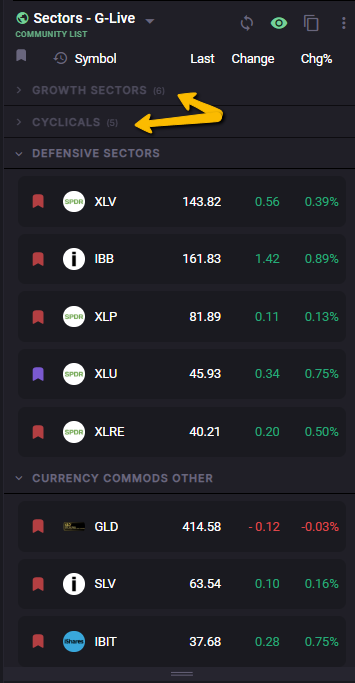
Sections are also preserved when a watchlist is duplicated, so the list structure carries over with the copy.
Reordering sections and symbols
Watchlists support both symbol-level and section-level organization.
Symbols can be moved individually inside the watchlist. Sections can also be moved as grouped units through a dedicated section reorder mode, which makes it possible to move entire groups at once instead of repositioning symbols one by one.
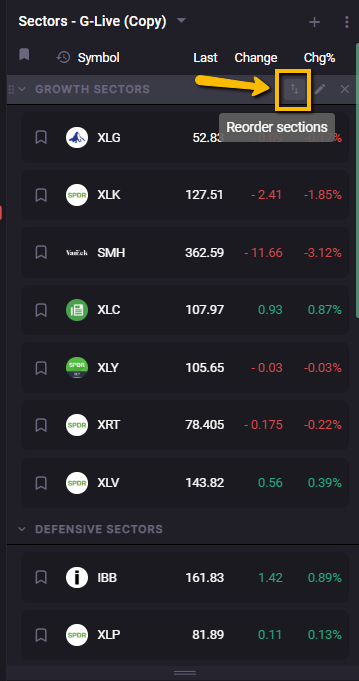
Section drag-and-drop behavior also preserves the symbols inside collapsed sections, so hidden contents remain attached to their section during reordering.
Sorting behavior
Watchlists include a sort option that can group symbols by color flag.
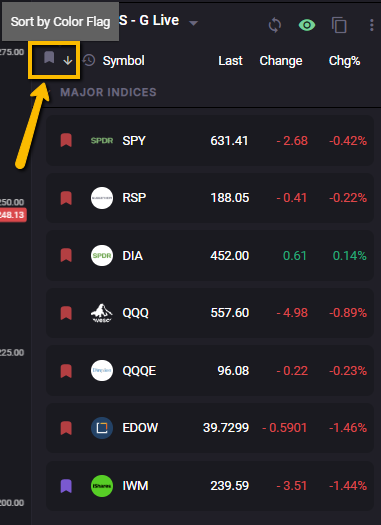
When this mode is used, symbols are sorted in the following order:
green → gold → purple → red → untagged
Sorting is section-aware, which means symbols sort only within their current section. The sections themselves remain in place, so the broader layout of the watchlist stays intact.
The sort control also supports an ascending/descending toggle.
Copy and duplication behavior
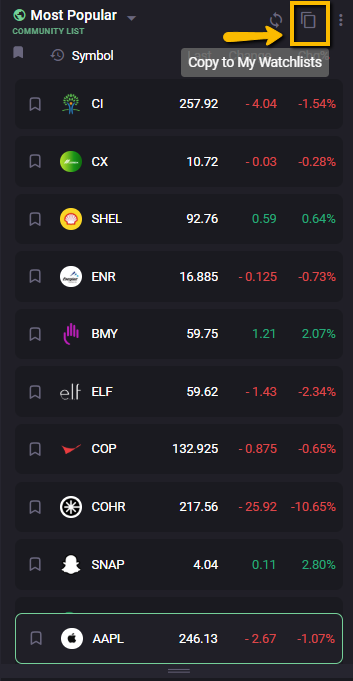
Community watchlists can be copied into your private watchlists.
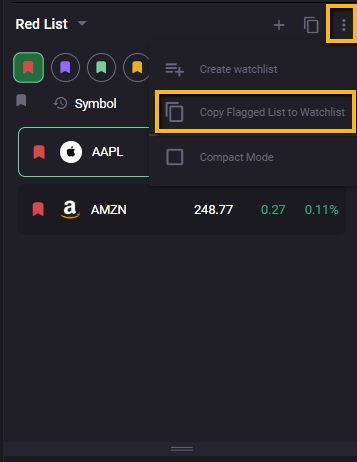
Your flagged or color-grouped stock sets can also be copied into a new watchlist, which makes it easier to turn temporary color groupings into saved lists.
When a watchlist with sections is duplicated, the sections copy over as part of the duplicate.
Shared community color tags, however, are view-only and do not copy over when the watchlist is duplicated.
Community color tag behavior
Some community watchlists can include shared color tags from the creator.
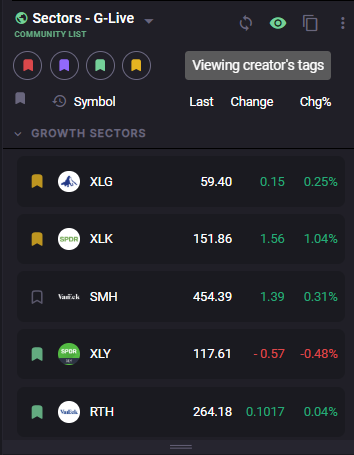
When shared tags are available, viewers can switch between the creator’s shared tags and their own personal tags for that same watchlist.
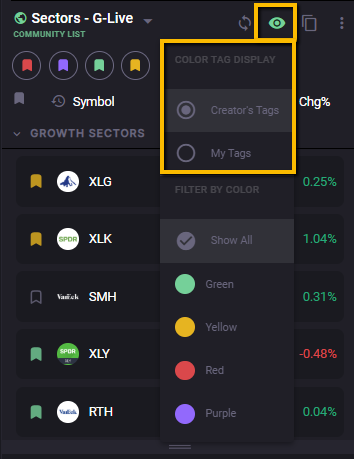
Creator tags are read-only on the viewer side. They are meant for visibility and reference, not for editing or copying into private color-tag systems.
This shared-tag behavior does not change your personal global color tags elsewhere in the workspace.
Watchlists options menu
The three-dot menu in the Watchlists widget includes display and list-management options.
Compact mode (4.0)
Toggles a slimmer row layout to fit more symbols on screen at once.
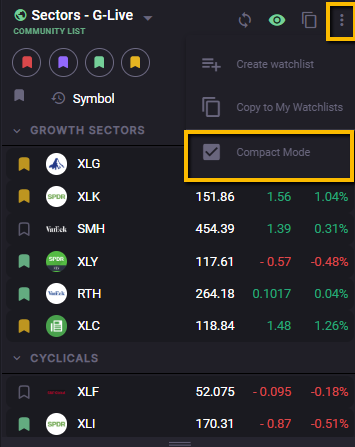
Other list actions may also appear here depending on your access level and the type of watchlist being viewed (community vs custom).
About flagging symbols
In 4.0, symbol rows also include flag icons you can use to flag symbols and create quick groupings by flag color. This ties into your broader organization setup, so it’s covered in the Workspace Favorites section.