Workspace Favorites Complete Guide
What this helps you do
This guide shows you how Workspace Favorites turn your Charts Workspace into a one-click control panel for the tools you use all the time. You will learn how to favorite drawings, chart types, studies, and layouts so your most important actions are always a single click away.
This matters most when the market is moving quickly and you want to spend more time reading the chart and less time hunting through menus.
Overview of Workspace Favorites
Workspace Favorites are a quality-of-life feature that lets you mark your most used tools across the platform and keep them within easy reach. You can favorite drawings, chart types, indicators, layouts, watchlists, and chatrooms.
The core behavior is always the same. When you hover over an eligible item, you see a star icon. Turning the star on tells the system to treat that item as a favorite. Turning it off removes that status. The favorite does not change what the item does. It only changes where and how you access it.
Where favorites appear on the Charts Workspace
On the chart, favorites are surfaced through the Chart Toolbar at the top of the workspace. When nothing is favorited yet, the toolbar shows only the standard tools and menus with no extra shortcut buttons.
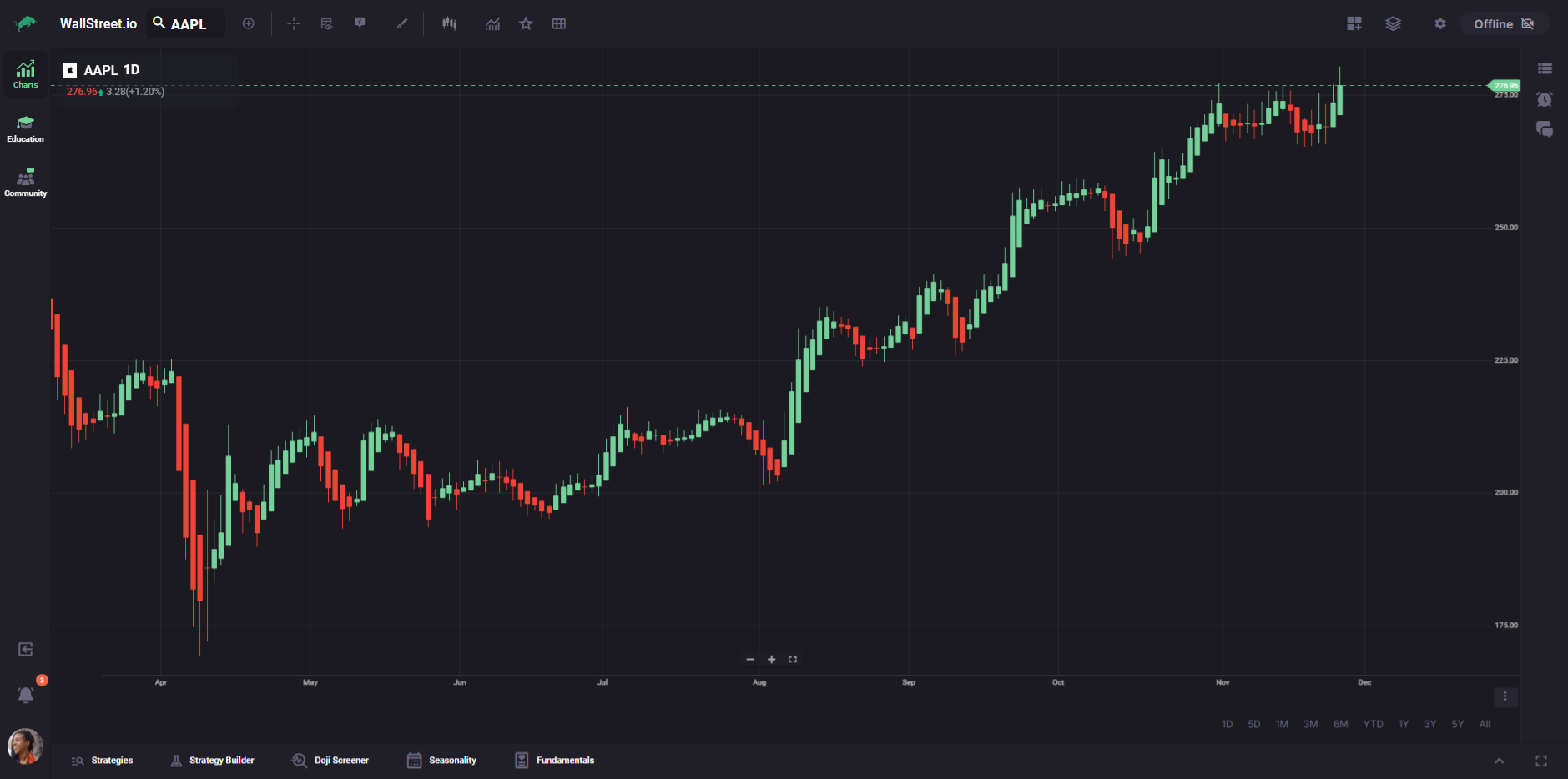
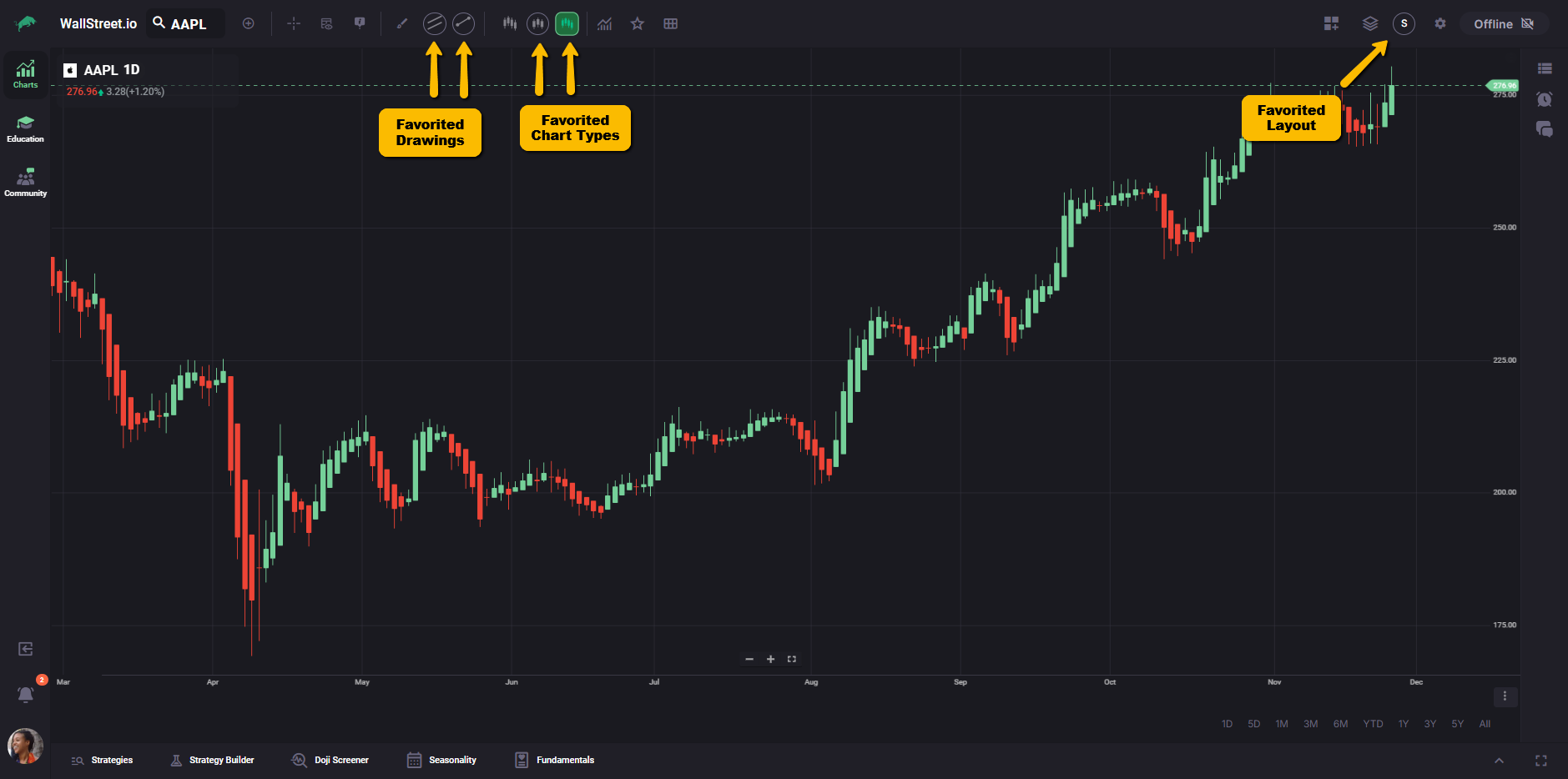
As you begin to star items, the toolbar gains new elements. Round shortcut buttons appear toward the right side of the Chart Toolbar for favorited drawings, chart types, and layouts.
In the example below, you can see this “after” state: I’ve favorited some drawings (the Trend Line and the Channel), some Heikin-Ashi chart types (regular Candlestick and the Heikin-Ashi), and a favorited custom layout, and they’re all living on the toolbar.
Favorites for Drawings
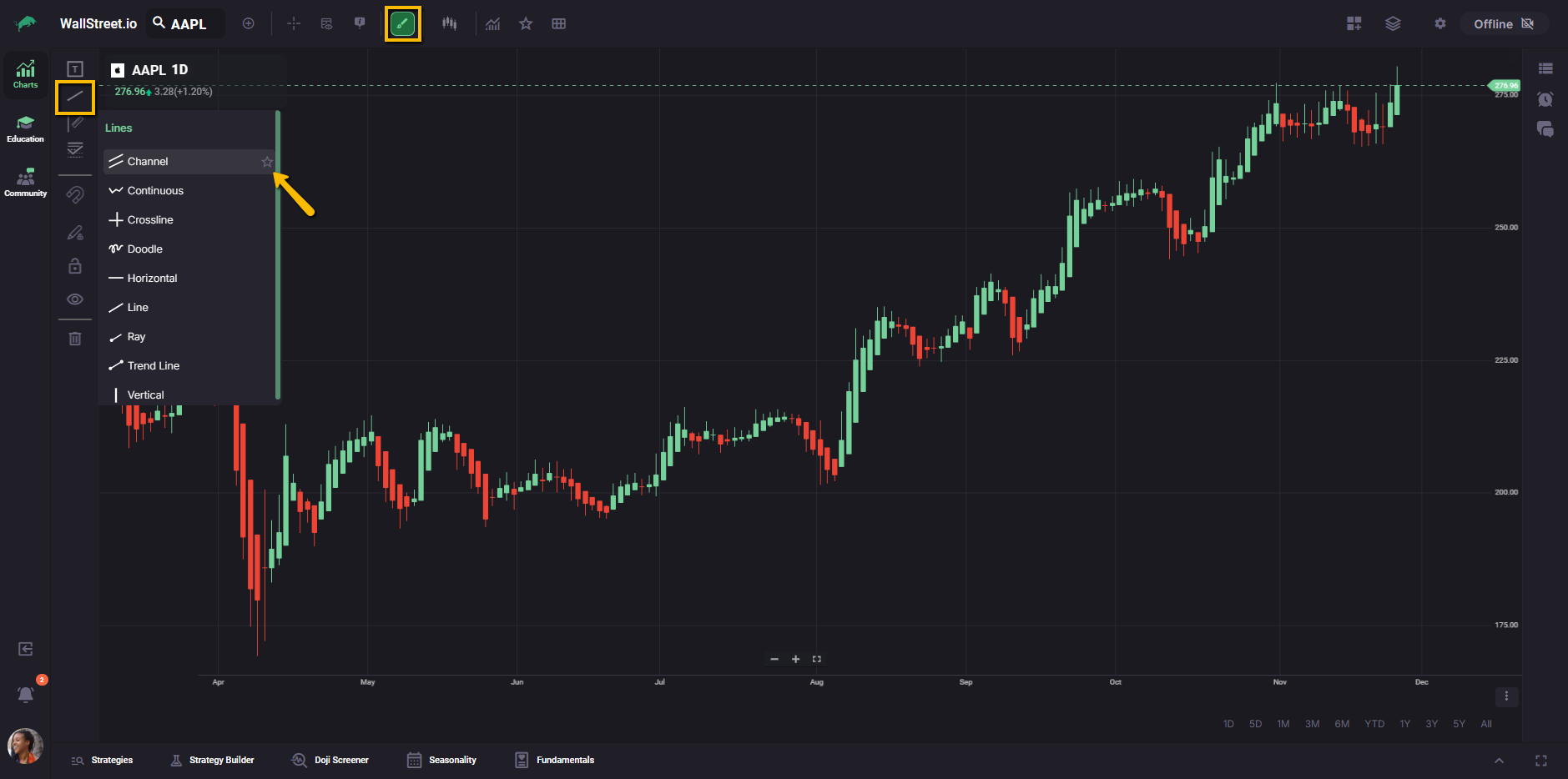
When you open a drawing category, each individual drawing exposes a star icon when you hover over it. Clicking that star marks that specific drawing as a favorite.
Once a drawing is favorited, it becomes a round shortcut button right next to the Drawing Tools icon on the Chart Toolbar. The button uses the same icon you see in the menu, so you can recognize it at a glance.
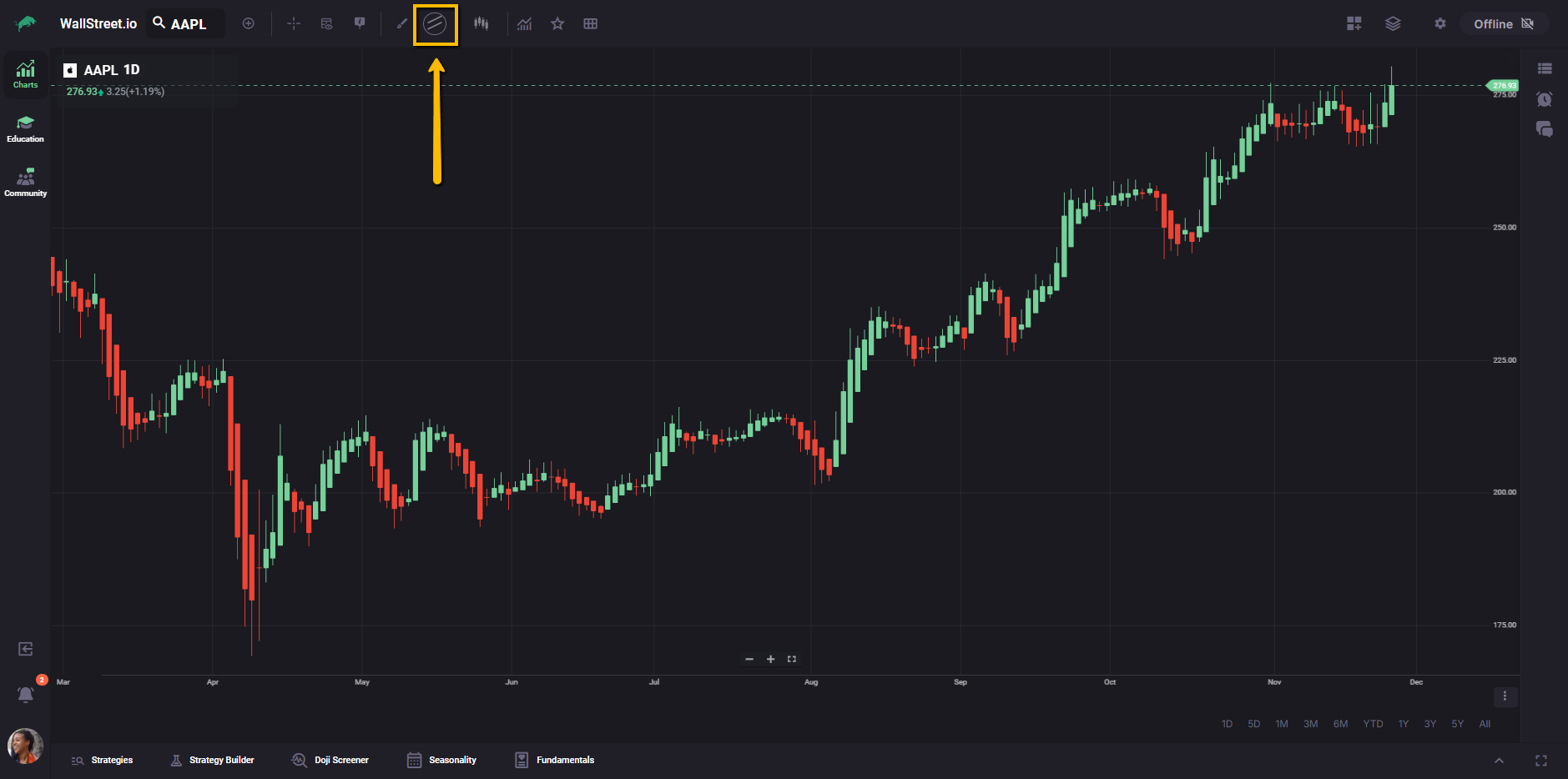
Selecting that button activates the drawing immediately, and the drawing itself behaves exactly as it would if you were to choose it from the Drawing Tools menu. The only difference is that you now have a one-click entry point for drawings you rely on all the time, instead of repeatedly opening menus and hunting for them.
Favorites for Chart Types
Chart type favorites work in a similar way. Inside the Chart Type menu, each chart type shows a star icon when you hover over it. Turning the star on marks that chart type as a favorite, and turning it off removes it from your favorites.
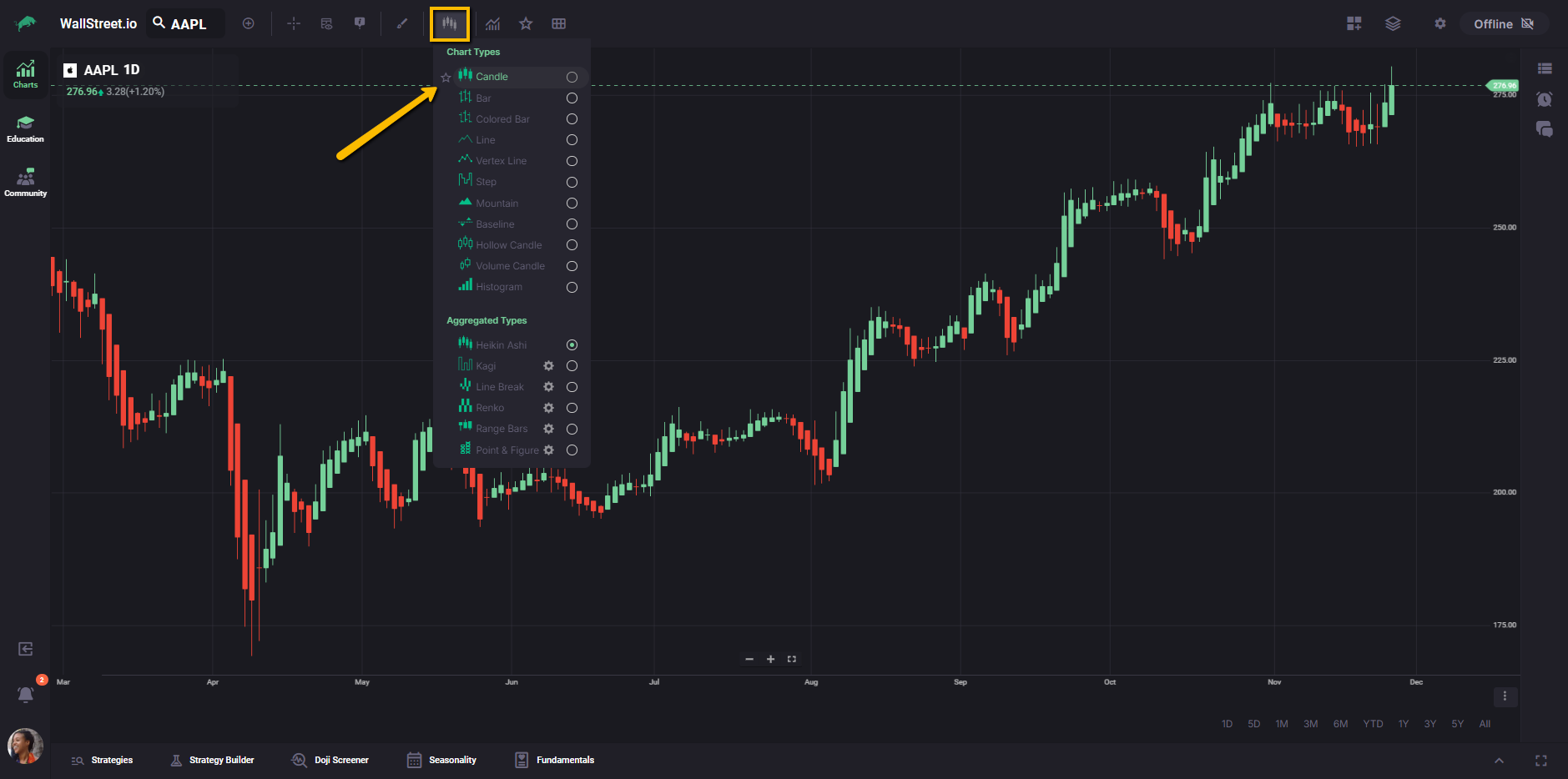
A favorited chart type creates its own round shortcut button right next to the Chart Types menu icon. Selecting this button switches the active chart directly to that type.
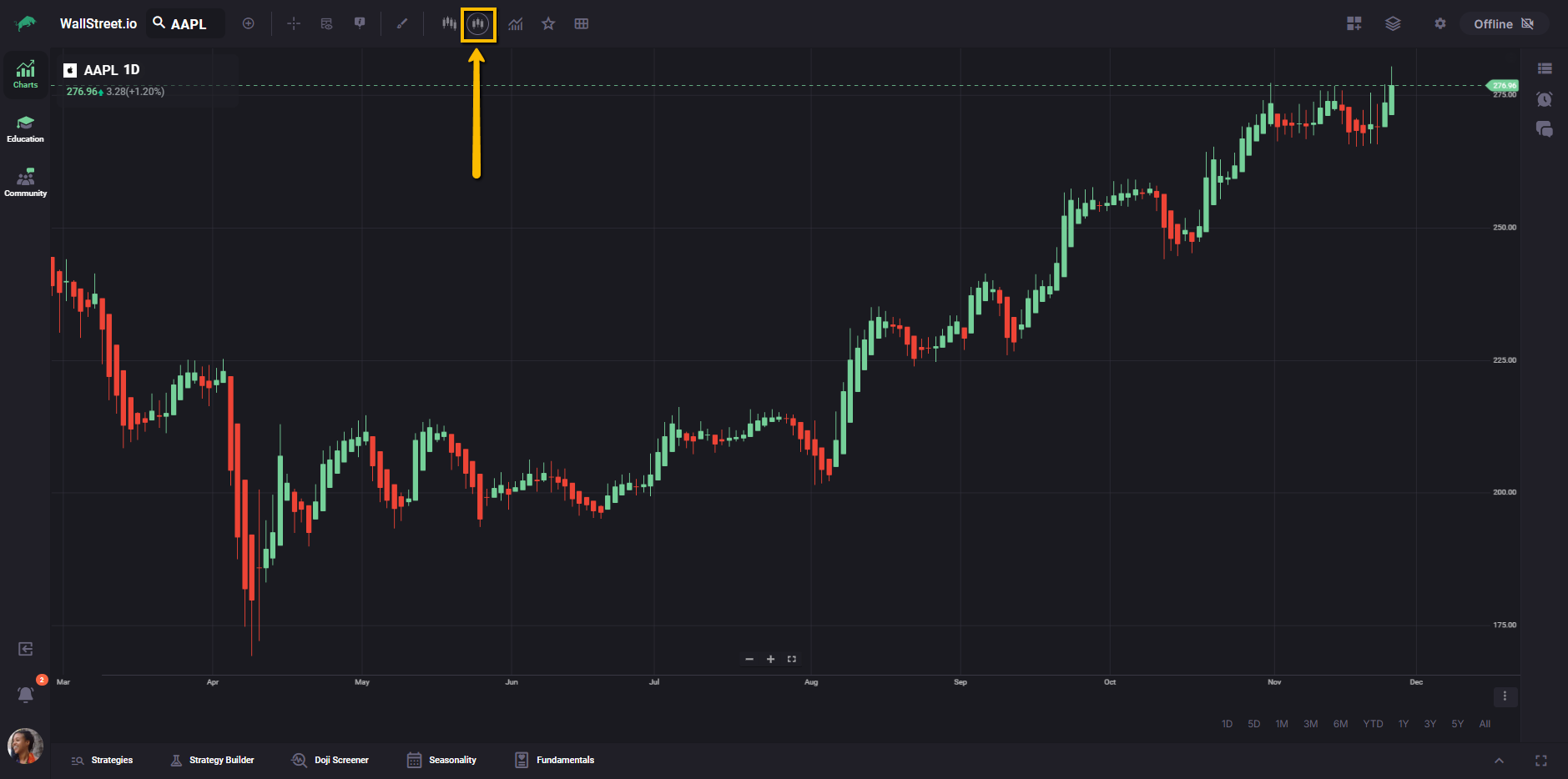
This pattern is especially helpful when you regularly move between a small set of chart styles and want them all within reach without reopening the Chart Type menu.
Favorites for Indicators (Favorite Studies)
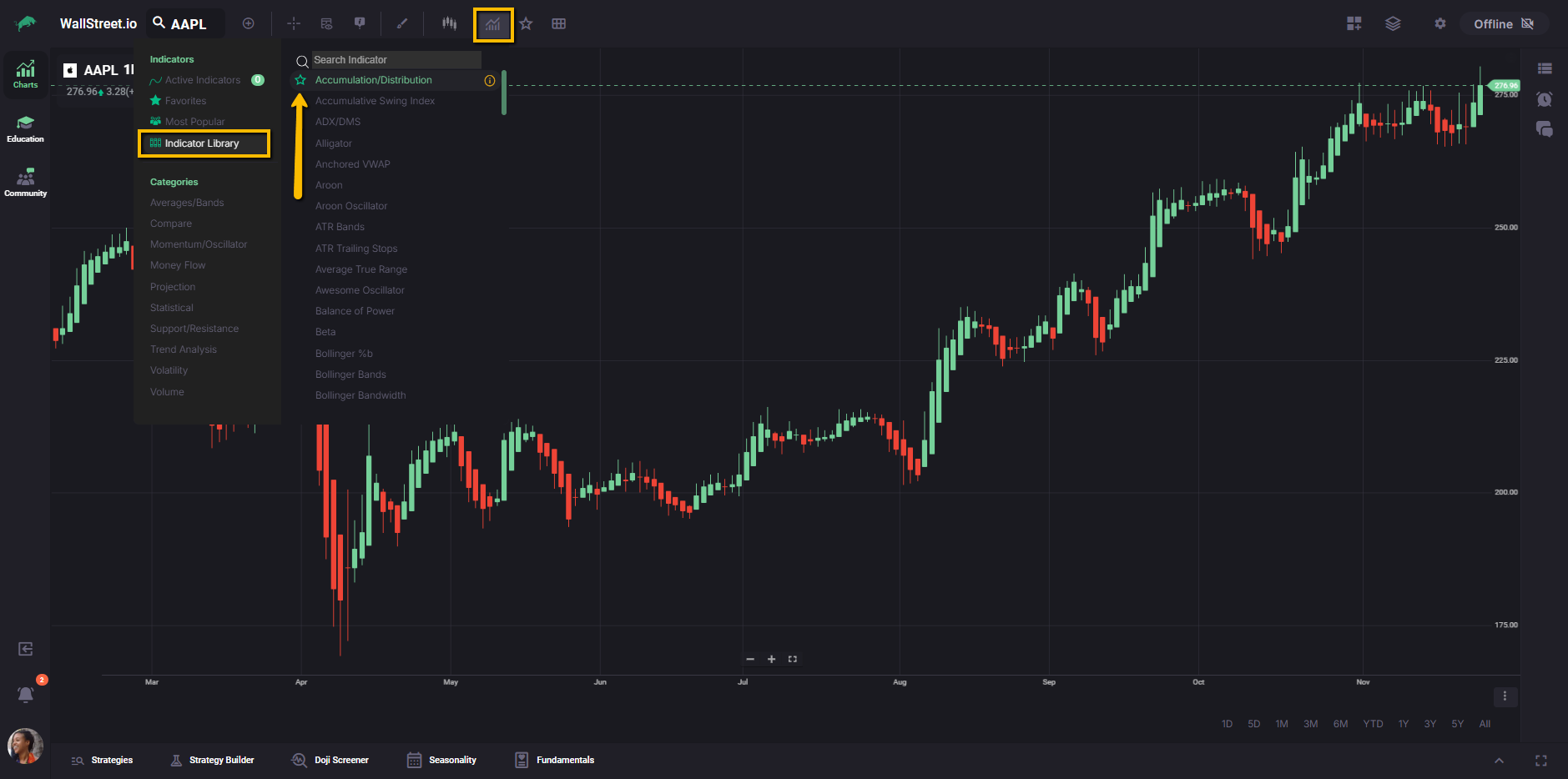
Indicator favorites take a list-based approach instead of separate round buttons. Indicators, also called studies, can be favorited from the main Studies menu.
When you hover over a study in that menu, a star icon appears. Clicking the star adds that indicator to your Favorite Studies list. Clicking it again removes the indicator from the list.
On the Chart Toolbar, the Favorite Studies star opens a compact panel that shows only the studies you have favorited. From this panel, you can apply any of those indicators to the active chart without searching or scrolling through long menus.
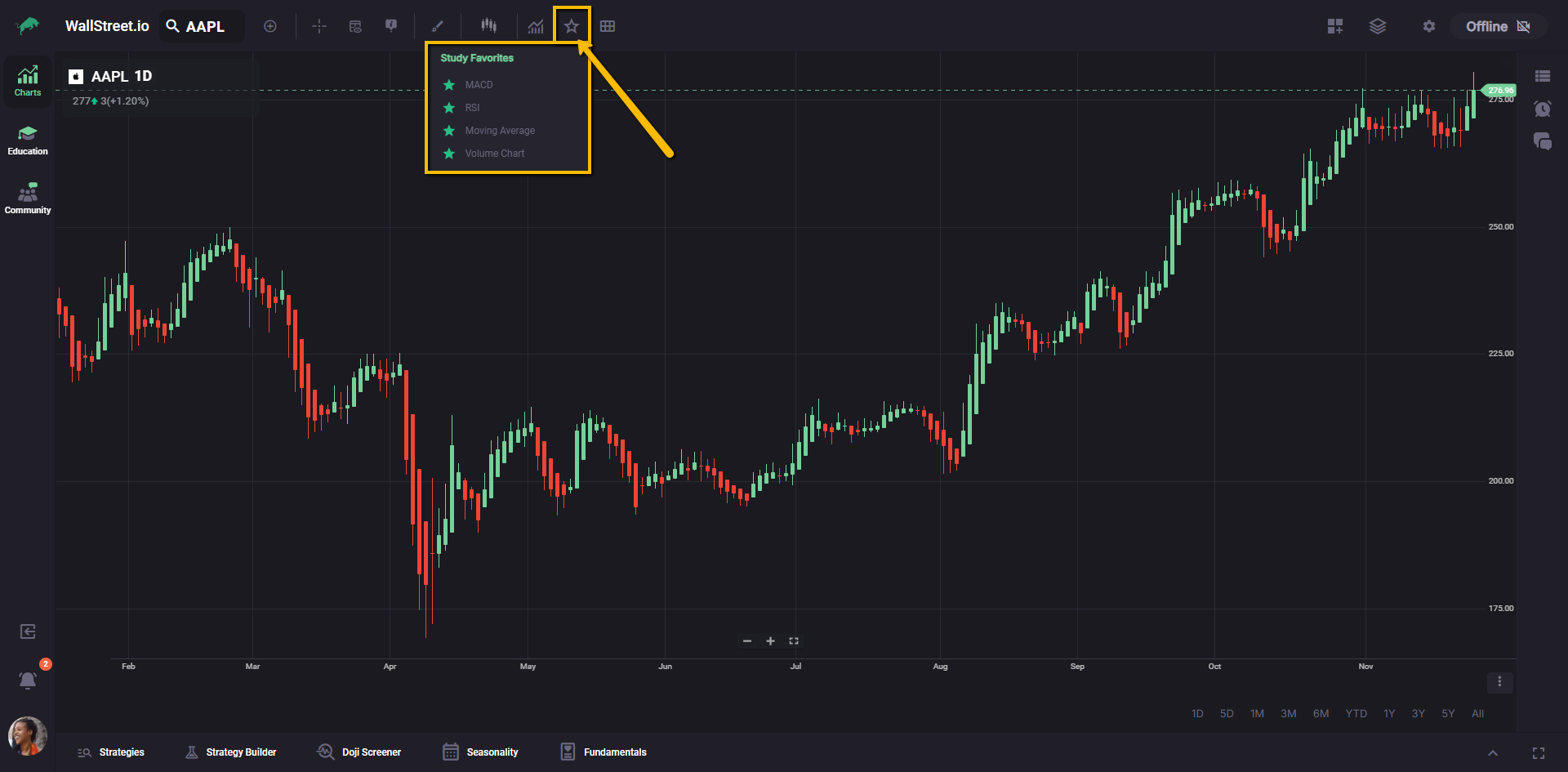
This gives you a small, curated set of your go-to studies, while keeping the toolbar itself from being cluttered with individual buttons for each indicator.
Favorites for Layouts
Layout favorites operate at the workspace level and control broader configurations such as multi-grid chart setups and symbols. At this time, only custom layouts can be favorited. Default layouts do not show a star icon and cannot be promoted in this way.
Inside the Layouts menu, eligible custom layouts display a star on hover.
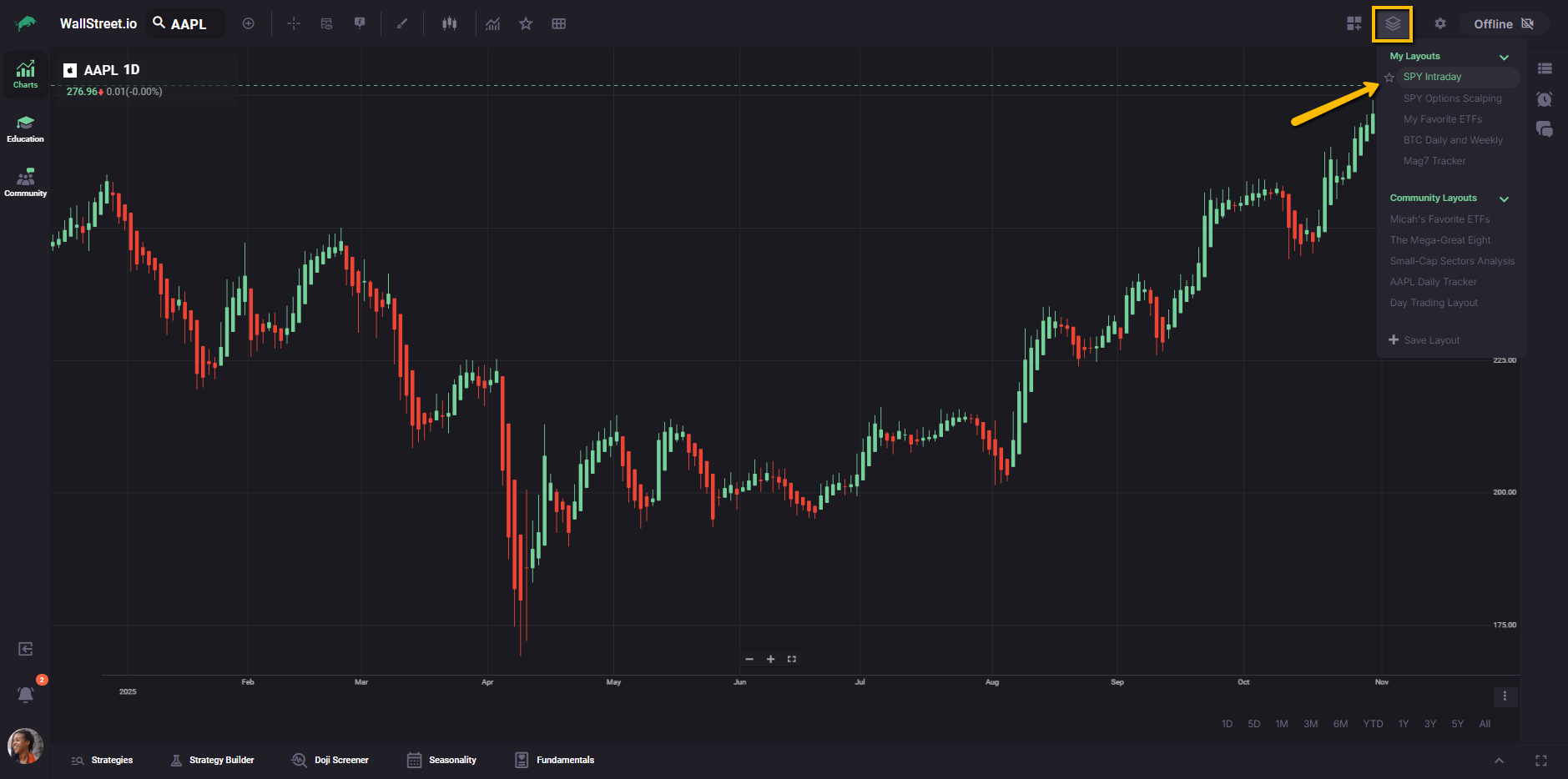
When you mark a custom layout as a favorite, the system creates a round layout button on the right side of the Chart Toolbar.
Unlike drawings and chart types, layout buttons are labeled with the first letter of the layout’s name. A layout called “Spy Trading Layout” appears as a button with the letter S, and a layout called “Mag 7 Tracker” appears as a button with the letter M.
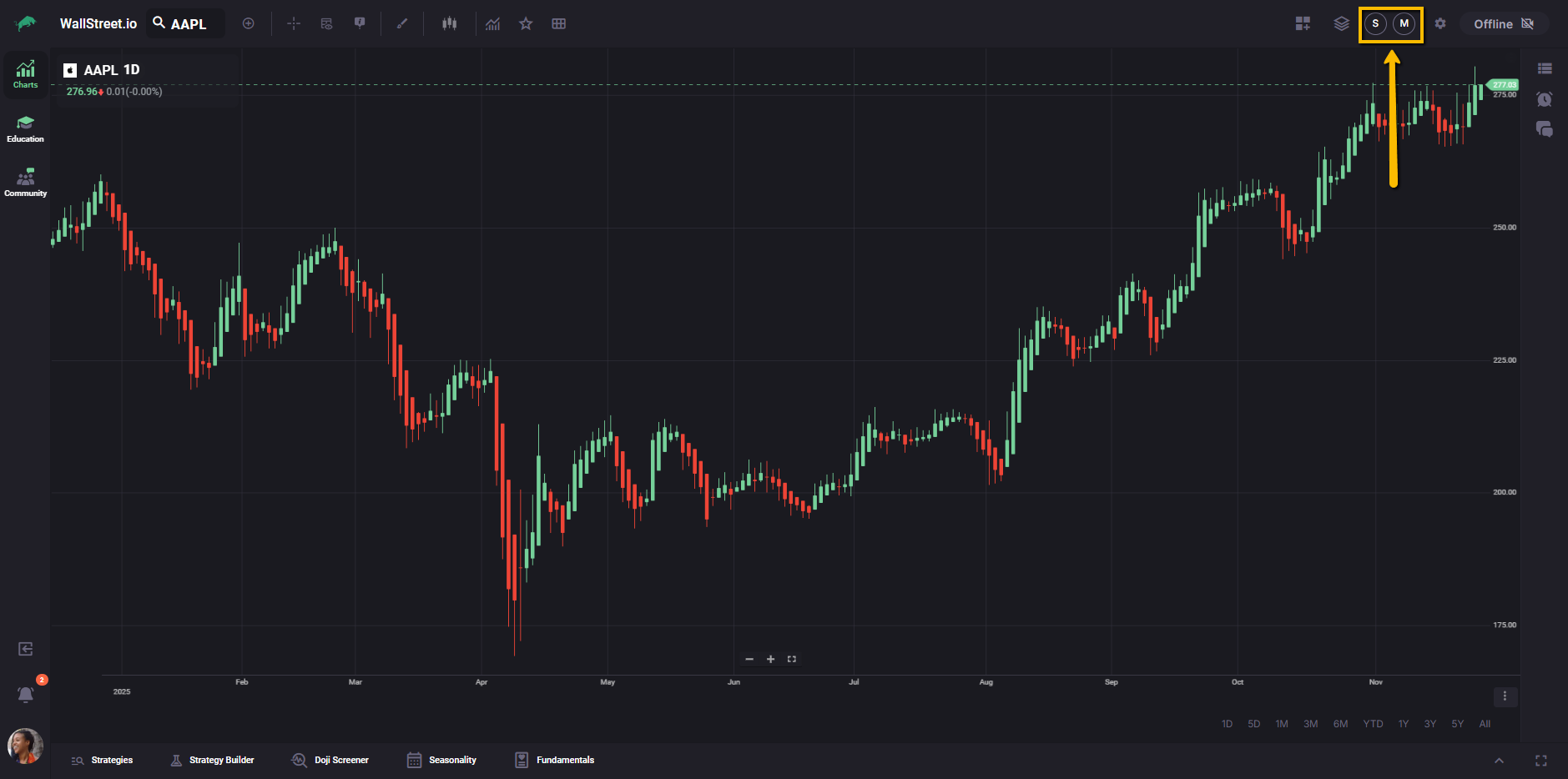
Selecting one of these buttons switches the workspace to that layout and brings along all of its chart and panel settings.
By favoriting a small set of layouts, you can move between different trading modes, such as swing trading and day trading views, using a consistent row of shortcuts instead of diving into the Layouts menu each time.
Favorites for Chatrooms
Chatroom favorites live inside the Chatroom widget on the right side of the Charts Workspace. The entry point is the Chatroom selector, which is the name of the current chatroom shown at the top of the widget.
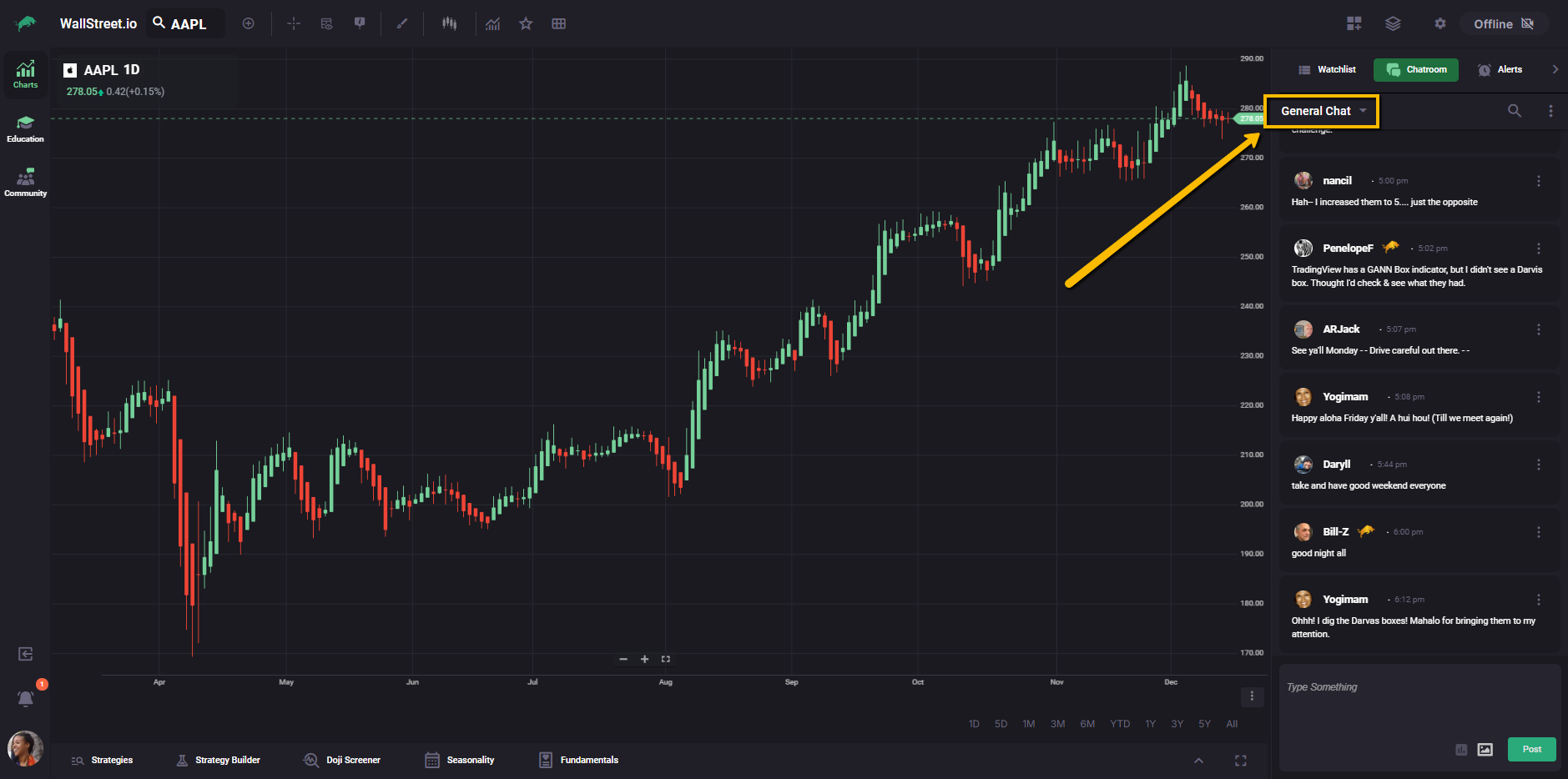
When you select it, a pop-up window opens where you can browse the available chatrooms.
In the chatroom list, each chatroom supports a favorite star. When you hover over a chatroom name, a star icon appears beside it. Turning that star on marks the chatroom as a favorite.
Once a chatroom is favorited, the system creates a one-click chatroom icon directly below the Chatroom selector. That icon is labeled with the first letter of the chatroom’s name, so you can switch chatrooms quickly without reopening the pop-up list.
Favorites for Watchlists
Watchlist favorites live inside the Watchlist widget on the right side of the Charts Workspace. The entry point is the Watchlist selector, which shows the name of the current watchlist at the top of the widget. When you select it, a pop-up window opens where you can browse the watchlists available to you.
In the watchlist list, each watchlist supports a favorite star. When you hover over a watchlist name, a star icon appears beside it. Turning that star on marks the watchlist as a favorite.
Once a watchlist is favorited, the system creates a one-click watchlist icon directly below the Watchlist selector. That icon is labeled with the first letter of the watchlist’s name, giving you a faster way to jump between your main lists.
Watchlist flags and flagged lists
Watchlists also include a separate flagging system that helps you group symbols across a watchlist without creating a brand-new list.
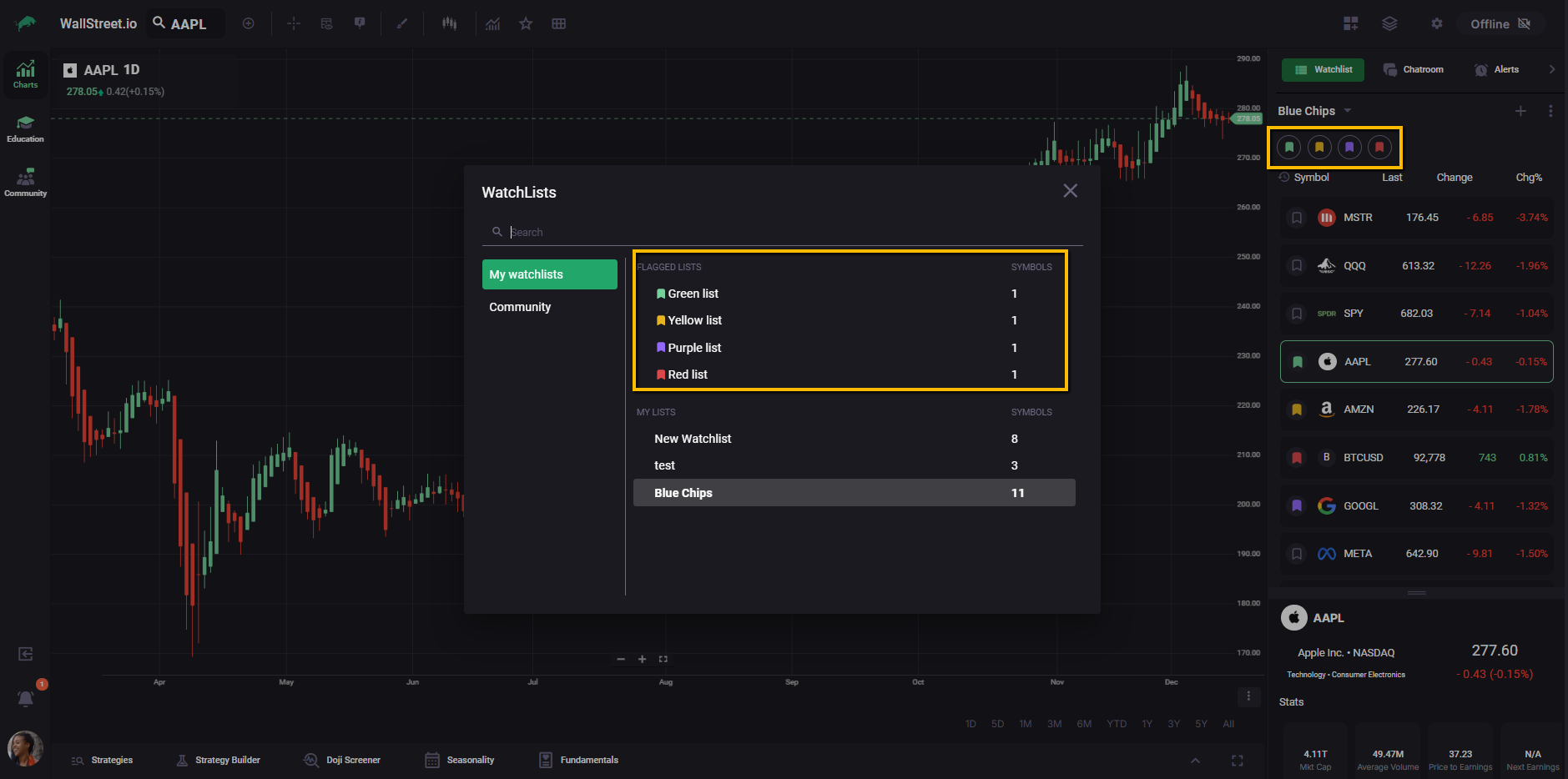
In the Watchlist widget, each ticker row includes an empty flag icon. When you select that flag, you can assign one of four colors: green, yellow, purple, or red.
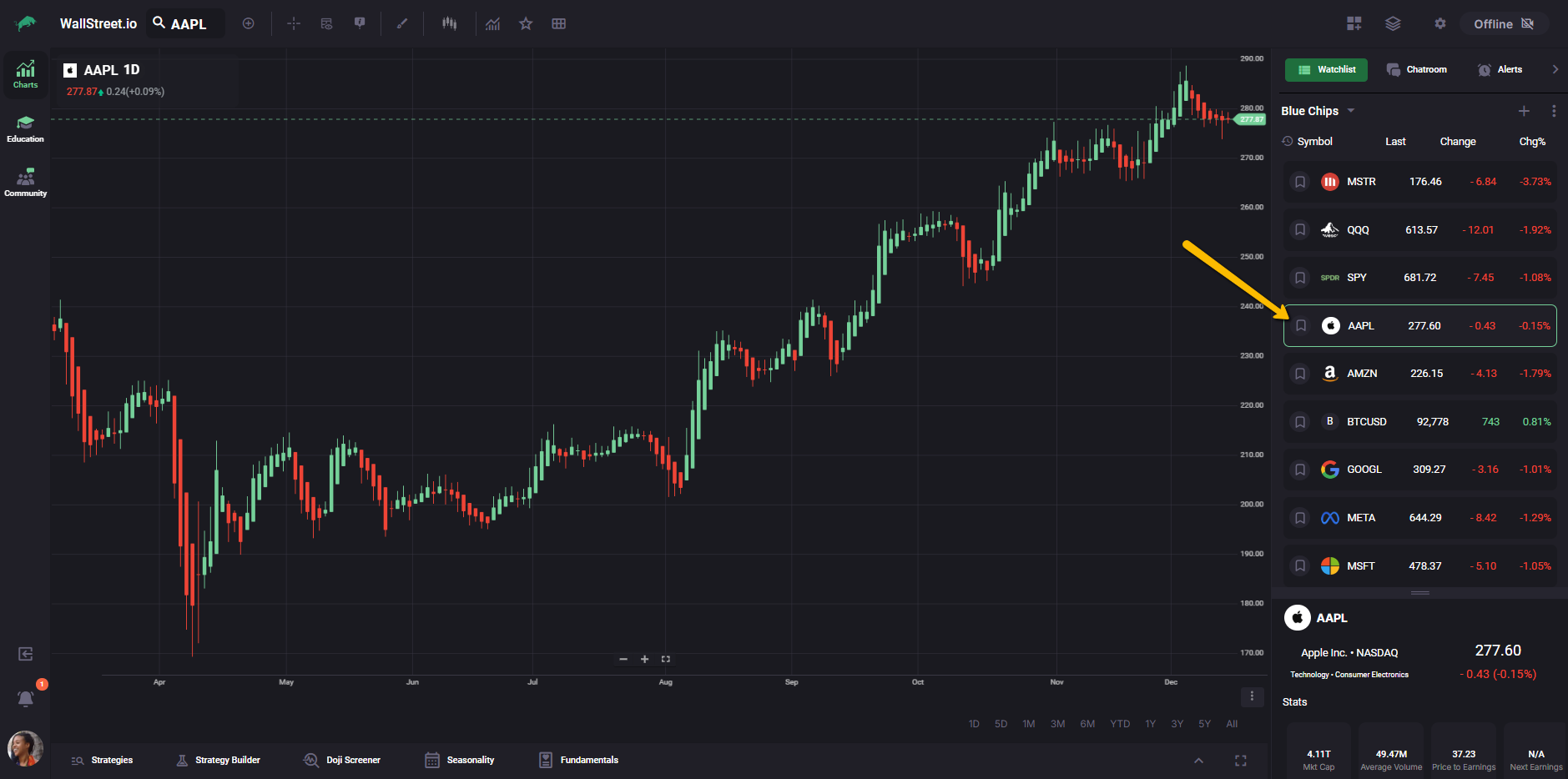
The first time you assign a given color, the Watchlist widget adds a matching colored flag icon below the Watchlist selector. Selecting that colored flag shows a view that contains only the symbols currently flagged with that color, effectively giving you a quick “flagged list” you can return to at any time.
Favorites for Strategy Filters
Strategy filter favorites let you promote your custom scan setups inside the Strategies tab so you can switch between them without reopening the full Filters panel. When you save a custom filter in the Strategies Filter panel, that filter can be marked as a favorite, just like other items that support the star icon.
Inside the Saved view of the Filter panel, your custom filters appear under My Filters as cards. Each of those cards can show a star icon. When you turn the star on for a custom filter, you are telling the platform to treat that filter as one of your favorites. Turning the star off removes that favorite status, but the filter itself stays available in your saved list.
Favorited filters are surfaced as round shortcut buttons at the top of the Strategies table, next to the Filter control. Each button is labeled with the first letter of the filter’s name, so a filter called “Long and Max with MACD” appears as an L button, and a filter called “PayDay Cycle” appears as a P button, as shown in the screenshot below:
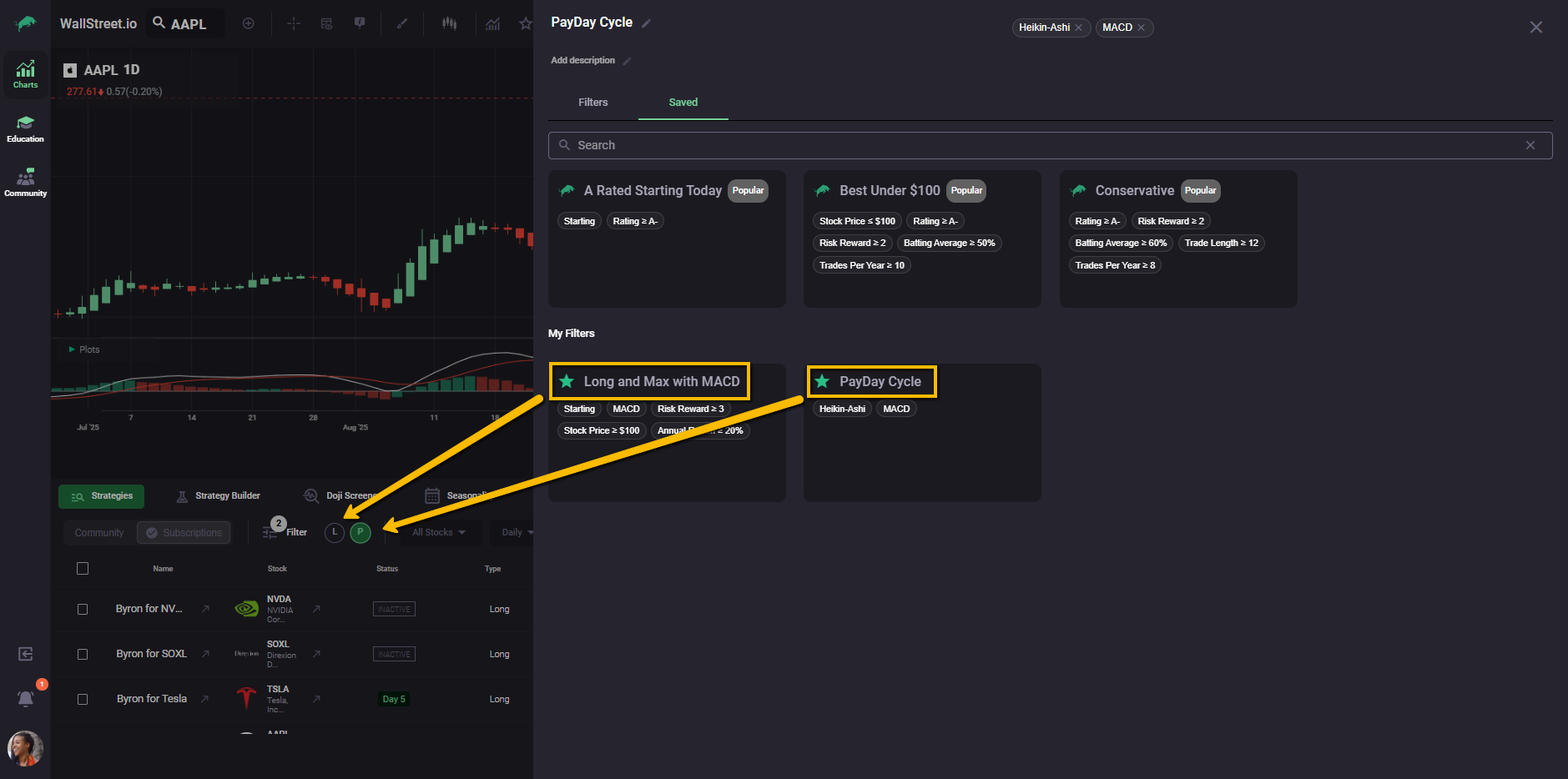
Selecting one of these buttons applies the corresponding favorite filter to your strategy list, using the saved criteria behind that filter card.
This design lets you treat complex, multi-criteria scans as simple, reusable presets. Instead of rebuilding filters or reopening the panel every time, you can move between your main filter sets using the same row of favorites that always sits above the Strategies results.
Relationship between favorites and the rest of the workspace
Full menus stay in place. You can still open every drawing, chart type, indicator, layout, watchlist, and chatroom from its original menu or selector. Nothing is removed or hidden when you start using favorites.
Favorites sit on top of that. When you star something, the platform keeps it in the full list and also adds it to a smaller, curated set that acts as your personal toolkit. The item itself does not change. Only the way you reach it changes.
Those favorites get front row placement. They appear as round buttons on the Chart Toolbar, as a Favorite Studies list, or as promoted items inside the Workspace Utilities panel. Instead of feeling like you are rebuilding your setup every time you log in, the workspace begins to feel like it remembers how you trade.
The benefit is consistent shortcuts. Once your favorites are in place, you can move between tools, views, layouts, watchlists, and chatrooms using the same handful of shortcuts, instead of repeating the same menu clicks in every session.