Web Platform Quick-Start Guide
What this helps you do
This guide helps you get oriented inside the WallStreet.io 4.0 web platform, so you can understand where the main workspaces are, what each area is for, and where to find the tools you will use most often.
WallStreet.io 4.0 is organized into separate workspaces for charting, education, and community. It matters because once you know how those pieces fit together, the platform becomes much easier to navigate and use with confidence.
The three main workspaces
WallStreet.io 4.0 is organized around three main workspaces: Charts, Education, and Community. These workspace buttons appear on the left side of the platform and act as your main navigation.
Charts
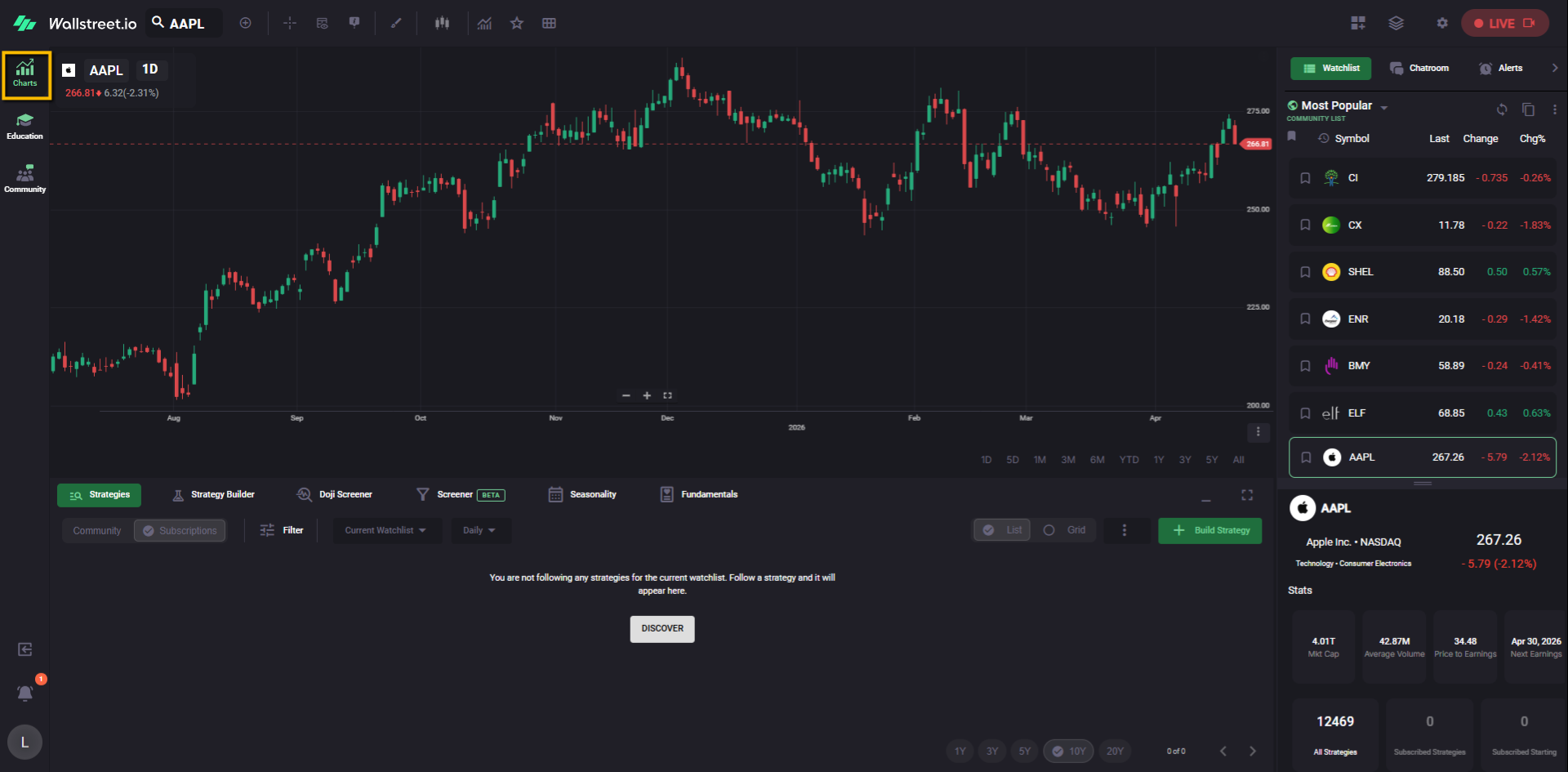
The Charts workspace is the main analysis area and the default workspace you see when you log in. This is where you review symbols, use the chart, explore strategies, open the Strategy Builder, access tools like the Doji Screener, Seasonality, and Fundamentals, and work with right-side utilities such as Watchlists, Chatroom, and Alerts.
Education
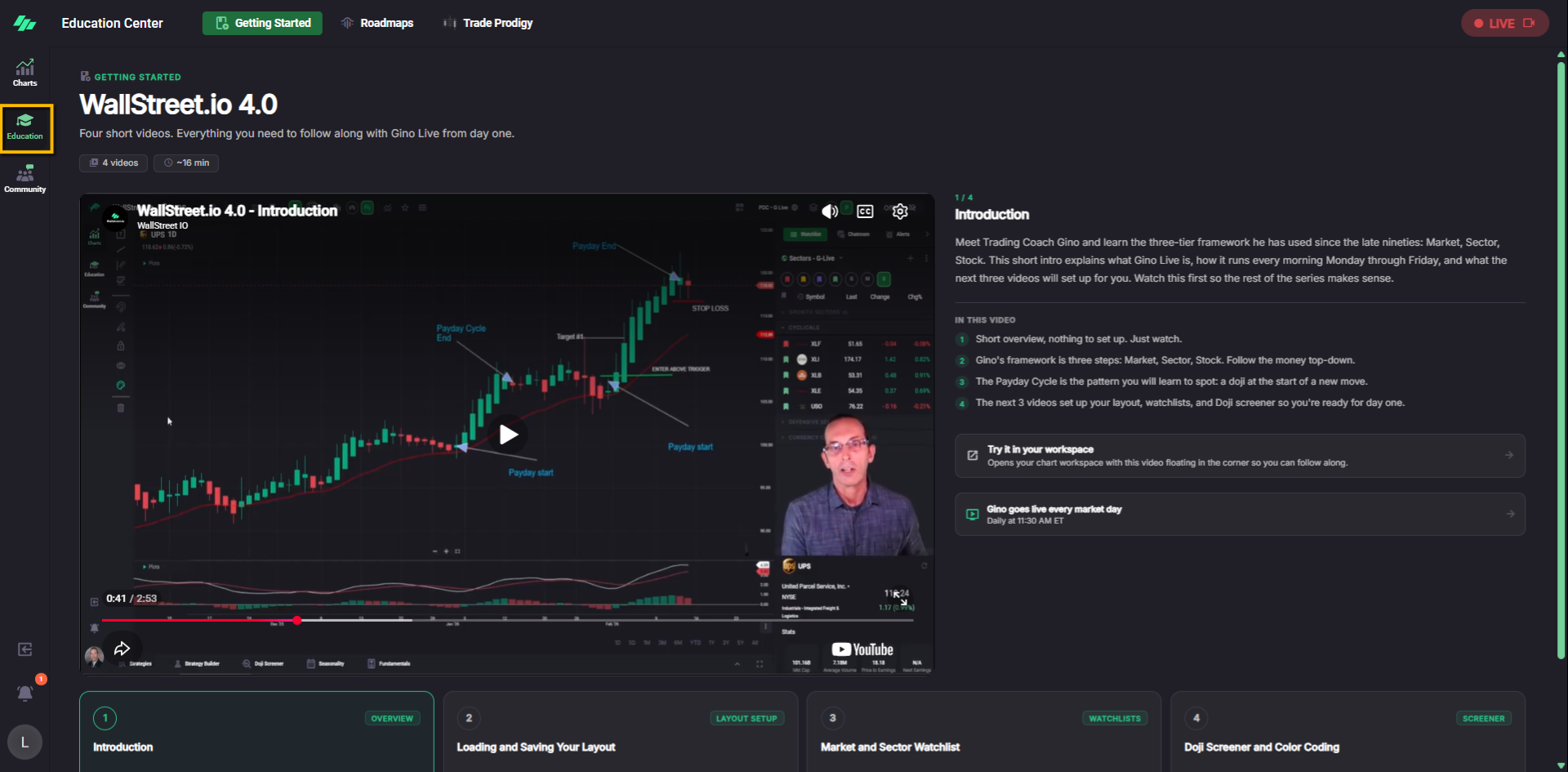
The Education workspace is where you access guided learning content. It opens with the Getting Started area, which includes a four-video series designed to help you follow along with Gino from day one. This workspace is also where educational programs such as Roadmaps and other learning offerings are found.
Community
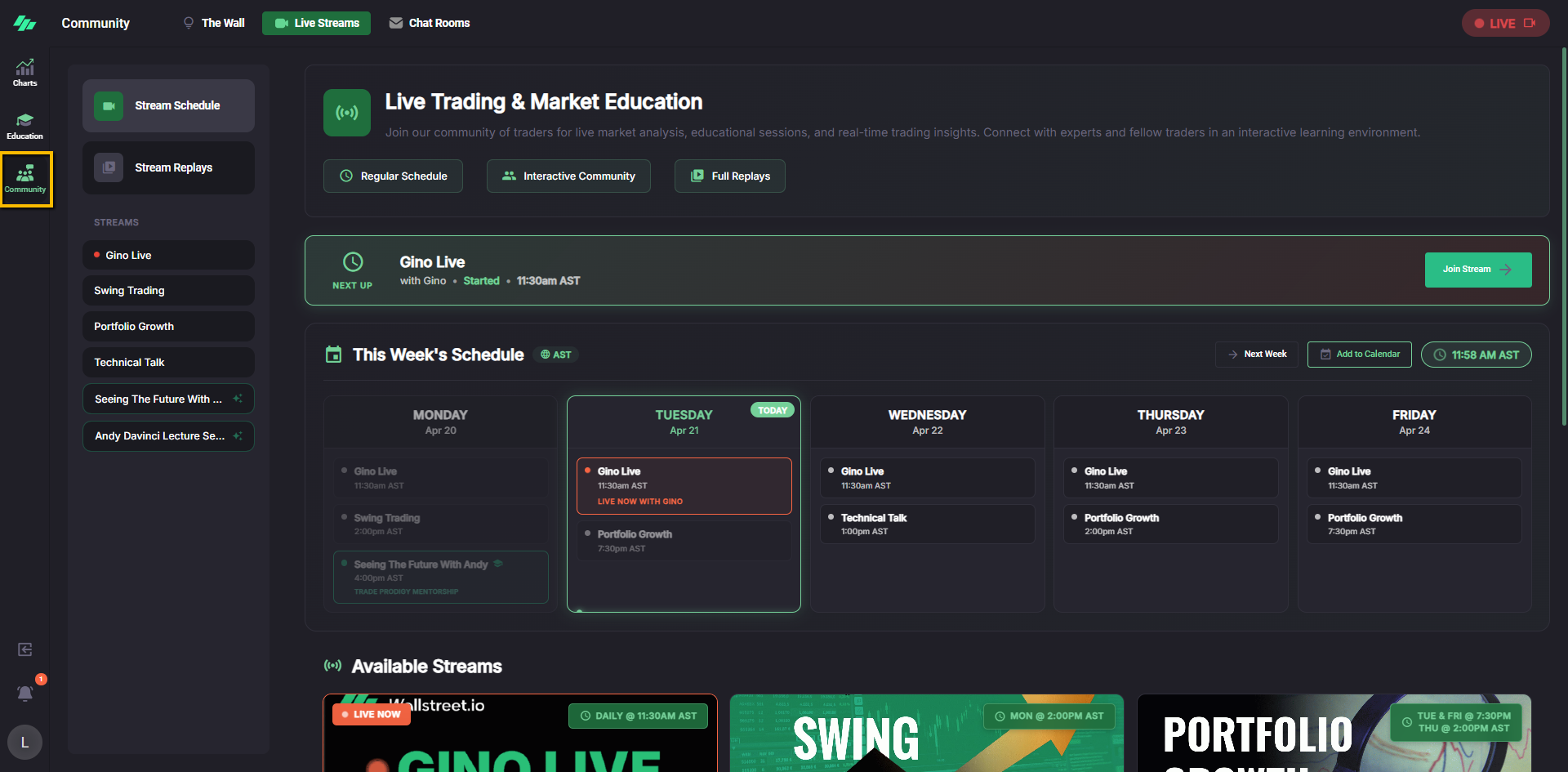
The Community workspace is where you access live and interactive community features. It opens with Live Streams, where you can review the stream schedule, available streams, and replays. This workspace also includes Chat Rooms, and it includes The Wall.
Charts workspace overview
The Charts workspace is the central workspace of the platform. For many users, this is the area they will use most often.
What you see when you first log in
When you first log in, the platform opens in the Charts workspace. The main chart appears in the center of the screen. The lower analysis area is usually open with the Strategies tab selected, and the right-side panel is usually expanded with the Watchlist area visible.
This default layout gives you immediate access to the three areas most users interact with first: the chart itself, the strategy and analysis tools below it, and the symbol list on the right.
Left-side workspace navigation
The left side of the platform contains the workspace navigation. This is where you switch between Charts, Education, and Community.
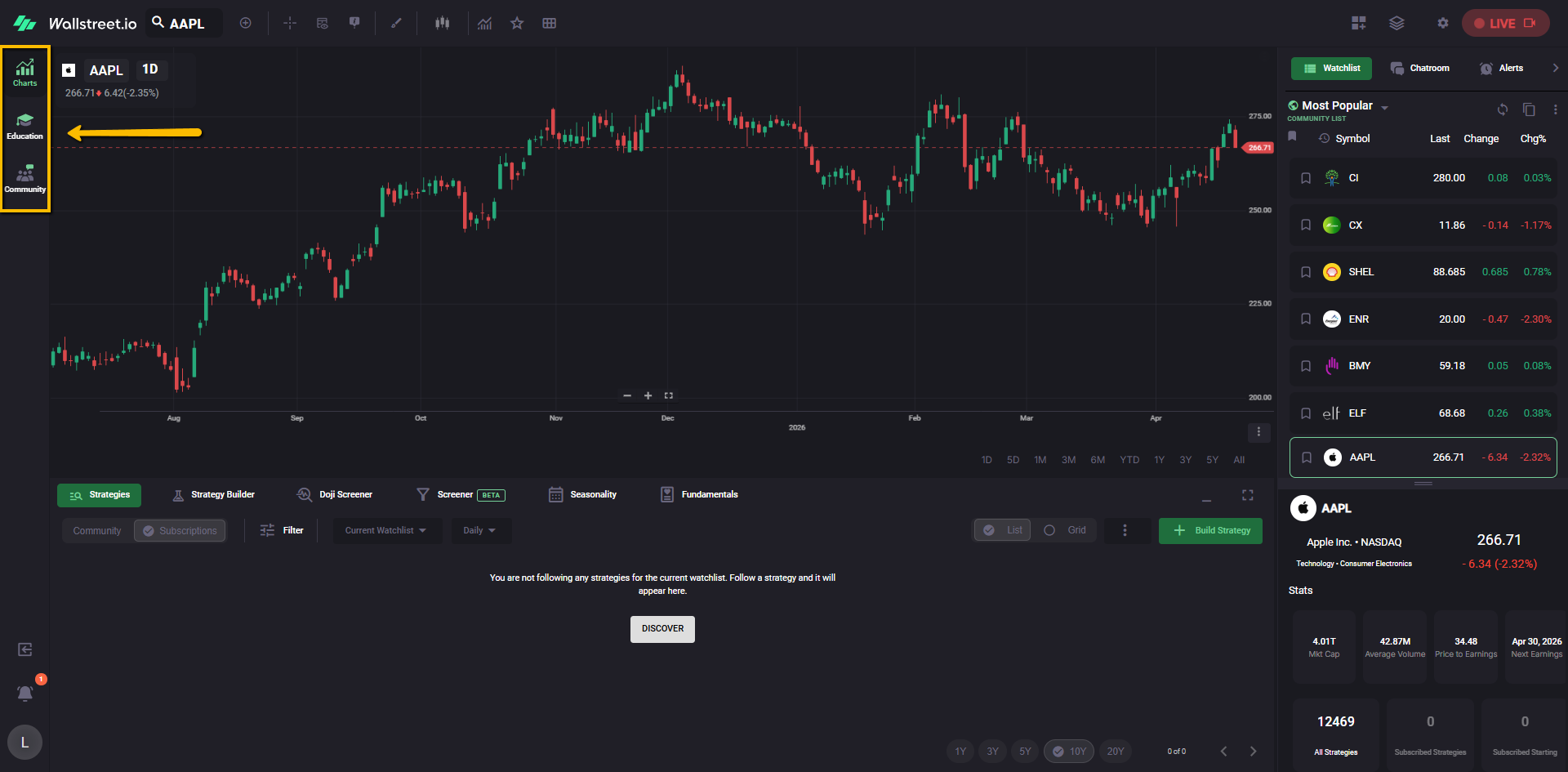
These buttons do not open small panels inside the same screen. Each one takes you to a separate workspace with its own layout and purpose. A simple way to think about them is this:
Main chart area
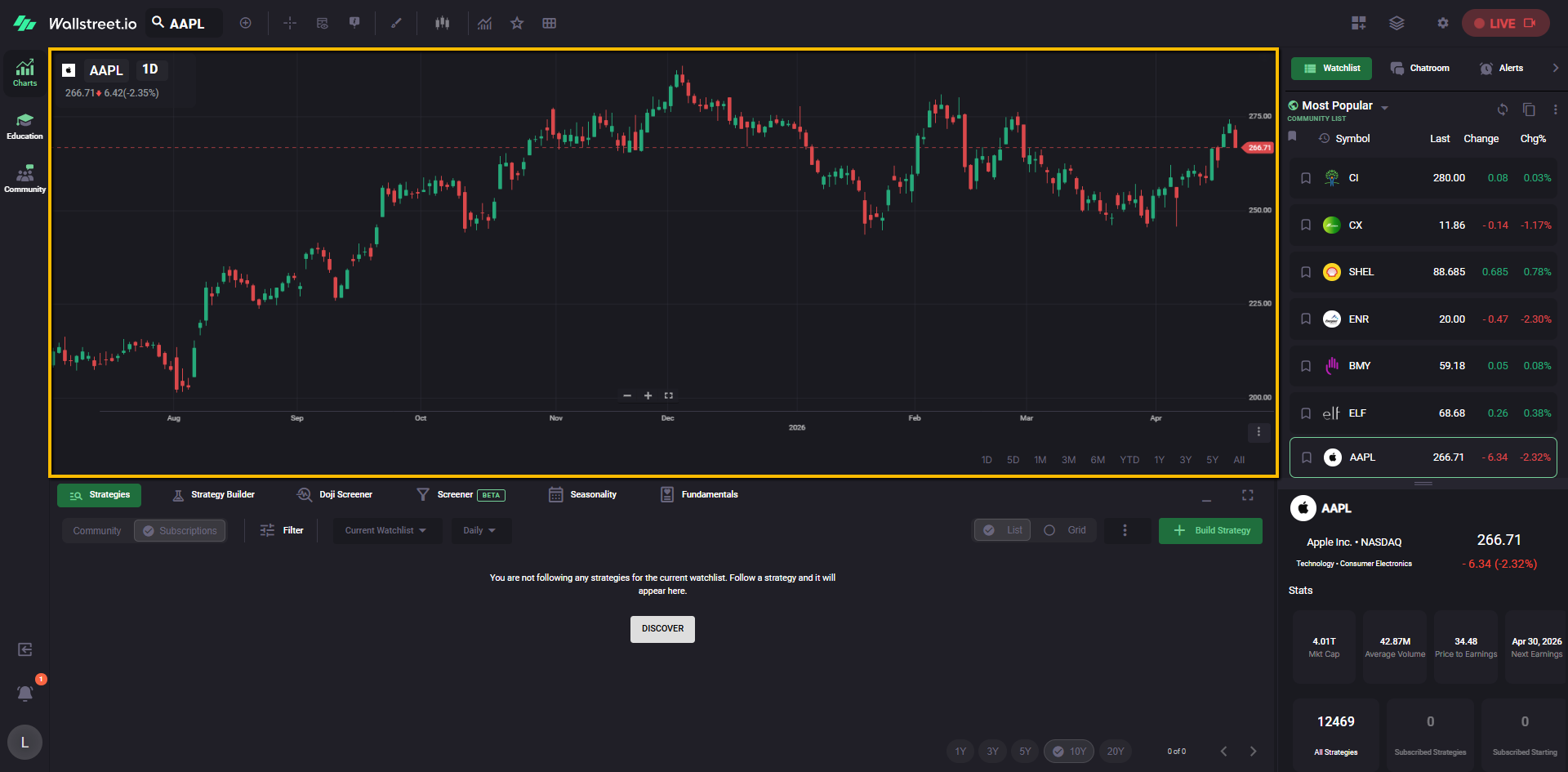
The main chart area sits at the center of the workspace. This is where you view the selected symbol and review its price behavior over time.
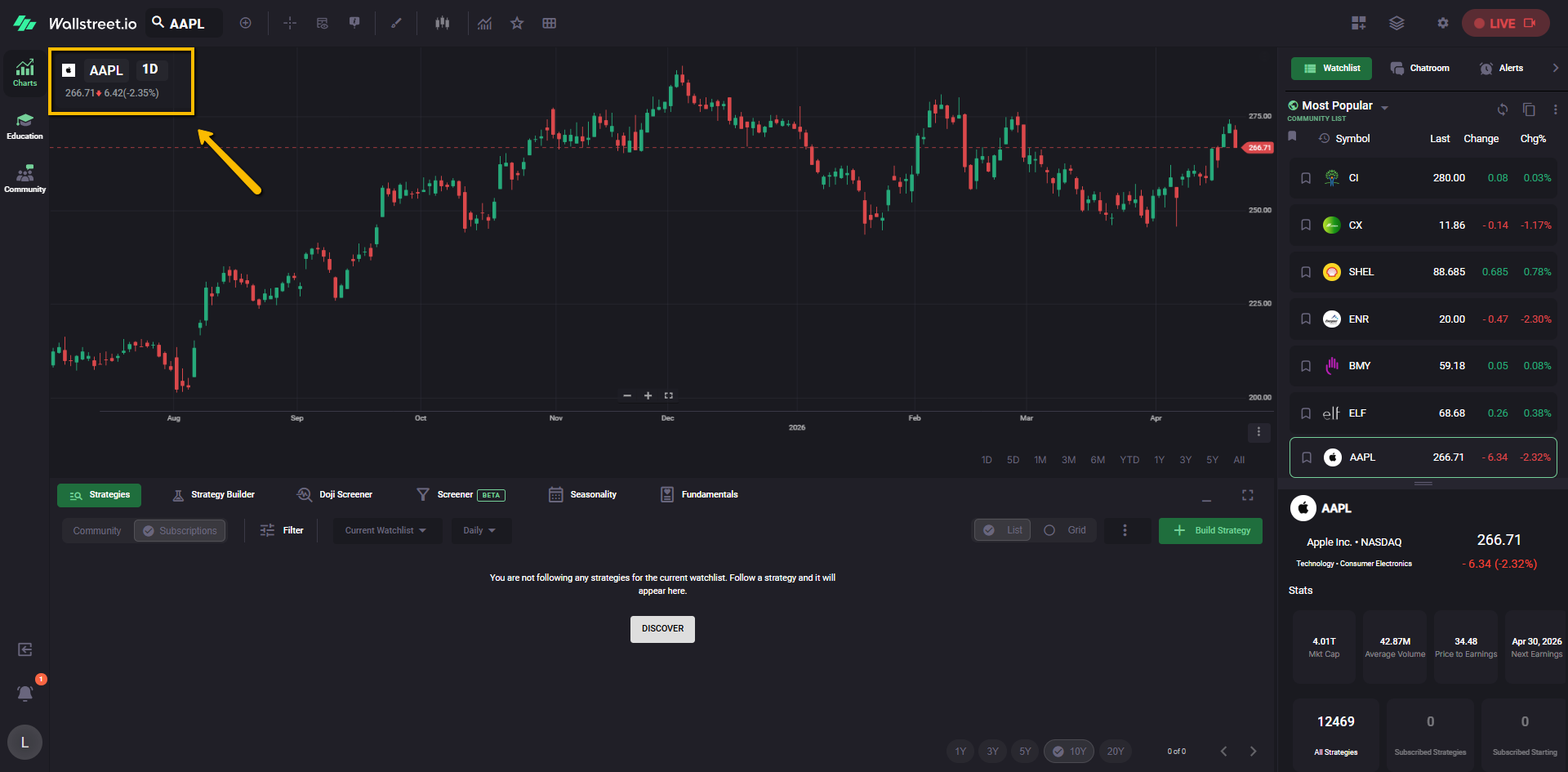
At the upper-left area of the chart, you can see the selected symbol and timeframe.
Across the top of the chart workspace, you also have quick-access chart controls and charting tools. These controls are used to work with the chart, change how you review symbols, and access additional chart functions.
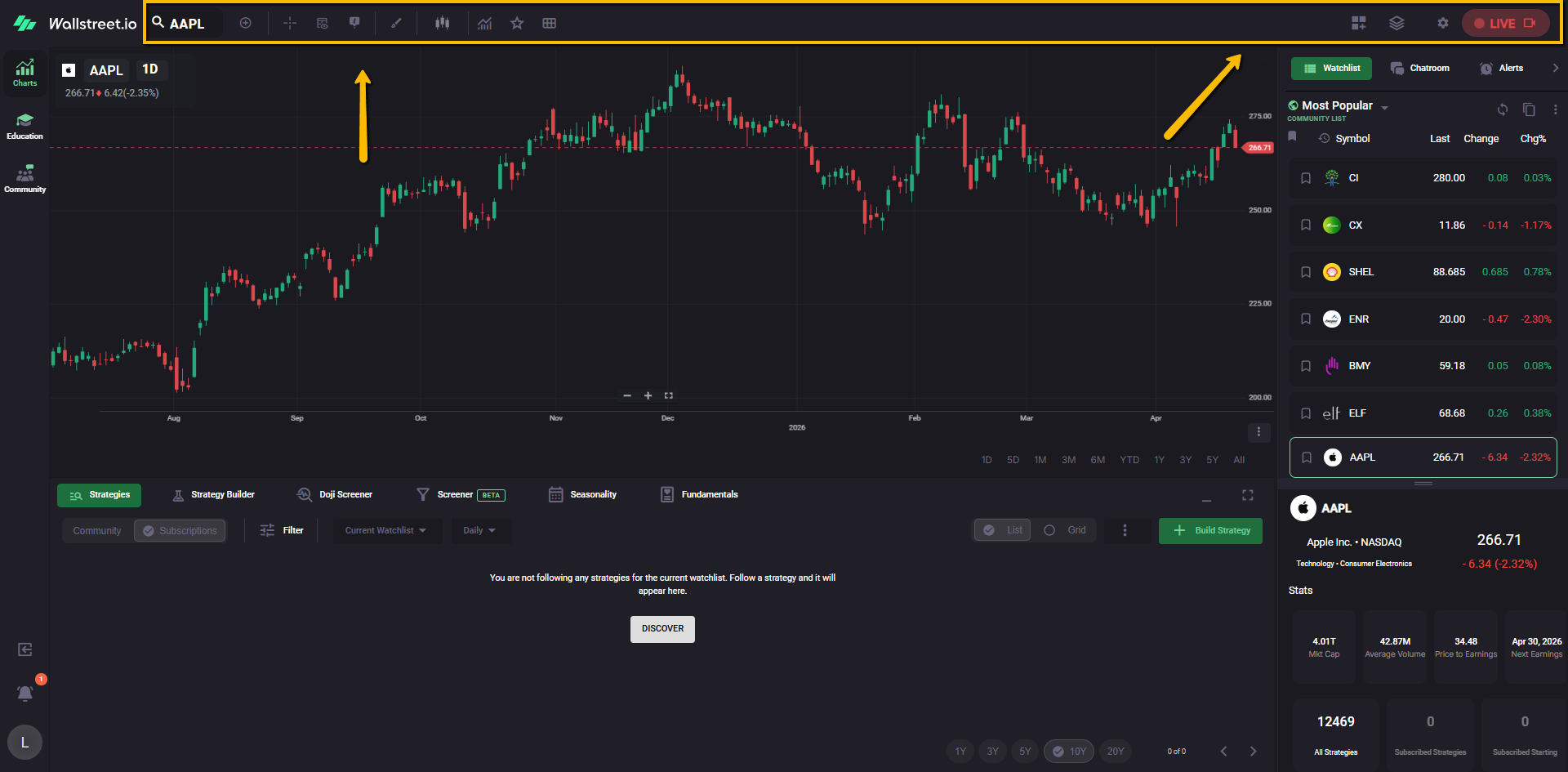
This quick-start guide is meant to orient you to where those controls live. More detailed feature-by-feature setup belongs in the dedicated Charts Workspace Complete Guide.
Bottom analysis area
Below the main chart is the analysis area. This section contains the platform’s main analysis tabs and tools. In the default Charts view, this area usually opens with the Strategies tab selected.
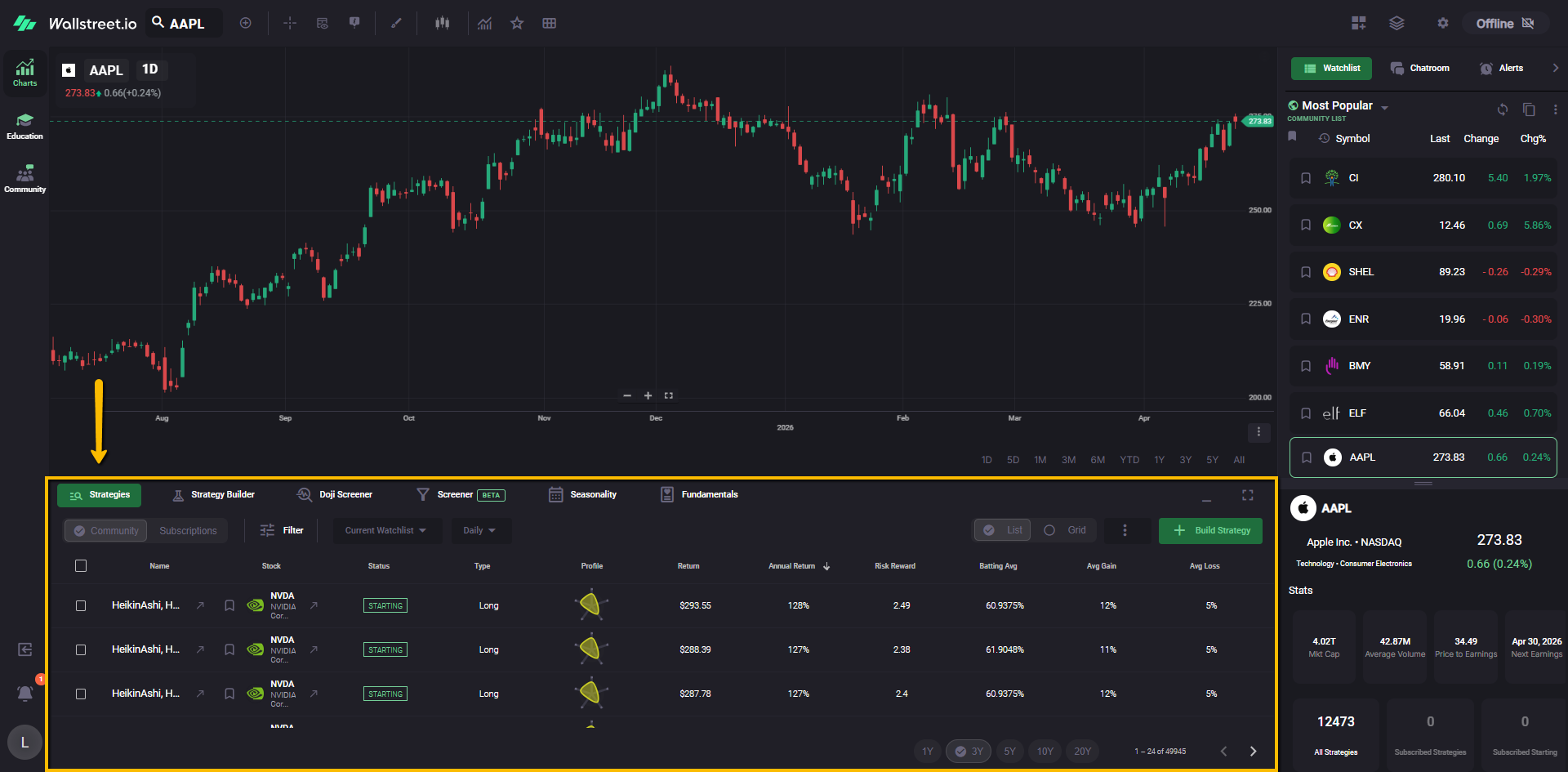
Strategies tab
The Strategies tab is where you review strategy results tied to the current symbol, filters, and watchlist context. This area is used to browse available strategies and review strategies you have already subscribed to.
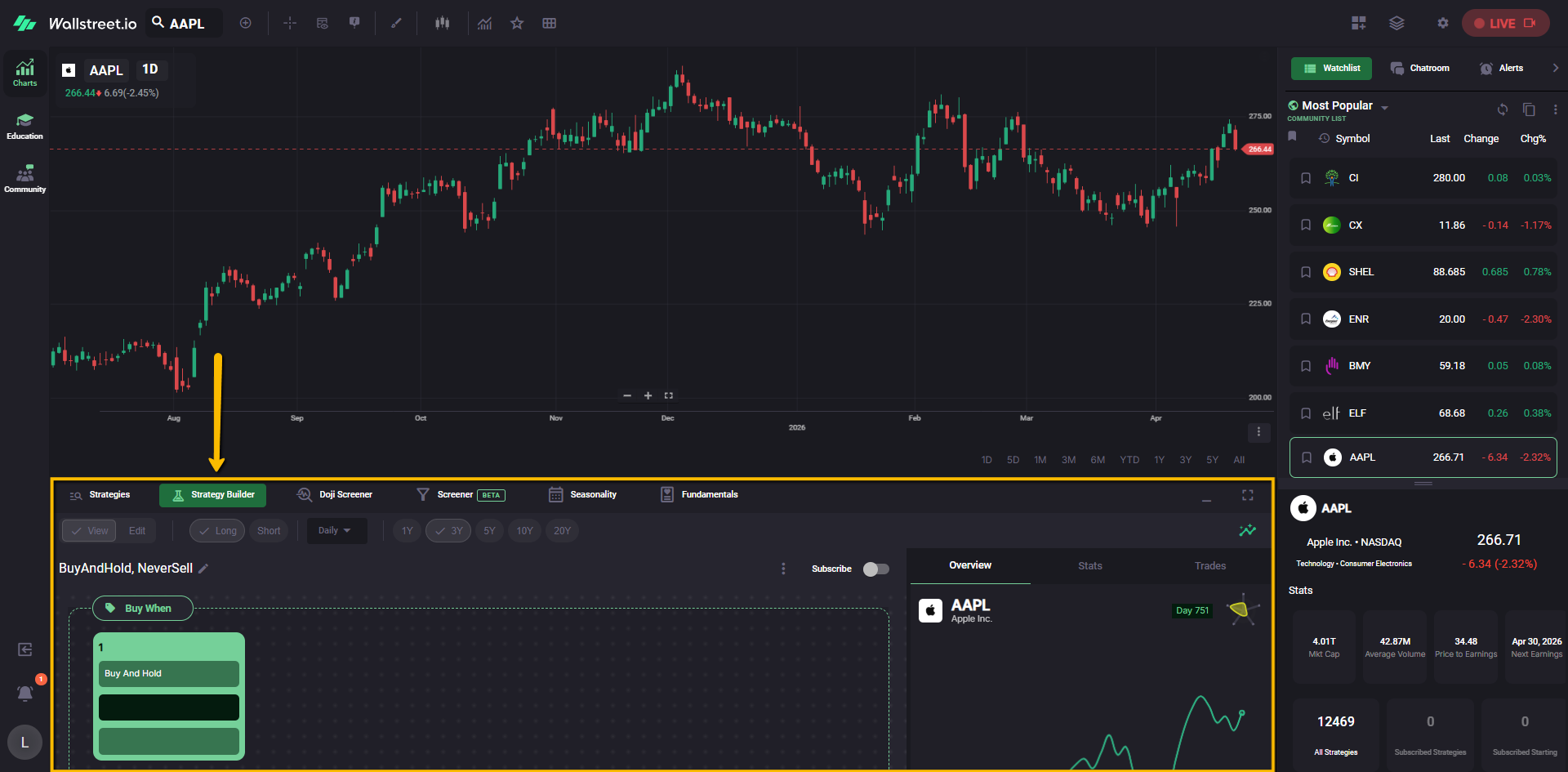
Strategy Builder
The Strategy Builder is where you create and test your own rules-based strategies. This is the platform area built for custom strategy logic and backtesting workflows.
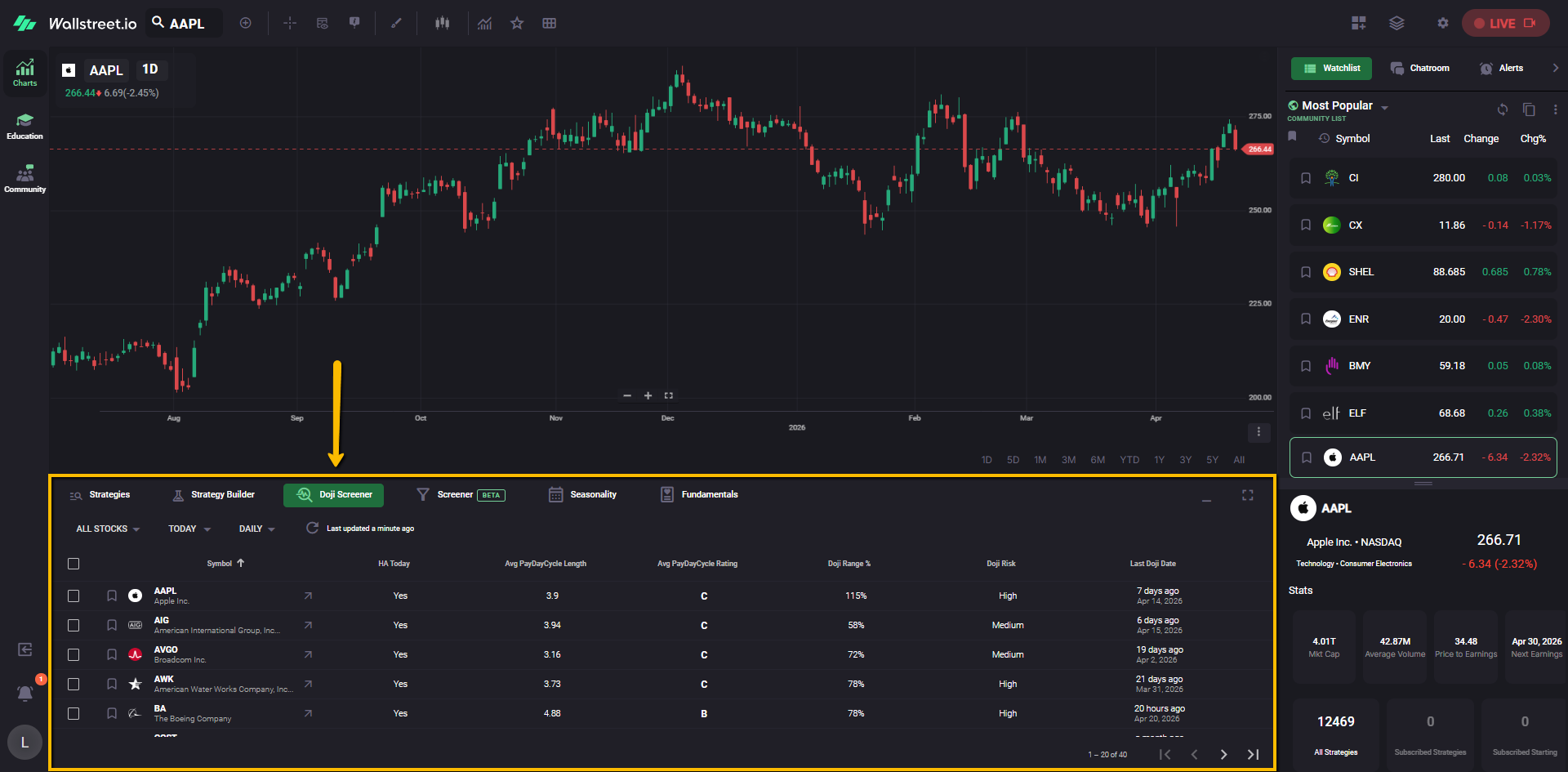
Doji Screener
The Doji Screener is where you review doji-based opportunities surfaced by the platform. It is designed to help you spot potential setups tied to Heikin-Ashi doji breakouts.
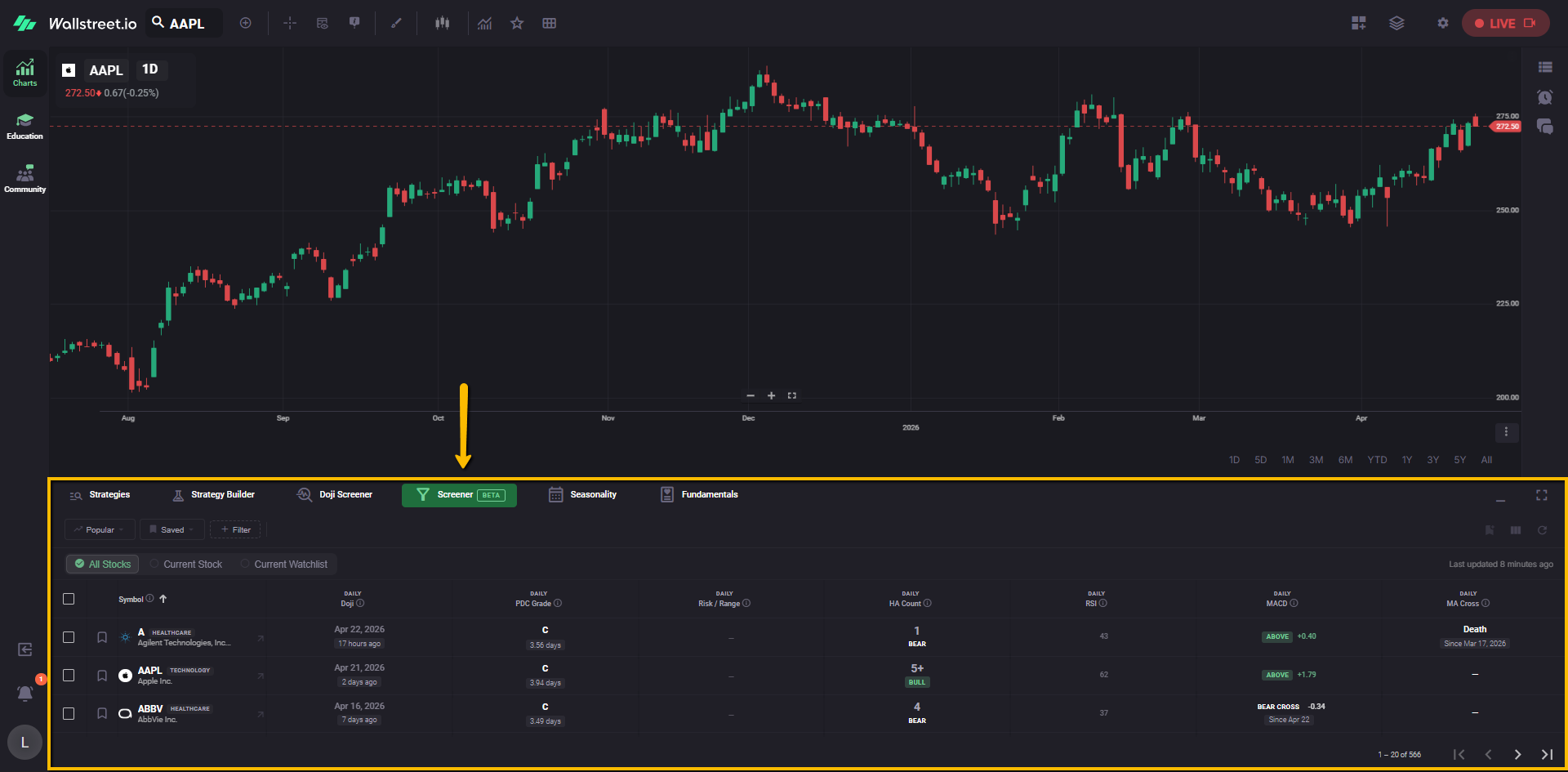
Screener (Beta)
The Screener is a table-based scanning tool that helps you find stocks matching specific technical conditions across a broader universe. It lets you filter by one setup while comparing additional signals across different timeframes, so you can spot alignment without switching views.
Seasonality
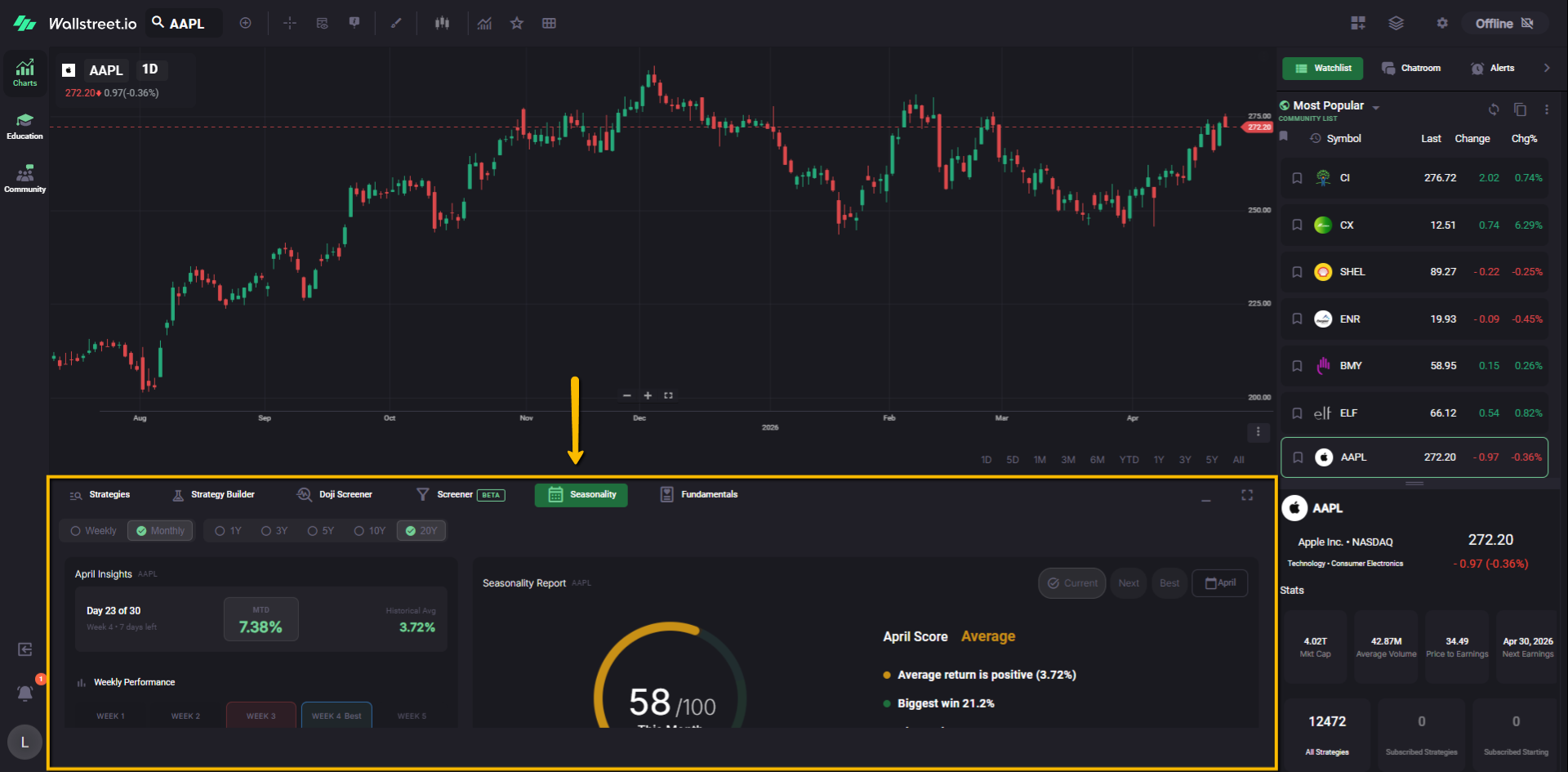
The Seasonality tab is where you review historical seasonal behavior for a symbol. This area helps you study how a stock has tended to behave across time.
Fundamentals
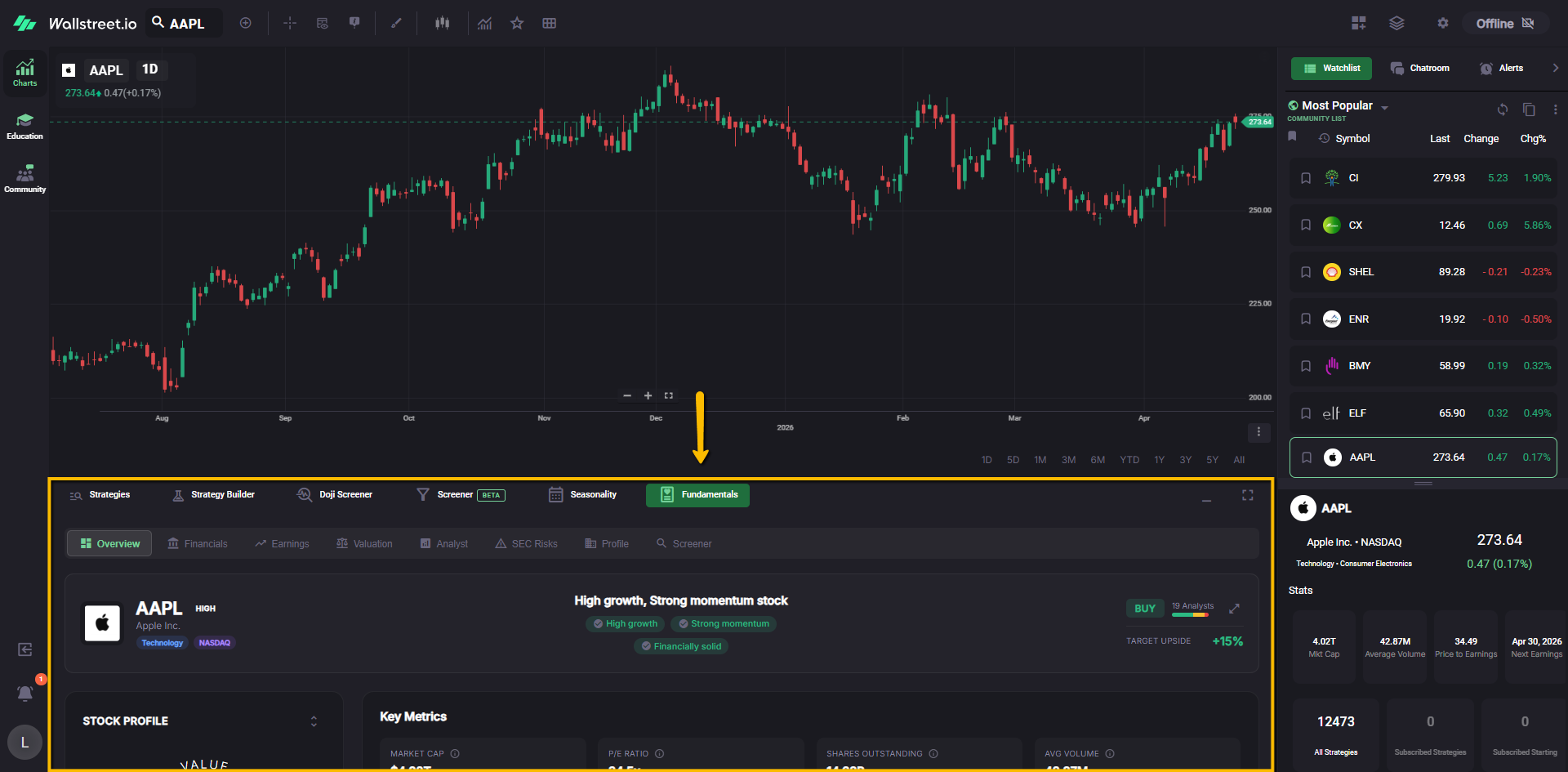
The Fundamentals tab is where you review company-level information and performance data. This area is used to explore a symbol beyond price action alone.
Right-side widgets and utilities
The right side of the Charts workspace contains a collapsible utility panel. This area gives you quick access to supporting tools without needing to leave the chart.
Watchlist area
The Watchlist area helps you move between symbols and review quick market data at a glance. In the default Charts view, this area is often expanded when you first log in.
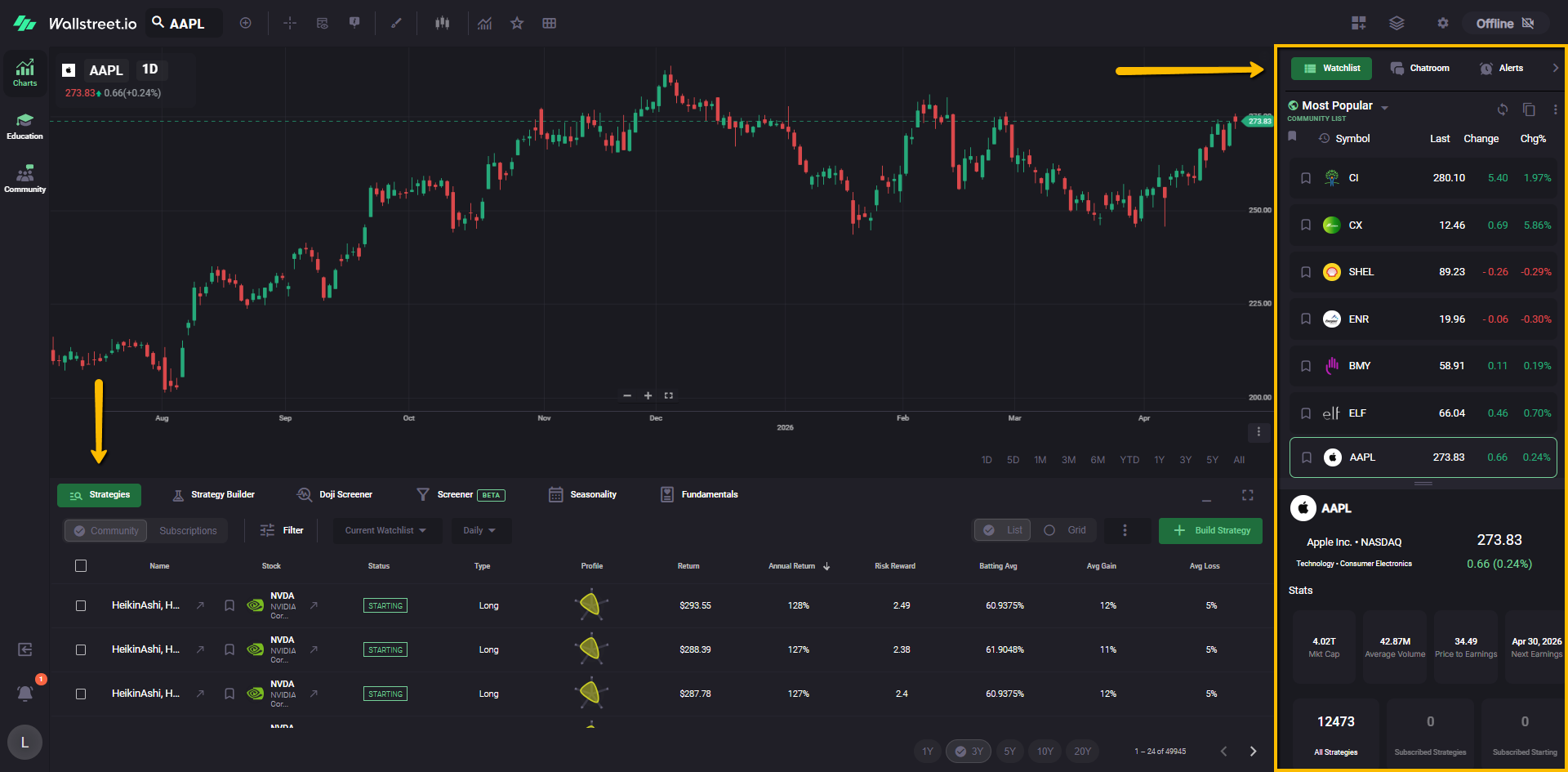
The Watchlist shows symbols in a list format along with quick columns such as last price, change, and percentage change. Selecting a symbol from this panel updates the main chart and related analysis areas.
Chatroom widget
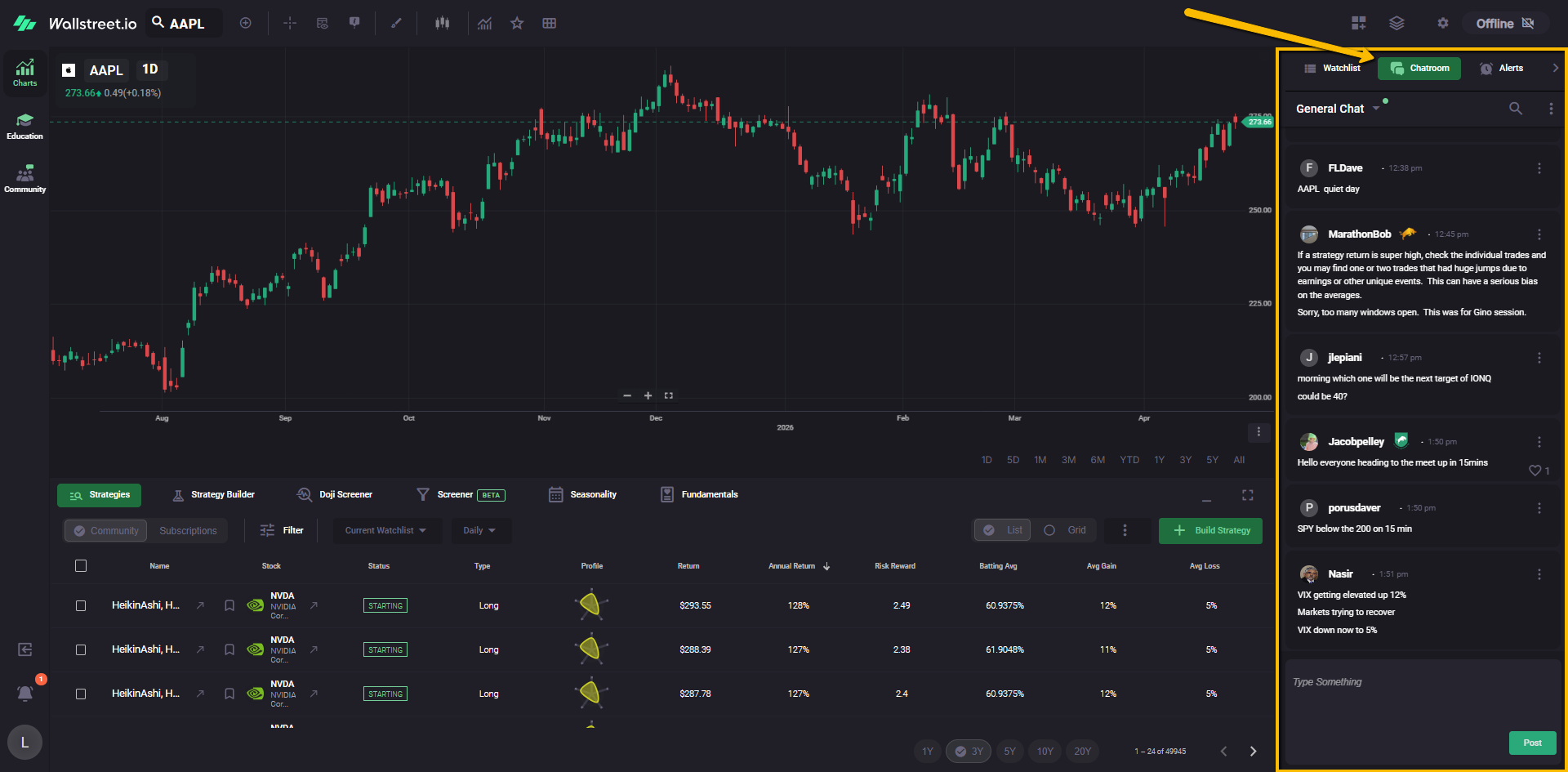
The Chatroom widget gives you quick access to chat activity from within the Charts workspace. This allows you to move between chart analysis and conversation without having to leave the charting environment.
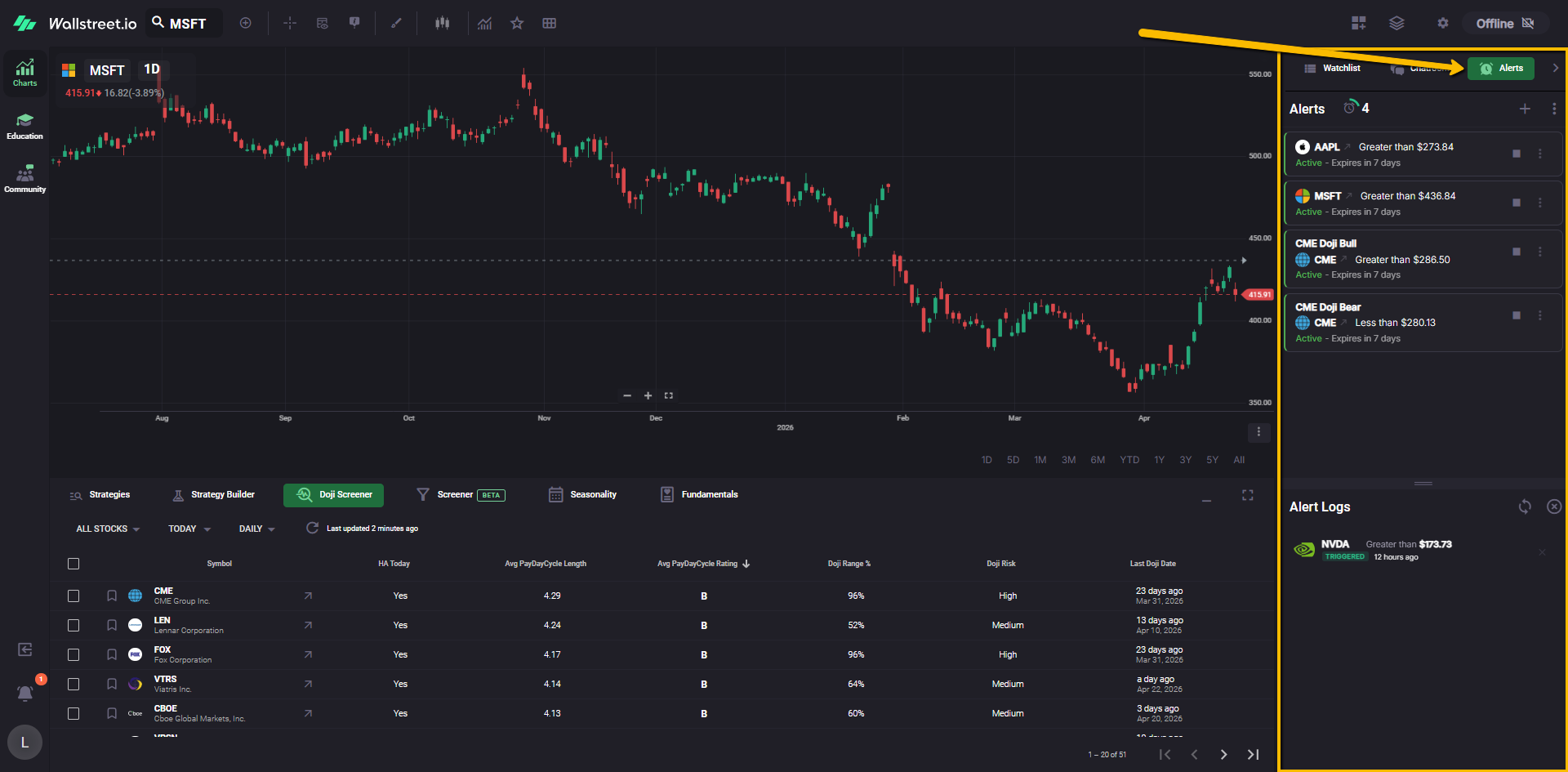
Alerts widget
The Alerts widget is where you review and manage your price alerts. This area gives you a dedicated place to keep track of alerts tied to your symbols and chart workflow.
Education workspace
The Education workspace is where you access guided learning content inside the platform. This area is designed to help you learn how WallStreet.io works, follow along with contributor-led instruction, and access educational programs from one central place.
Getting Started section
When you open Education, the workspace opens with the Getting Started section. This area includes a four-video series designed to help you follow along with Gino from day one.
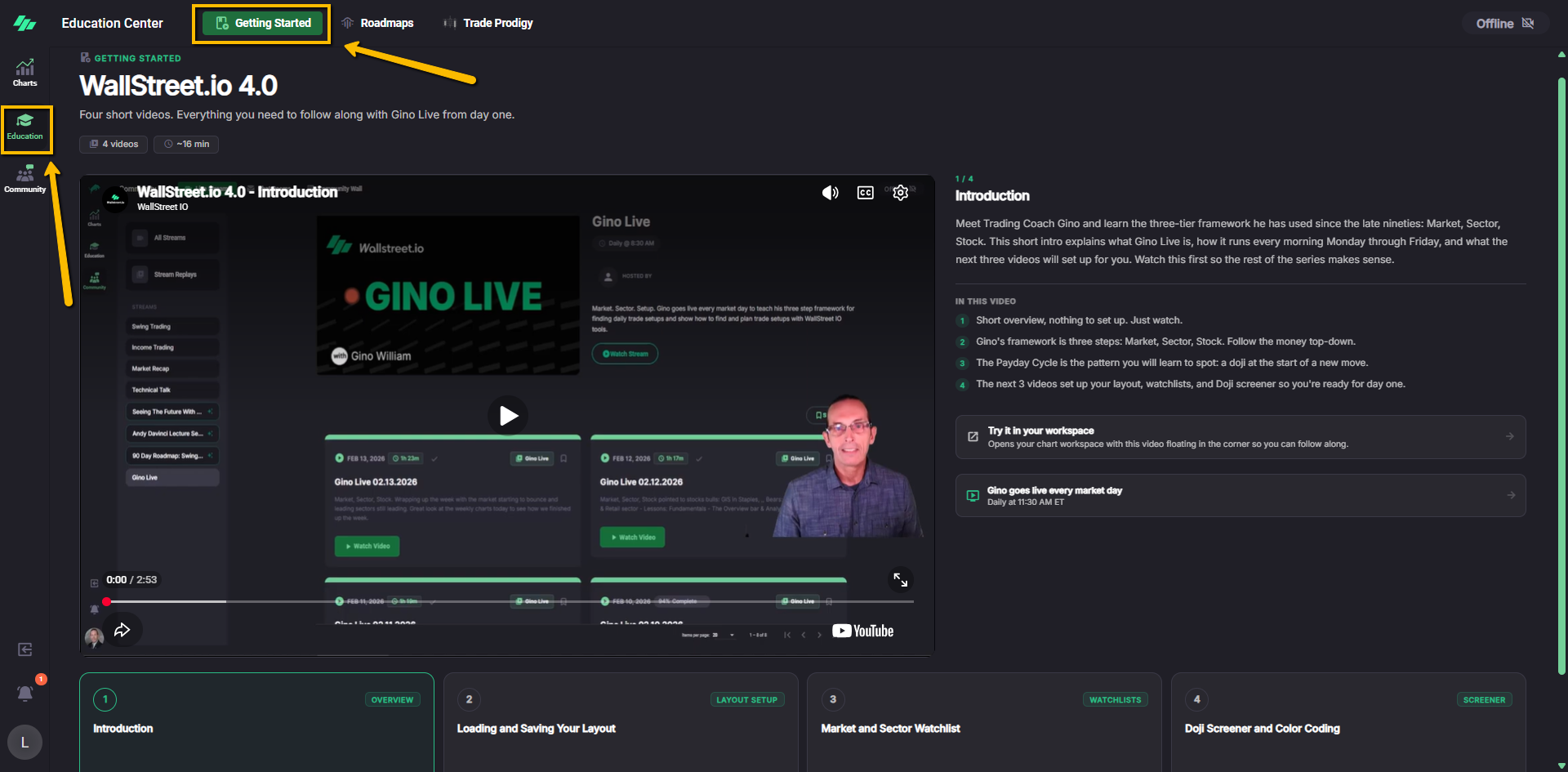
The Getting Started series is meant to give new users a practical starting point inside the platform. It introduces the core ideas behind the workflow and helps users begin with the parts of the platform they are most likely to use first.
Roadmaps
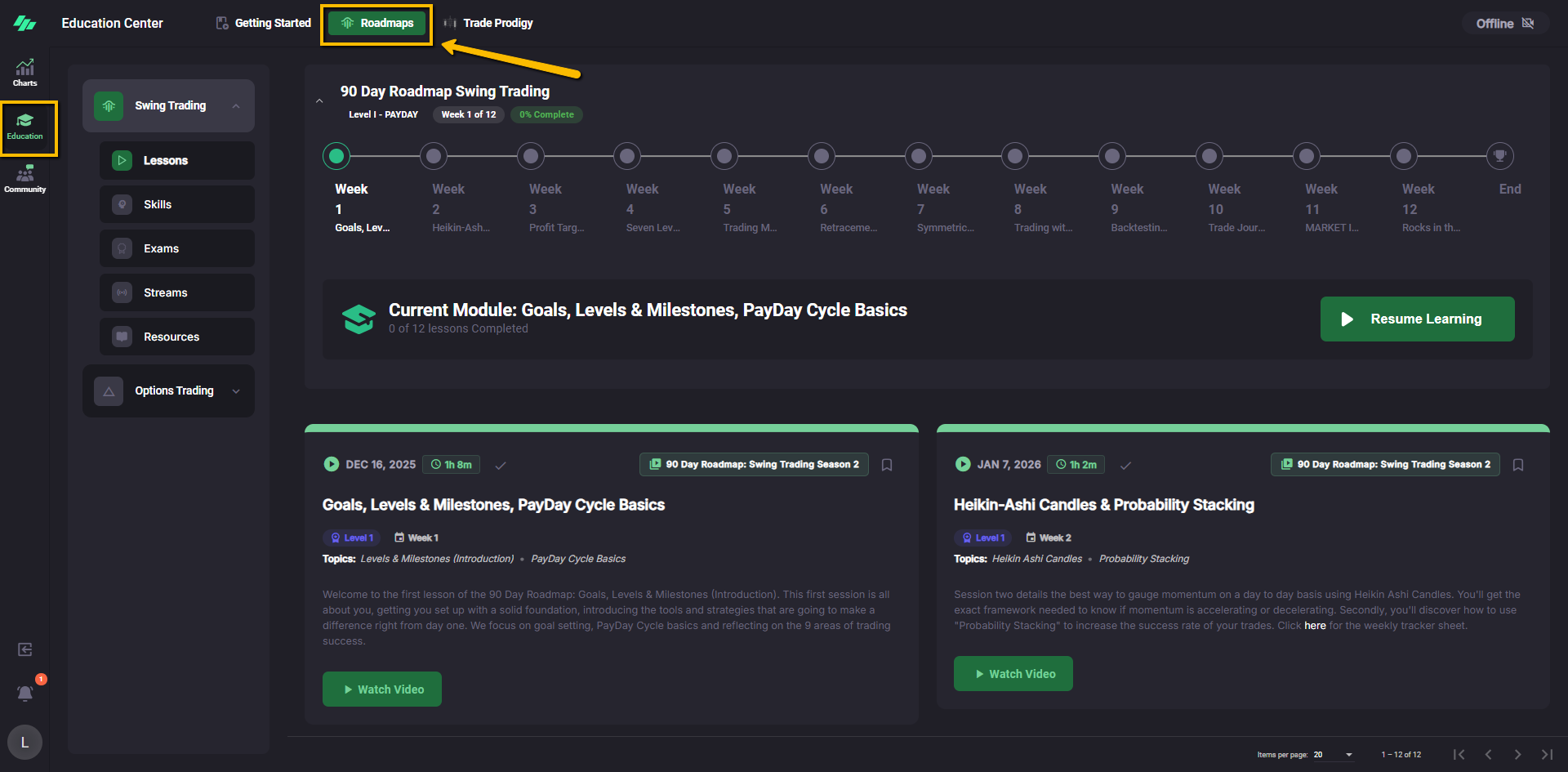
The Roadmaps area is also found inside the Education workspace. This is where users can access Roadmap programs and related educational material available through the platform.
Additional education and mentorship content
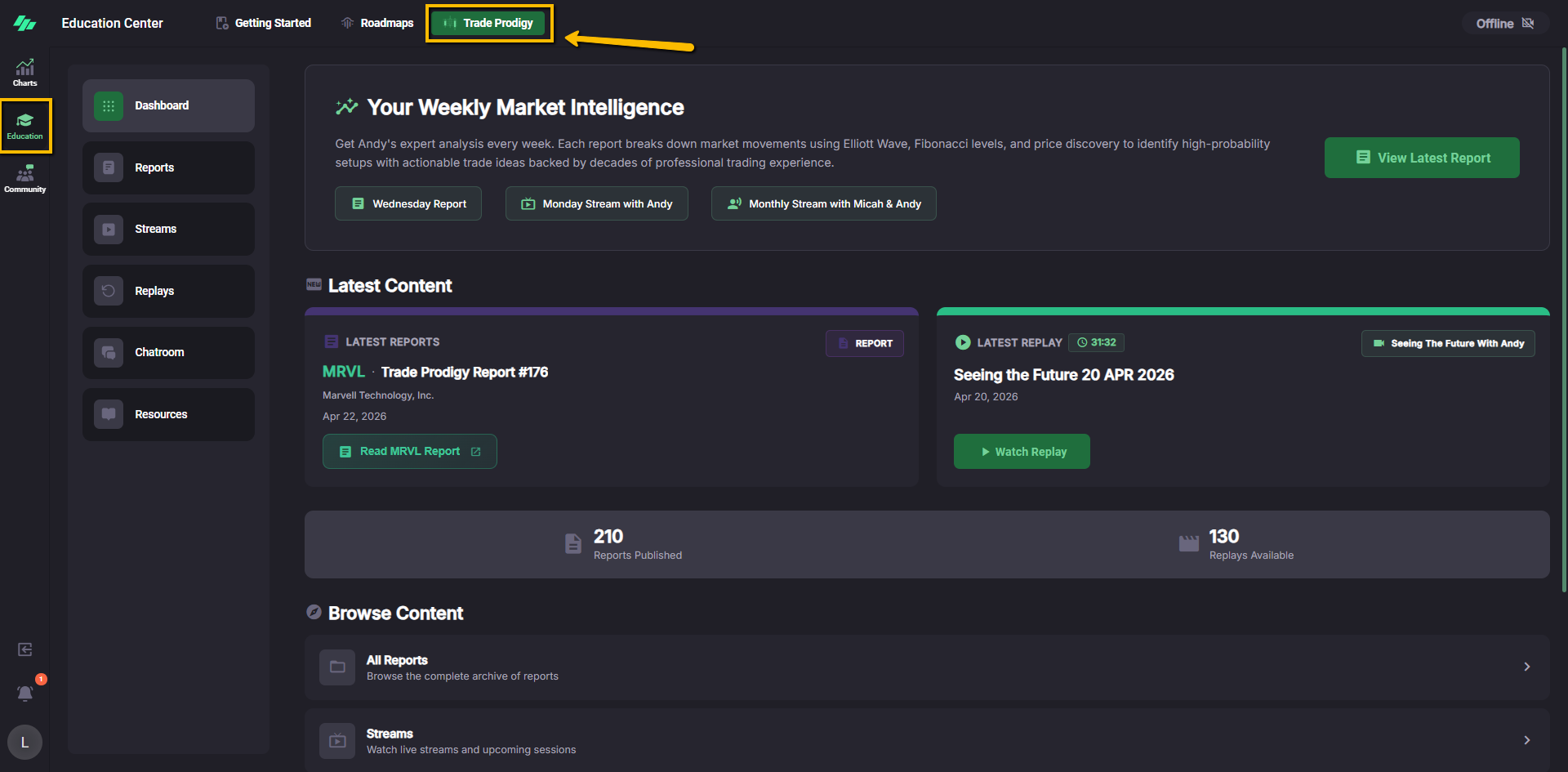
The Education workspace can also include additional learning offerings, such as mentorship programs and other educational content. For example, areas such as Trade Prodigy may appear here as part of the available education experience.
Community workspace
The Community workspace is where you access the platform’s live and interactive community features. This area brings together scheduled streams, replays, and other community spaces designed to help users stay connected to the broader WallStreet.io experience.
Live Streams
When you open Community, the workspace opens with the Live Streams section. This area includes the stream schedule, upcoming sessions, available streams, and replay access.
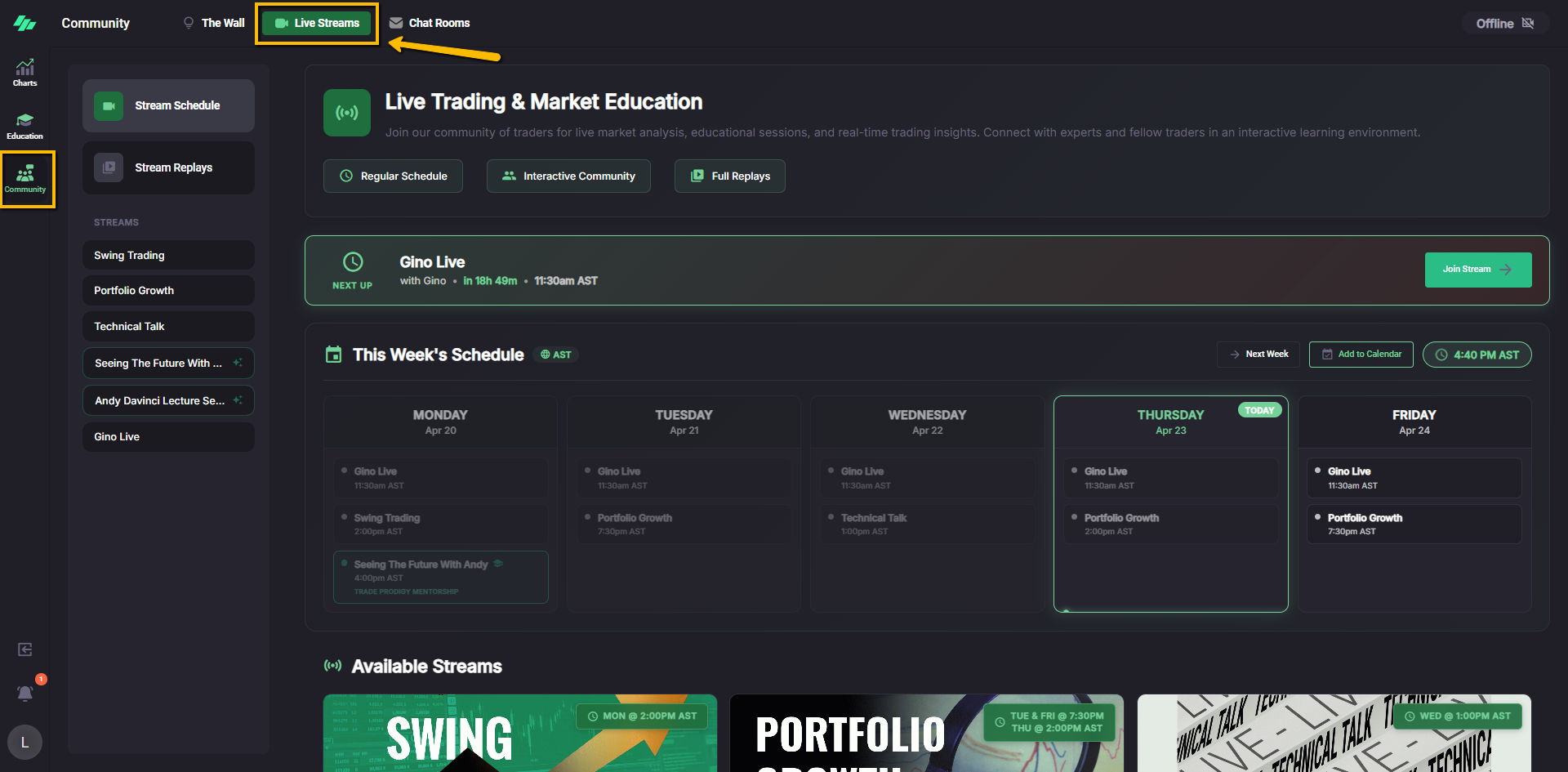
This section helps users see what is happening live, what is coming up next, and what content is available to watch again later.
Chat Rooms
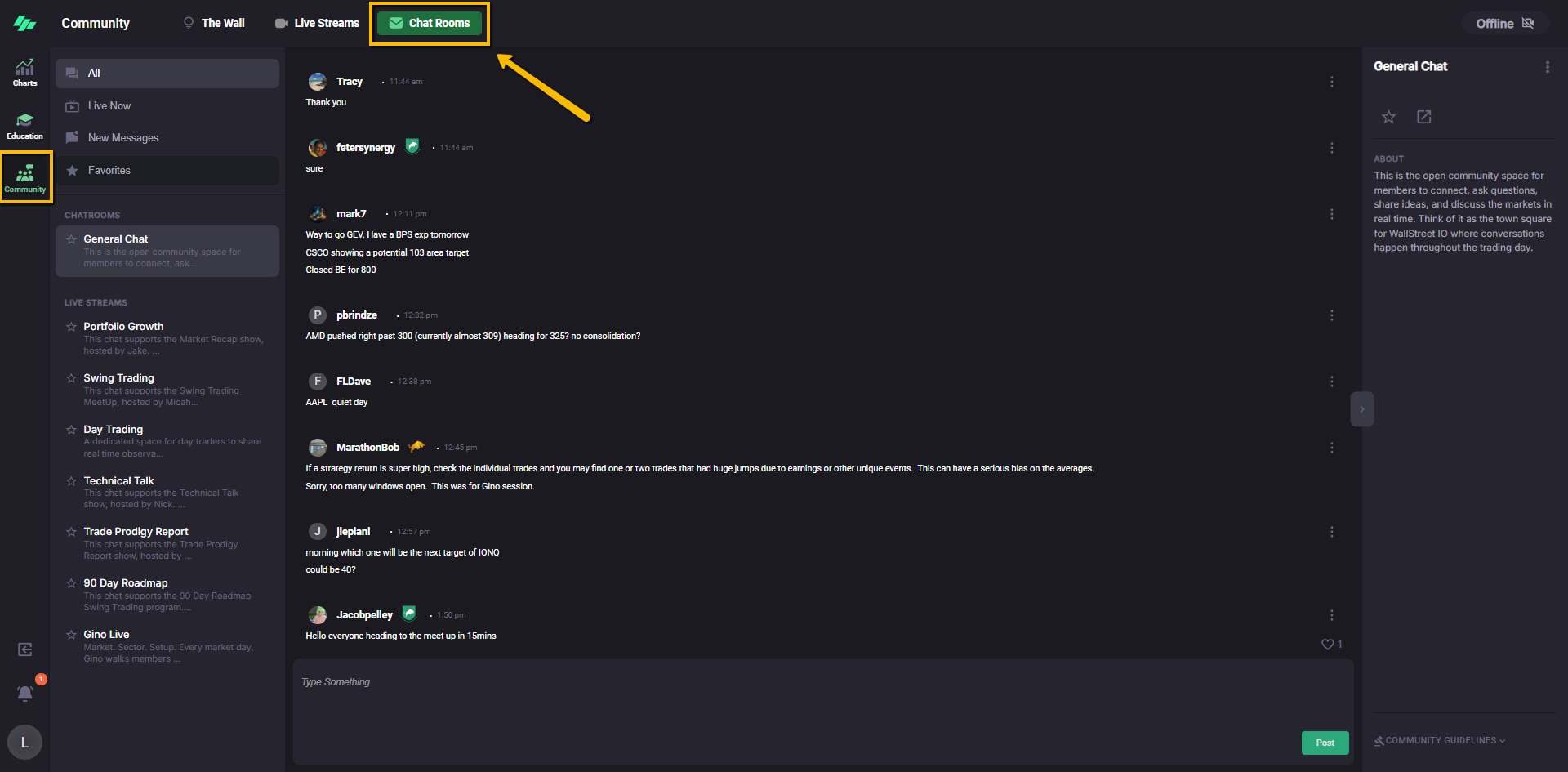
The Community workspace also includes Chat Rooms. This area is built for live discussion and member interaction around the platform experience and ongoing market conversations.
The Wall
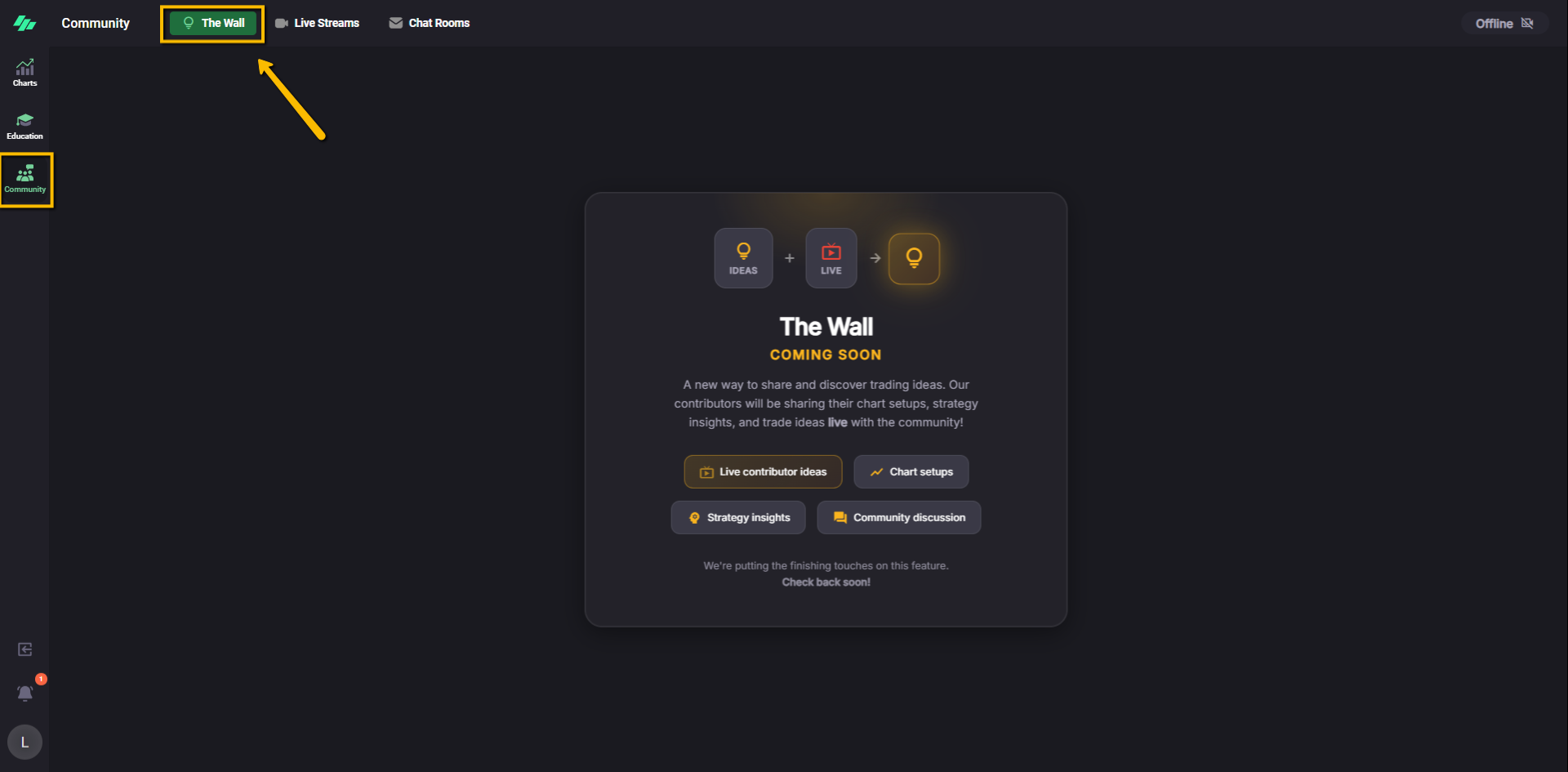
The Community workspace also includes The Wall. This is meant to be a new way to share and discover trading ideas. Our contributors will be sharing their chart setups, strategy insights, and trade ideas live with the community!
Profile Avatar menu
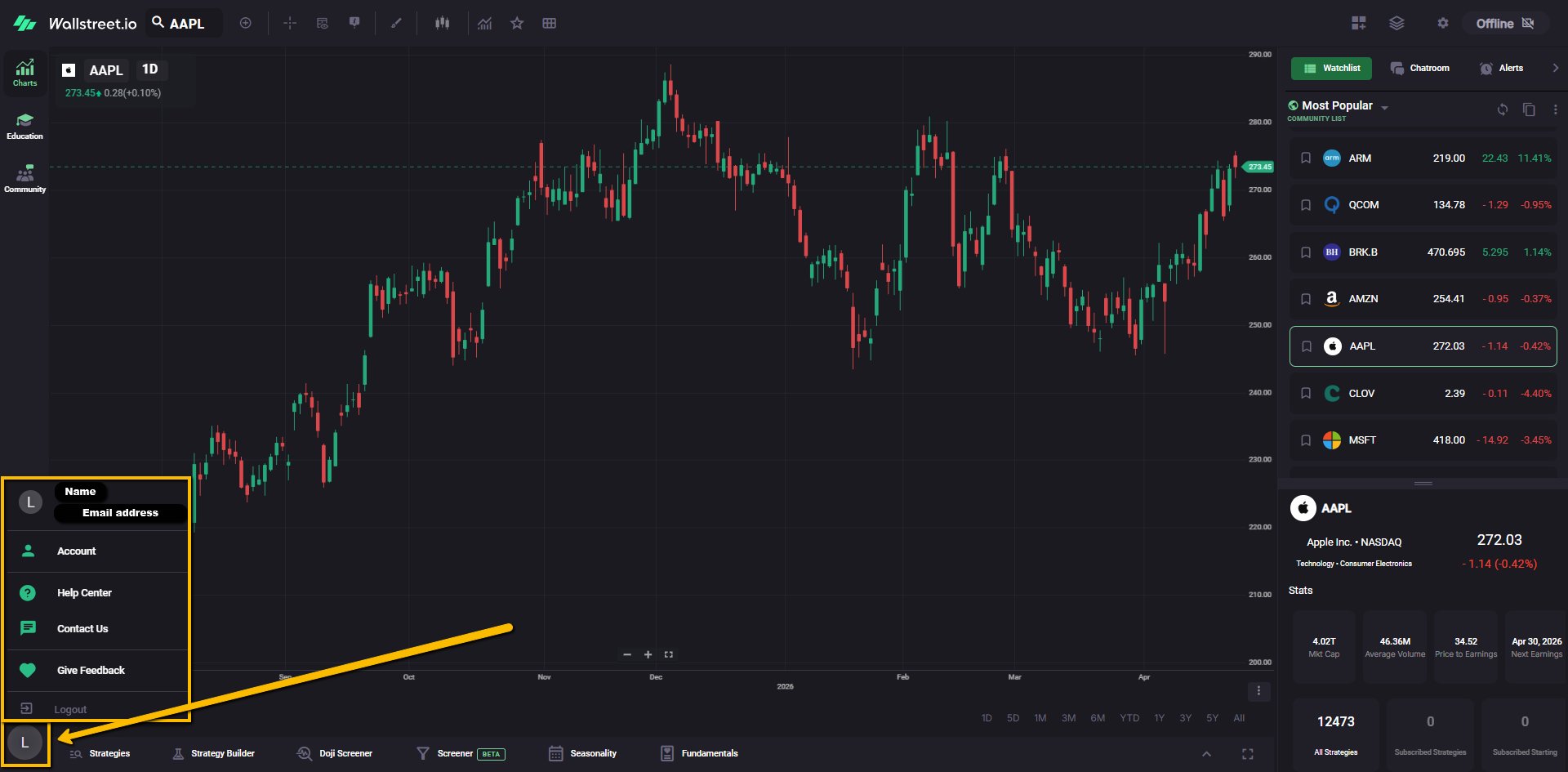
The Profile Avatar menu is the popup menu that appears when you click your profile avatar at the bottom-left side of the platform.
What the Profile Avatar menu is
This menu gives you quick access to account-related pages, support resources, and other user actions without leaving the main platform.
Menu options
Account page
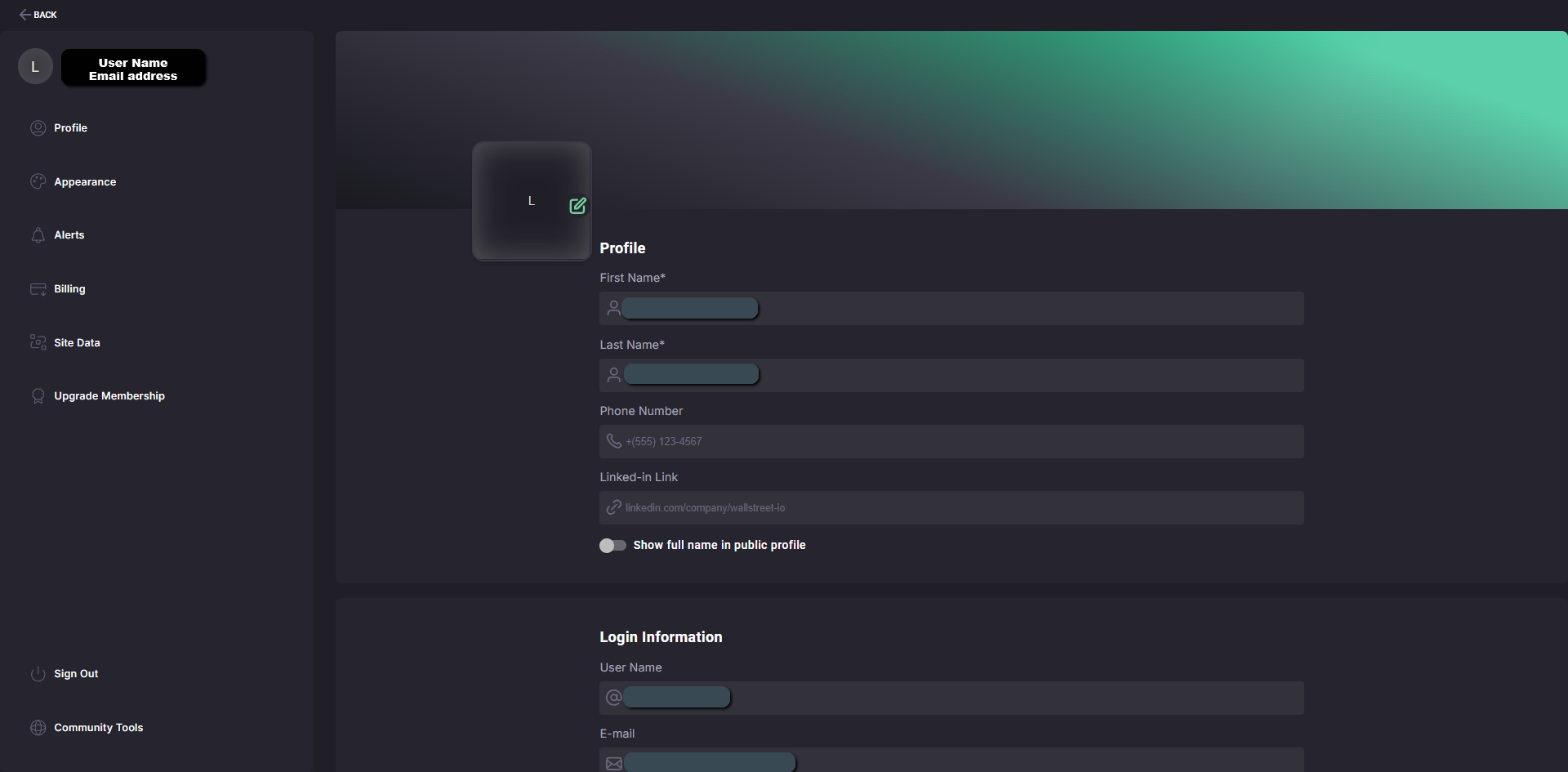
The Account page is where you manage your user settings and account-related information.