Layouts Complete Guide
What this helps you do
Layouts let you save and reload a full chart workspace, including your multi-chart grid setup, so you can return to the same monitoring view without rebuilding it each session.
This matters because a saved workspace reduces “setup drift.” When you can reliably return to the same grid and chart mix, it becomes easier to compare today’s price action against your usual context and avoid decisions based on a chart that is configured differently than you intended.
Overview
The Layouts feature is designed to save and manage multi-chart grid setups, and it also provides access to community-created layouts.
Layouts are workspace-level presets. They are meant to complement Indicator Sets (previously Views), which apply to a single chart.
Where Layouts live
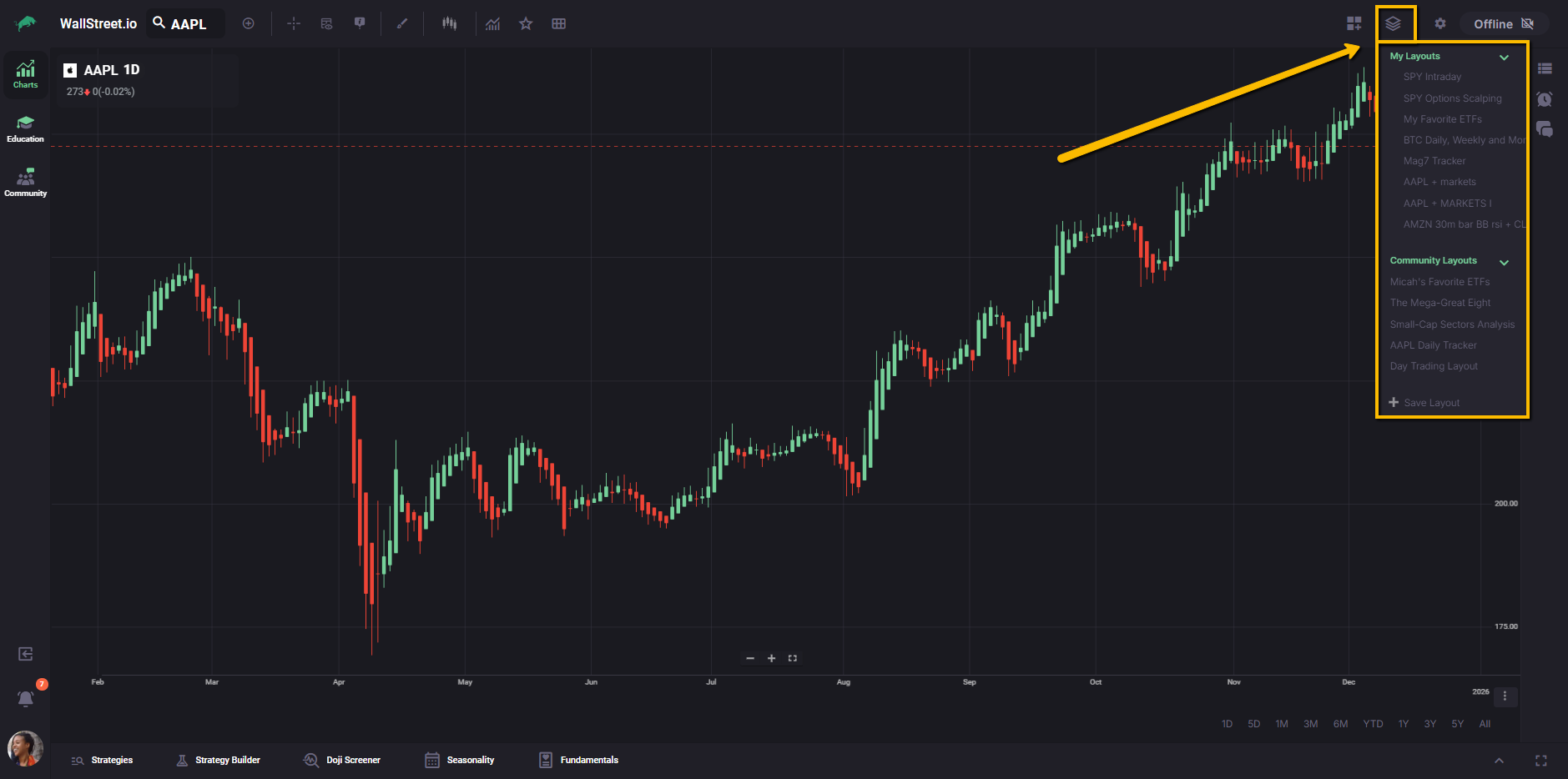
Layouts are accessed from the Layouts menu in the charting workspace (the stacked-squares icon), on the Chart Toolbar at the top right. The menu opens as a dropdown list of available layouts and layout actions.
Layout types
Layouts are grouped into two sections:
My Layouts
Your saved personal layouts, available for loading and management.
Community Layouts
Curated layouts created and maintained by contributors. Some community layouts may include features that are not available on the free Essential plan and may require an upgraded membership to fully access.
Save Layout
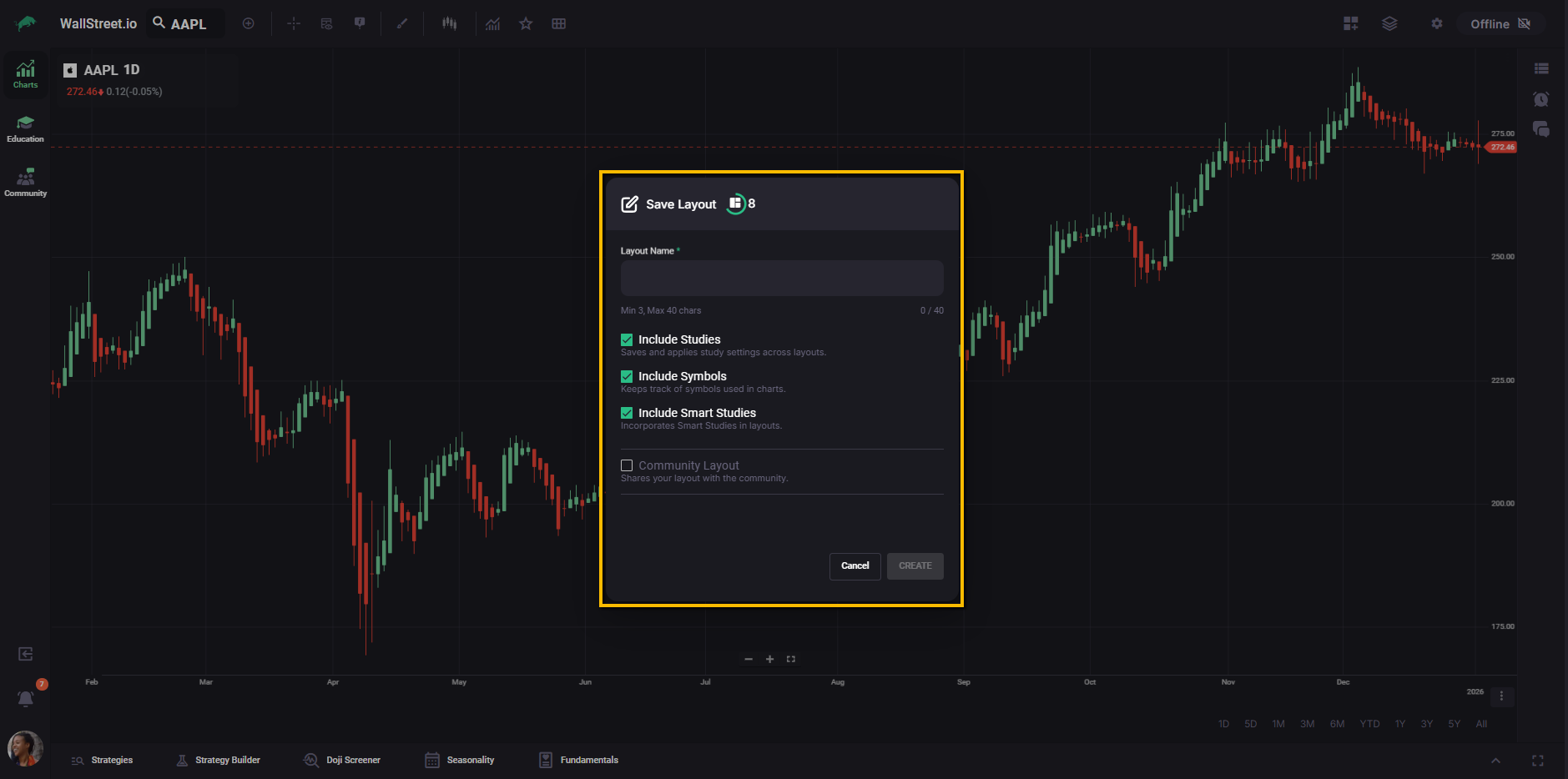
The Save Layout dialog captures a layout name and a set of options that control what the layout stores. Layouts support a name up to 40 characters.
Save options
Layouts include three save options that control the contents of the saved workspace:
| Option | What it includes in the layout |
| Include Studies | Technical studies and indicator settings applied across the workspace. |
| Include Symbols | The ticker symbols currently displayed in your charts. |
| Include Smart Studies | Smart Studies integrated into the layout. |
Layout actions
The Layouts dropdown includes actions used to manage a saved layout. (Exact labels may vary slightly by role and workspace state.)
Load a layout
Loads the selected layout’s saved workspace configuration.
Close Layout
Closes the currently loaded layout session state.
Copy Layout
Creates a copy of a layout so it can be customized independently.
Overwrite Layout
Updates an existing layout with your current workspace. Overwrite also supports renaming and re-selecting what the layout includes (Studies, Symbols, Smart Studies).
Delete Layout
Removes a saved layout from your list.
Community Layout behavior
Community layouts are moderated and updated by contributors. When a contributor publishes an update, the latest version can be reloaded by applying the community layout again.
Community layouts are designed to be view-only, meaning they cannot be edited or saved directly in place.
A community layout can be copied into My Layouts and then customized as a personal layout.
Layouts vs Indicator Sets (Views)
An Indicator Set (View) applies to the current chart and includes chart-specific studies or settings. A Layout encompasses multiple charts and their configurations as a broader workspace setup.